

 9 minutes read


GIFs are a cornerstone of Twitter culture, often serving as the perfect tool to react to jokes or express emotions that words alone can’t capture. Because a single animation can convey so much meaning, these clips spread across the platform instantly.
However, the catch is that Twitter doesn’t provide a built-in option to save them, leaving many users wondering how to download a GIF from Tweet directly to their device. In this article, we will show you simple ways to save GIFs on Windows, Mac, Android, and other devices using easy tools.

Part 1. How to Download GIF from a Tweet on PC and Mac?
1. SnapTwitter.io
SnapTwitter.io works directly in your browser, so you don’t need to install any software. In most cases, Twitter GIFs are actually stored as short videos, so SnapTwitter converts the tweet media and lets you download it easily. The interface is clean and beginner-friendly. Even if you have never used a tweet GIF downloader before, the process only takes a few clicks. It works on both Windows and Mac, and you can use it from any modern browser like Chrome, Edge, or Safari.
▼ Steps to Download GIF from a Tweet Using SnapTwitter
- Step 1: Open Twitter in your browser, find the tweet that contains the GIF, click the Share button, and copy the tweet link.
-
Step 2:
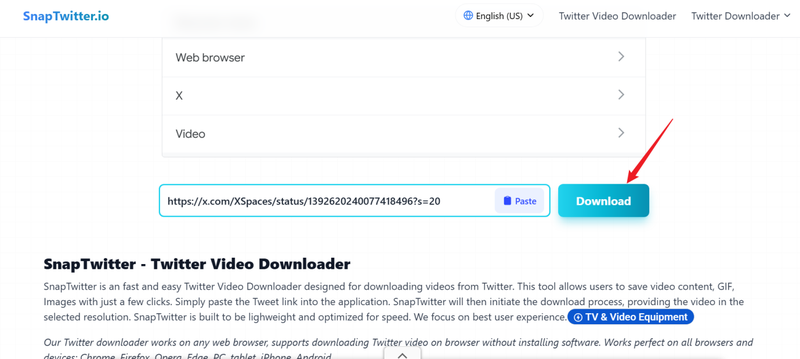
Go to the SnapTwitter.io website and paste the copied tweet link into the input box. Press the Download button and the tool will process the tweet media.
-
Step 3:
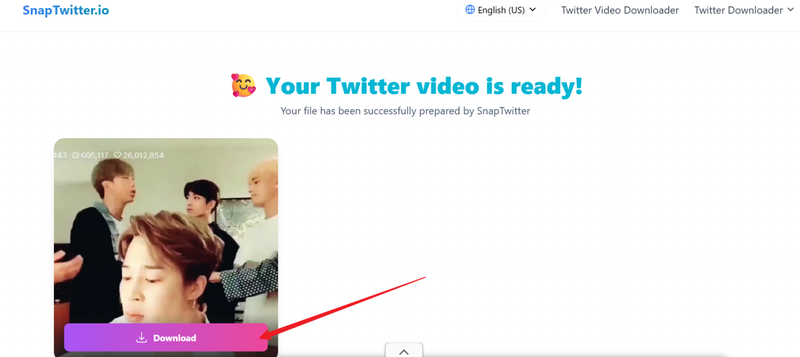
Choose the available download option and save the file to your computer.


2. Xnapper
Another helpful option for downloading tweet GIFs is Xnapper Twitter GIF Downloader. This tool is designed to extract media from tweets quickly and turn it into a downloadable file. Like most online tools, you don’t need to sign up or install anything. Xnapper is useful for people who want a fast and simple way to download tweet GIF content. It works well on PC, Mac, and even tablets, making it convenient if you often save Twitter media while browsing.
▼ Steps to Download GIF from a Tweet Using Xnapper
- Step 1: Open Twitter, find the tweet with the GIF, click the Share icon, and copy the link.
- Step 2: Open the Xnapper Twitter GIF downloader tool in your browser.
-
Step 3:
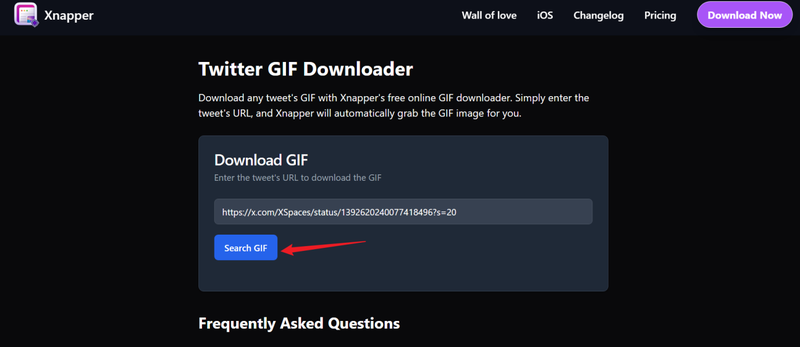
Paste the copied URL into the input box on the page and click Convert
Search GIF.
-
Step 4:
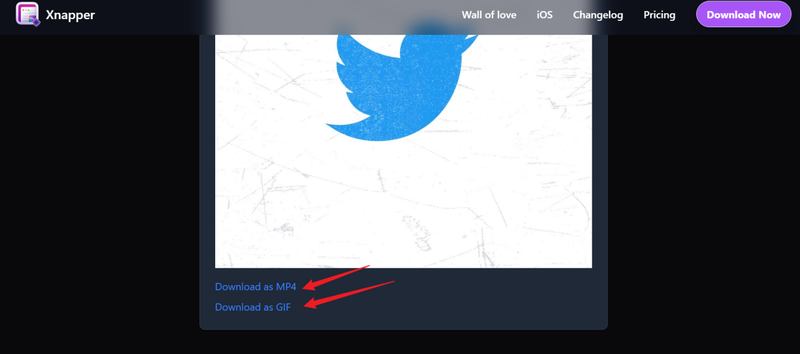
Click the
Download
button and save the GIF or video file to your device.


Part 2. How to Convert Tweet to GIF Using Chrome/Firefox Extension
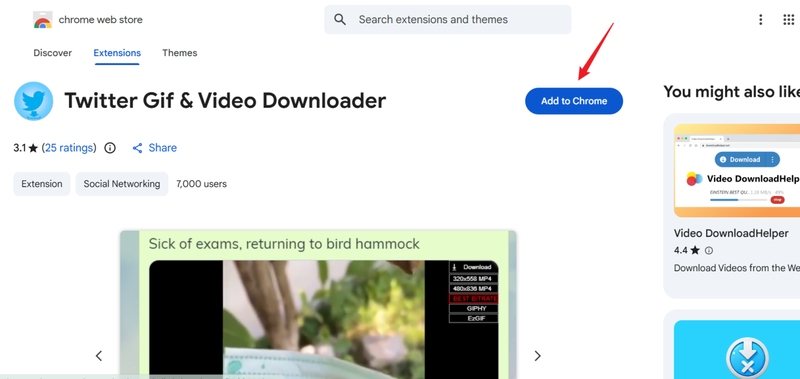
1. Twitter GIF & Video Downloader
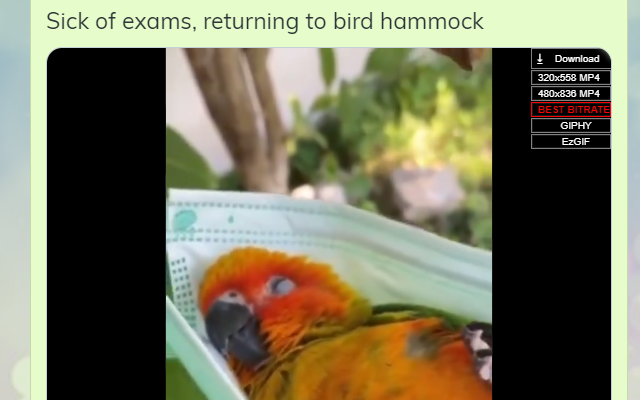
If you download GIFs from Twitter often, using a browser extension can save you a lot of time. One helpful option is Twitter GIF & Video Downloader, a Chrome extension that lets you download tweet media directly from the Twitter page. Instead of copying links and visiting different websites, the extension adds a download button below tweets that contain videos or GIFs. This makes the process much faster. When you see a GIF you like, you can download it with just one click.
▼ Steps to Download GIF from Tweet Using the Extension
-
Step 1:
Go to the Chrome Web Store and install
Twitter GIF & Video Downloader
in your browser.
- Step 2: Visit Twitter and find the tweet that contains the GIF or video you want to download.
-
Step 3:
After installing the extension, a
download button
will appear below the tweet.
- Step 4: Click the button and choose the download option to save the file to your computer.


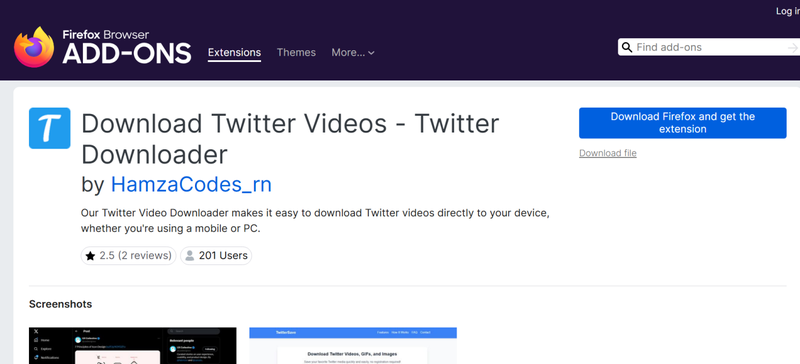
2. Download Twitter Videos – Twitter Downloader
Another useful browser tool is Download Twitter Videos – Twitter Downloader. This extension works in a similar way by adding a download option directly on tweets that contain videos or GIFs. Once installed, you don’t need to copy links or open extra websites. Everything happens inside the Twitter page. It detects the media automatically and gives you quick download options. Because it works inside the browser, it is a convenient solution for downloading tweet GIF content while browsing Twitter normally.
▼ Steps to Download GIF from Tweet Using the Extension
-
Step 1:
Open your browser extension store and install
Download Twitter Videos – Twitter Downloader.
- Step 2: Go to Twitter and find the tweet that contains the GIF or video you want.
-
Step 3:
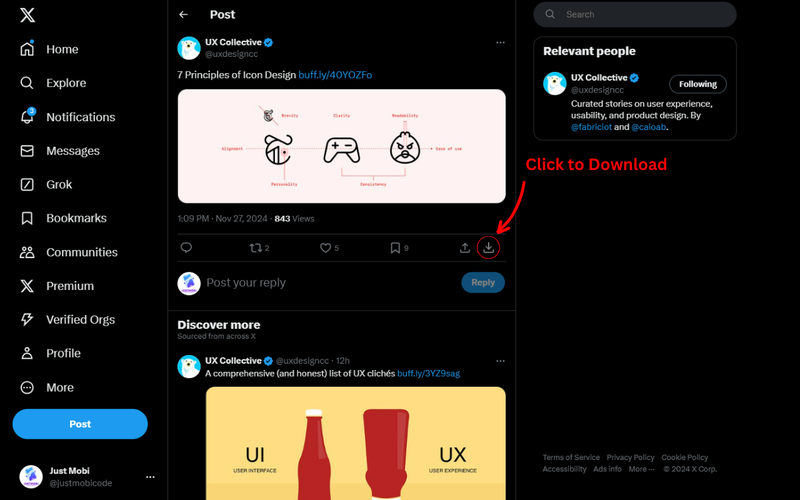
The extension will add a
download icon
below the tweet media.
- Step 4: Click the icon and save the GIF or video file to your device.


Extra Tip. How to Download Videos from Twitter with FliFlik UltConv
Sometimes you may not only want the GIF from a tweet. You might also want to download the original videos from Twitter to save, edit, or share them with higher quality elsewhere. FliFlik UltConv Video Downloader detects the video automatically and lets you save video to your computer in formats like MP4. This means you can keep the video permanently instead of relying on the Twitter platform to watch it.
UltConv supports downloading media from more than 10,000 websites like YouTube, Netflix, TikTok, not just Twitter. It also supports high‑quality downloads, letting users save videos in resolutions like 1080p, 2K, or even 4K. If you want to download multiple videos, the batch download feature allows you to save several files at once, which makes the process faster and more convenient.

- Download videos from 10,000+ websites, including Twitter
- Save videos in 720p, 1080p, 2K, 4K, and 8K quality
- Convert videos to MP4, MP3, and 100+ formats
- Batch download multiple videos at once
- Built‑in browser for easier searching and downloading
- Convert video to audio without losing quality
- Remove DRM from Spotify and Apple Music
▼ Steps to Download a Twitter Video with FliFlik UltConv Video Downloader
Before starting, download FliFlik UltConv Video Downloader from its official website and install it on your computer. After the installation is complete, open the program and follow the steps below.
 Secure Download
Secure Download
Secure Download
-
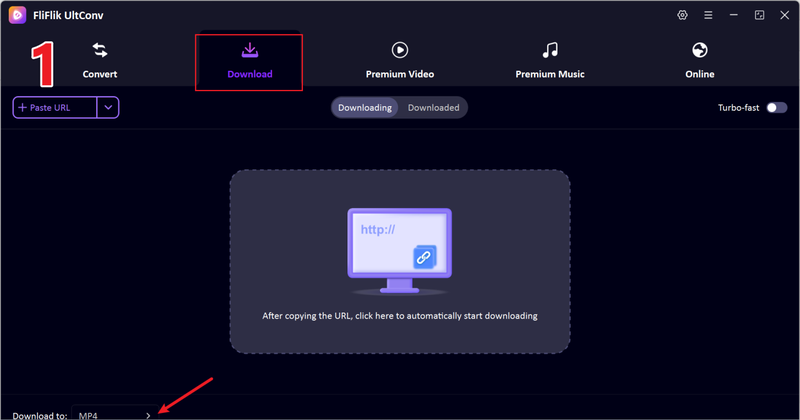
Launch UltConv on your computer and switch to the Download tab. Click the “Download To” option to choose where you want the file to be saved and set the output format.
-
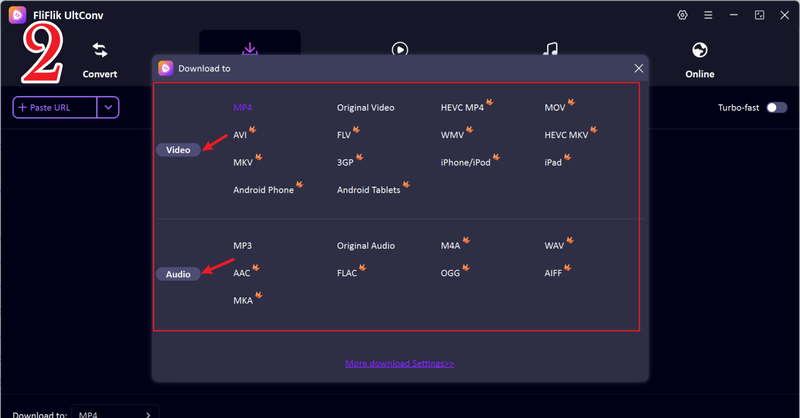
Select the format for the downloaded Twitter video. In most cases, MP4 is the best choice because it works on almost all devices and media players.
-
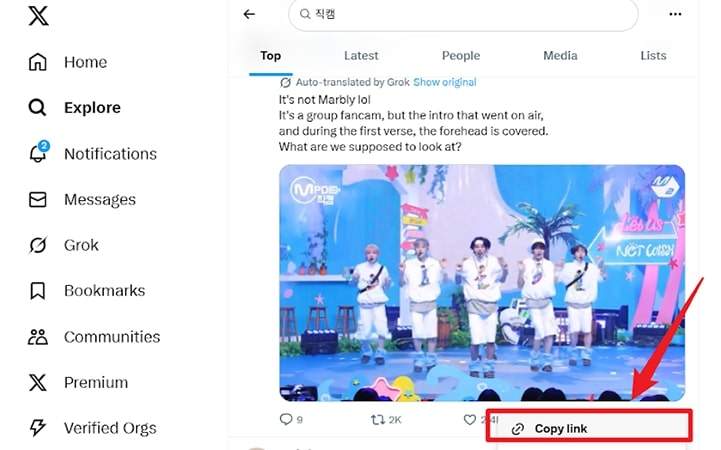
Open Twitter in your browser, locate the tweet that contains the video, and copy the tweet link using the Share button or the address bar.
-
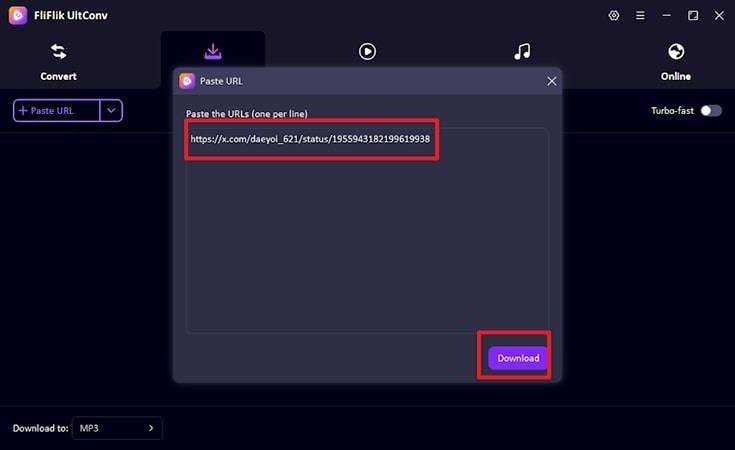
Back to ultrconv, it usually automatically detects the copied links on your clipboard. After confirming that the links in the pop-up are correct, click the ‘download’ button.
-
By this point, the download has already begun, and you just need to wait a moment to watch the downloaded video offline in the ‘downloaded’ section.



FAQs
Q1. How to get a GIF from a tweet?
To download a GIF from a tweet, simply copy the link and paste it into FliFlik UltConv. This tool will quickly save the media file to your device as a GIF or video, allowing you to share or edit it instantly.
Q2. Can I download a private video from Twitter?
Videos are typically not downloadable from private or protected tweets. Because these tweets are only visible to authorized followers, most download tools cannot access the media content. The best way to obtain the video is to ask the account owner to share it directly with you.
Conclusion
Whether you use an online downloader or a browser extension, you can copy a tweet link and let the tool save the interesting GIF to your local drive for easy sharing with friends.
However, if you also want to download high-quality Twitter videos, FliFlik UltConv Video Downloader is a great option. It allows you to batch download videos directly from over 1000 websites, including Twitter, and supports one-click format conversion while ensuring the original video quality is not compromised.
Secure Download
Secure Download
Hello, I research and introduce useful solutions for AI videos, images, and audio tips in our daily life. If you learn these things, you can easily deal with the problems of the new era.

