

 8 minutes read


Subtitles do more than just translate words on a screen. They help you follow fast conversations, understand different accents, learn new languages, and even make videos accessible in noisy places or quiet rooms. For creators, students, and researchers, subtitles are often just as important as the video itself.
That’s why tools like DownSub have become so popular. In this article, we’ll walk through what DownSub is and how it works, show you step-by-step how to download YouTube subtitles, and then explore stronger alternatives when DownSub isn’t available or simply doesn’t meet your needs.

Part 1. What is DownSub?

DownSub is a web-based tool designed to help users download subtitles directly from videos on platforms like YouTube. There’s no software to install and no account required. You simply paste a video link, and DownSub extracts the available captions for you to save.
People usually turn to DownSub when they want subtitle files for studying, translating content, creating transcripts, or watching videos offline with captions. Because everything runs in your browser, it feels quick and lightweight. That convenience is its biggest strength.
- Download subtitles from YouTube and several other video platforms
- Supports common subtitle formats like SRT and TXT
- No installation or registration required
- Works directly in your web browser
- Allows language selection when multiple subtitles are available
- Free to use (ad-supported)
Part 2. How to Use DownSub to Download YouTube Subtitles?
Using DownSub is pretty straightforward. Since it’s a browser-based tool, there’s nothing to install. You just copy a video link from YouTube, paste it into DownSub, and download the available subtitle file in your preferred language and format. It’s designed for quick caption extraction, not advanced subtitle editing or batch downloads.
-
Step 1: First, open YouTube and find the video whose subtitles you want. Copy the video URL from your browser’s address bar.
-
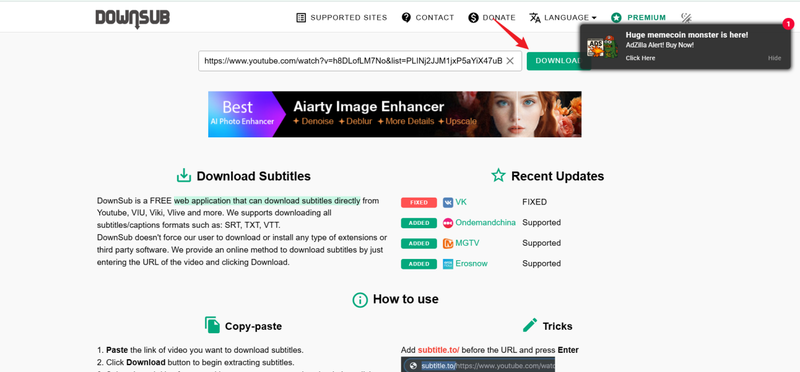
Step 2: Next, go to the DownSub website and paste the copied link into the input box on the homepage. Then click the Download button.
-
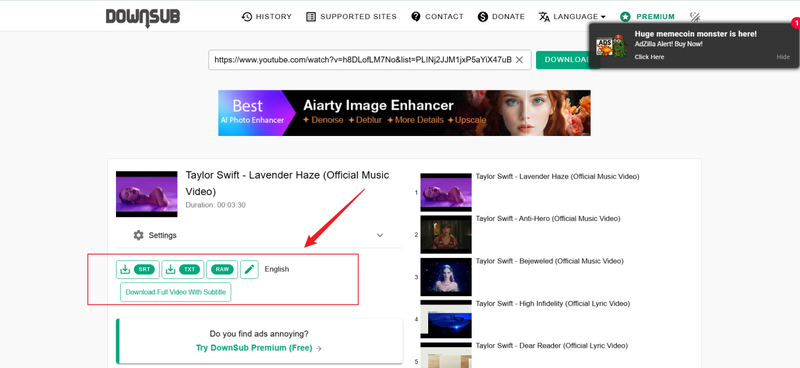
Step 3: DownSub will analyze the video and display a list of available subtitle languages and formats. Choose the language you need, then click the download option (usually SRT or TXT). Once you click the format, the subtitle file will be saved directly to your device.


Extra Tip. 3 Best DownSub Alternatives for Downloading Subtitles
Tools like DownSub, which are free online, frequently encounter downtime and timeout errors. If you need a reliable and foolproof subtitle download method, consider a stronger alternative. The following three tools can make up for this shortcoming.
1. FliFlik UltConv Video Downloader
FliFlik UltConv Video Downloader is a powerful desktop download tool that supports YouTube and over 10,000 other websites. Through a single workflow, you can access 4K videos, extract lossless audio, and download complete playlists along with their subtitles. Unlike feature-limited web tools, it offers full control over output formats and batch processing capabilities, keeping your repository organized locally.
It completely eliminates the “browser chaos” caused by ad interference, page redirects, and server timeouts. Tailored for users seeking quality and speed, UltConv offers stability that single-page downloaders lack.

- Download videos and subtitles from 10,000+ sites, including YouTube
- Batch download videos and music to MP4, MP3, and over 100+ formats.
- Download playlists, channels, and multiple files at once
- Save subtitles and video in high quality (up to 4K)
- Convert video to audio and download captions with metadata
- Built‑in browser and fast download speeds
▼ How to Download YouTube Videos to MP4 with FliFlik UltConv Video Downloader?
Saving videos from YouTube as MP4 files is easy with FliFlik UltConv. Once the software is installed on your Windows or Mac computer, the whole process only takes a few minutes.
 Secure Download
Secure Download
Secure Download
-
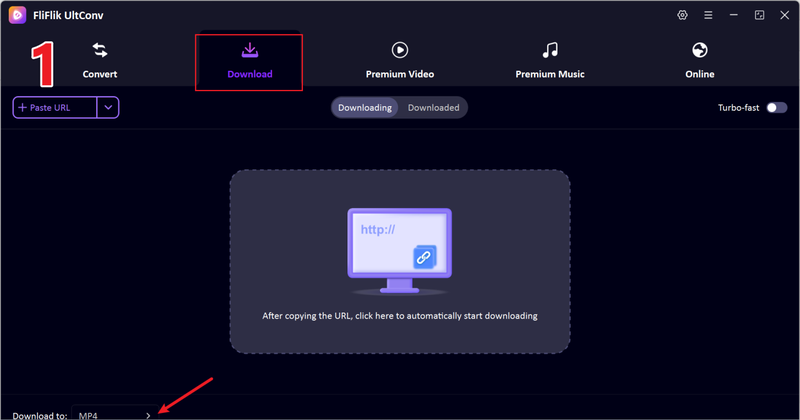
Start by opening UltConv and going to the Download section. At the bottom of the interface, click Download to button to set your preferred output format.
-
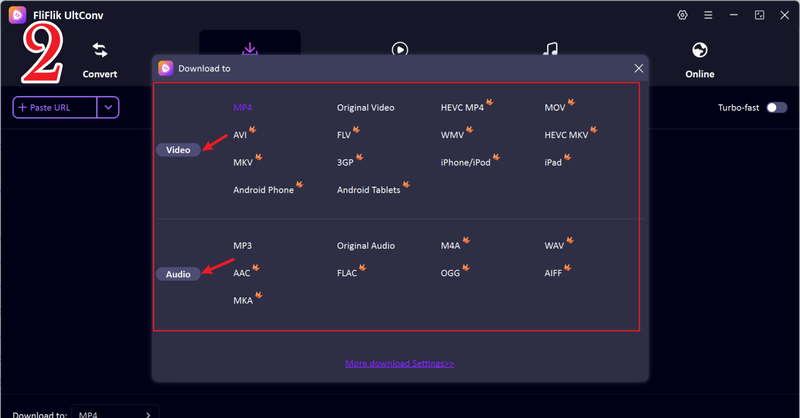
After that, select MP4 from the format list.
-
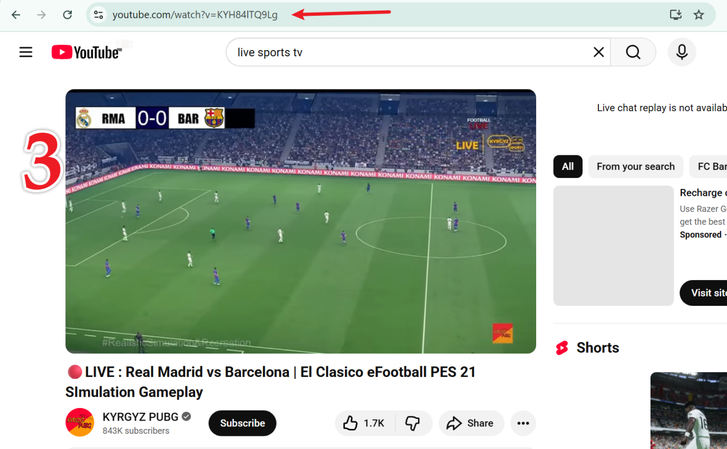
Next, open YouTube in your browser, locate the video you want, and copy its URL from the address bar.
-
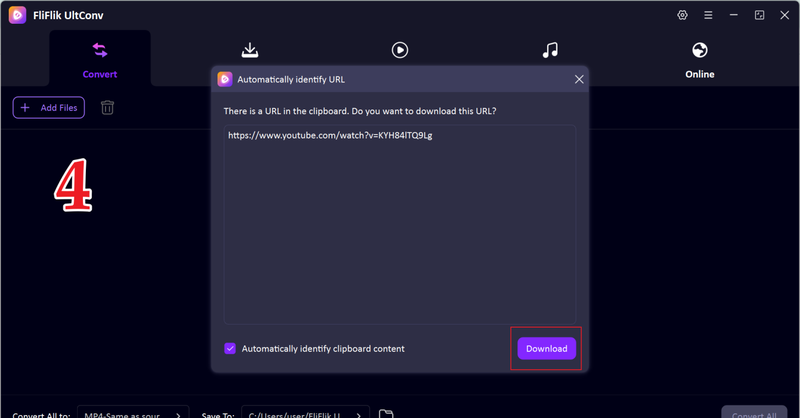
Switch back to UltConv. In most cases, the program will automatically recognize the copied link. When it appears, click Download to continue.
-
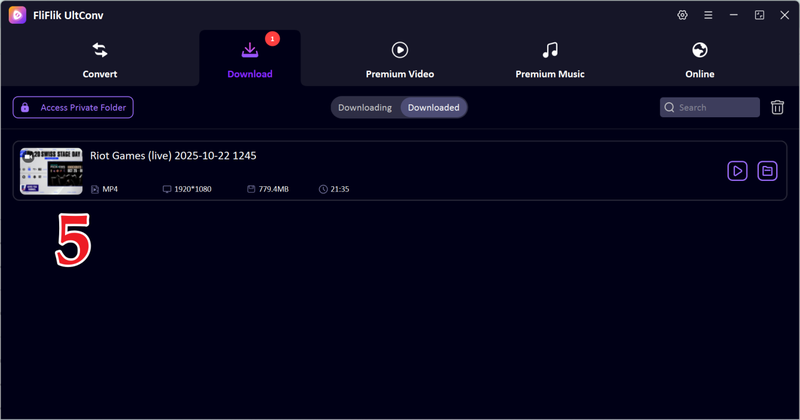
The download will begin right away. Once completed, your MP4 file will be stored on your device, ready to watch offline without ads, buffering, or interruptions.


2. Moviesubtitles.org

Moviesubtitles.org is a website dedicated to providing subtitle files for movies and TV shows. Unlike video downloaders, this platform caters to users who already possess video files but require accurate subtitles in various languages. It boasts an extensive library of user-contributed subtitles, covering genres ranging from mainstream blockbusters to niche productions.
It functions more as an SRT subtitle search engine than a link converter. Simply search for a specific title, select your language, and download the subtitle file to your locally stored media file. For users of media players that support external subtitle tracks, it serves as an ideal resource.
- Free and requires no registration
- Supports multiple subtitle languages when available
- Works directly in a browser
- Can be slow or unavailable at times
- No batch downloads or advanced subtitle controls
3. Savesubs

SaveSubs is another online option for downloading subtitles from YouTube and similar platforms. It doesn’t require software installation, making it easy to access from any device with a browser. Paste the video link, choose a subtitle language, and download the file in common formats such as SRT.
Savesubs is usually chosen for simple, one-off subtitle downloads. It keeps things minimal and focuses only on captions rather than full video downloads. While that simplicity can be helpful, it also means fewer features overall.
- Simple browser-based interface
- Supports multiple subtitle languages
- No account or setup required
- Limited features beyond basic subtitle downloads
- Ads and occasional reliability issues
FAQs
Q1. Is DownSub safe to use?
DownSub is generally safe for basic subtitle downloads as long as you stick to the official site and avoid clicking ads or pop‑ups. It doesn’t require account registration or software installation, which lowers risk.
Q2. Can I download subtitles from YouTube videos?
Yes. If subtitles are available on a video from YouTube, you can download them using tools like DownSub or Savesubs. These services let you save captions in formats such as SRT or TXT.
Conclusion
Although browser tools like DownSub can handle one-time tasks, they often suffer from annoying ads, server outages, and a lack of batch processing capabilities. FliFlik UltConv Video Downloader offers a professional desktop alternative with 4K graphics, playlist downloads, and stability that web tools cannot match. For any user who wants full control over video and subtitle downloads, it is a faster and more reliable choice.
Secure Download
Secure Download
Hello, I research and introduce useful solutions for AI videos, images, and audio tips in our daily life. If you learn these things, you can easily deal with the problems of the new era.

