

 7 minutes read


Can you switch your Apple Music playlists over to Spotify? Absolutely. It’s way simpler than most people expect. You don’t have to pick songs one at a time or mess around with complicated steps. With the right tools, you can move everything at once: songs, the playlist order, even those massive collections.
In this article, we will walk you through how to convert Apple Music playlist to Spotify step by step. We’ll start with browser-based tools that work without installation. Then we’ll look at iPhone apps if you prefer doing it on your phone. Let’s find the option that will work best for you.

- Method 1. How to Convert Apple Music Playlist to Spotify via Browser (No App Required)
- Method 2. How to Transfer Apple Music Playlist to Spotify Using iPhone Apps
- Comparison: What is the Best Apple Music Playlist to Spotify Converter
- Pro Tip. How to Download Playlists from Spotify/Apple Music on Windows & Mac
- FAQs
- Conclusion
Content Table:
Method 1. How to Convert Apple Music Playlist to Spotify via Browser (No App Required)
If you don’t want to install anything, browser-based tools are the easiest place to start. You open a website, connect your Apple Music and Spotify accounts, choose a playlist, and let the tool do the matching. This approach works well for quick transfers, especially if you’re moving playlists once or only occasionally. Below are three browser tools that people commonly use to transfer playlists between Apple Music and Spotify, each with its own strengths and limits.
1. Soundiiz

Soundiiz is a browser based playlist management tool that supports many music platforms, including Apple Music and Spotify. It’s often used by people who move playlists between services more than once, not just for a single transfer. You connect your accounts, select a playlist, and Soundiiz handles the matching in the background. It also gives you visibility into which tracks matched correctly and which didn’t, which is helpful for larger playlists. The interface looks slightly technical at first, but once you understand the flow, it’s quite reliable for accurate transfers.
- Supports many streaming platforms
- Good control over playlist transfers
- Detailed track matching feedback
- Free version has limits
- Interface can feel complex for beginners
2. Playlistor

Playlistor is a lightweight web tool designed for quick playlist transfers from Apple Music to Spotify. It focuses on speed and simplicity rather than advanced controls. You log in, select your playlist, and start the transfer with minimal setup. Playlistor works best for common playlists with popular tracks, making it a practical option for users who just want their music moved without extra steps. It’s especially useful if you’re doing a one-time transfer and don’t want to deal with detailed settings or reviews.
- Very easy to use
- Fast playlist transfers
- No software installation required
- Limited customization options
- Less accurate with niche or rare tracks
3. Tune My Music

Tune My Music is a browser-based tool that supports many music platforms, not just Apple Music and Spotify. You can transfer playlists using links or by connecting your accounts directly. It gives you a preview before the transfer starts, which helps catch issues early. While it offers paid plans, the free version is enough for small to medium playlists and casual users.
- Supports many music services
- Preview before transferring
- Works on any device
- Free version has track limits
- Ads can feel distracting
Method 2. How to Transfer Apple Music Playlist to Spotify Using iPhone Apps
If you prefer handling everything on your phone, iPhone apps make the process feel more natural. You sign in, pick a playlist, and let the app run in the background. These tools are better for regular transfers or syncing playlists over time. Below are three iPhone apps commonly used to move playlists from Apple Music to Spotify.
1. SongShift

SongShift is one of the most established playlist transfer apps on iOS. It connects directly to Apple Music and Spotify, then guides you through selecting and transferring playlists. The app focuses on accuracy, giving you the chance to review matches before they’re added to Spotify. It works well for both small and large playlists, especially if you care about keeping song order intact.
- Accurate track matching
- Clean, guided interface
- Handles large playlists well
- Free version has limitations
- Some features require a subscription
2. Playlisty

Playlisty is built specifically for Apple Music users who want fast transfers to Spotify. It skips extra steps and focuses on speed. Once you connect your accounts, playlist transfers start almost immediately. Playlisty works best with popular songs and standard playlists, making it a good choice if you value speed over detailed control.
- Very fast transfers
- Simple setup process
- Designed for Apple Music users
- Limited customization options
- Not ideal for rare or local tracks
3. Free Your Music

Free Your Music is a cross platform app that supports playlist transfers across many streaming services. On the iPhone, it offers a clean layout and clear instructions. You select your source and destination platforms, choose playlists, and start the transfer. It’s a solid option if you move music between services often, not just Apple Music and Spotify.
- Supports multiple music platforms
- Easy to use interface
- Works on different devices
- Free version has transfer limits
- Full features require payment
Comparison: What is the Best Apple Music Playlist to Spotify Converter
Each tool we’ve covered gets the job done, but they don’t all work the same way. Some focus on speed, others on accuracy, and a few are better if you transfer playlists often. The table below compares all six options side by side, so you can quickly see which one fits your habits and expectations.
| Tool Name | Platform | Ad-Free | Cost (Free Version) | Transfer Speed | Batch Transfer | Best For |
|---|---|---|---|---|---|---|
| Soundiiz | Browser | Yes | Limited | Medium | Yes | Frequent and controlled playlist transfers |
| Playlistor | Browser | Yes | Limited | Fast | No | Simple one-time playlist moves |
| Tune My Music | Browser | No | Limited | Medium | Yes | Transfers across many platforms |
| SongShift (iOS) | iPhone | Yes | Limited | Medium | Yes | Large playlists on iPhone |
| Playlisty | iPhone | Yes | Limited | Fast | Yes | Fast Apple Music to Spotify transfers |
| Free Your Music | iPhone, Desktop | No | Limited | Medium | Yes | Users switching between multiple services |
If you transfer playlists often and want visibility into song matching, Soundiiz is the most flexible choice. For quick, no-frills transfers, Playlistor gets the job done fast. Mobile users may prefer SongShift or Playlisty, while Free Your Music and Tune My Music are better suited for people juggling multiple streaming platforms.
Pro Tip. How to Download Playlists from Spotify/Apple Music on Windows & Mac
Transferring playlists is great. But sometimes you want actual music files you can keep, back up, or play anywhere without relying on an app. That’s where a desktop tool like FliFlik UltConv Spotify Converter comes in. It’s not for playlist transfer between services. It’s for downloading and saving music locally, which solves a different problem many users run into later.
When it comes to downloading, UltConv Spotify Converter focuses on control and efficiency. It supports 10,000+ streaming platforms, including Spotify, Apple Music, Deezer, SoundCloud, TIDAL, and others. You can download entire Spotify playlists, albums, or artist collections in one click instead of saving tracks one by one. Audio quality goes up to 320 kbps for MP3, with support for multiple formats like MP3, M4A, WAV, AAC, FLAC, and more. All ID3 tags are preserved automatically, including song title, artist name, album, and cover art, so your files stay organized the moment they’re saved.

- Download Spotify songs, playlists, albums, artists, podcasts, and audiobooks
- One-click batch downloading for full playlists and albums
- Convert Spotify music to MP3, M4A, WAV, AAC, FLAC, AIFF, and other formats
- High-quality output up to 320 kbps with lossless audio support
- Keep full ID3 tags and metadata for easy music organization
- Works without a Spotify Premium account
- Supports multiple platforms, including Spotify, Apple Music, Deezer, SoundCloud, TIDAL, and more
▼ Download Spotify Songs with UltConv Spotify Music Converter:
-
Download and install UltConv Spotify Music Converter on your Windows or Mac computer. Once it’s installed, open the program to get started.
FREE DOWNLOAD![secure download]() Secure Download
FREE DOWNLOAD
Secure Download
FREE DOWNLOAD![secure download]() Secure Download
Secure Download
-
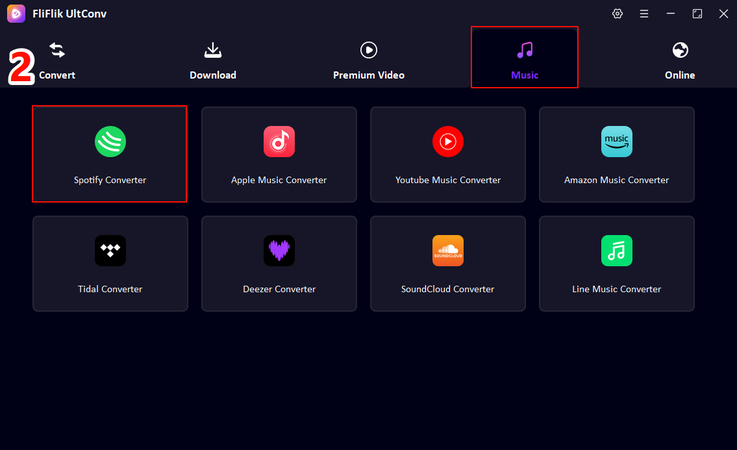
Inside UltConv, go to the Premium Music section and select Spotify Music Converter.
-
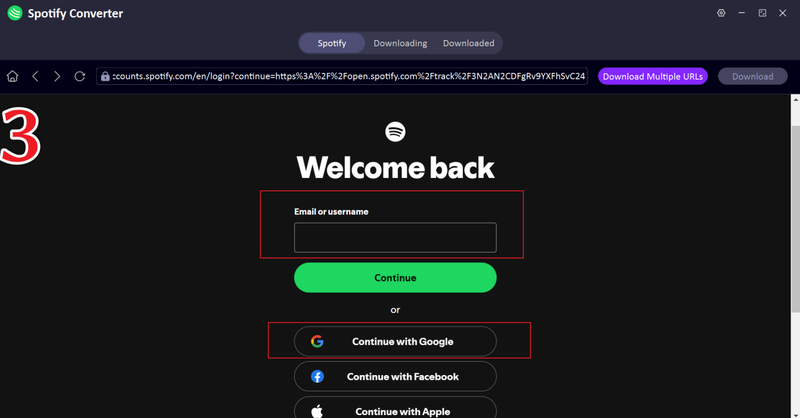
Sign in to your Spotify account directly within UltConv. You don’t need a Premium subscription; free accounts work just fine.
-
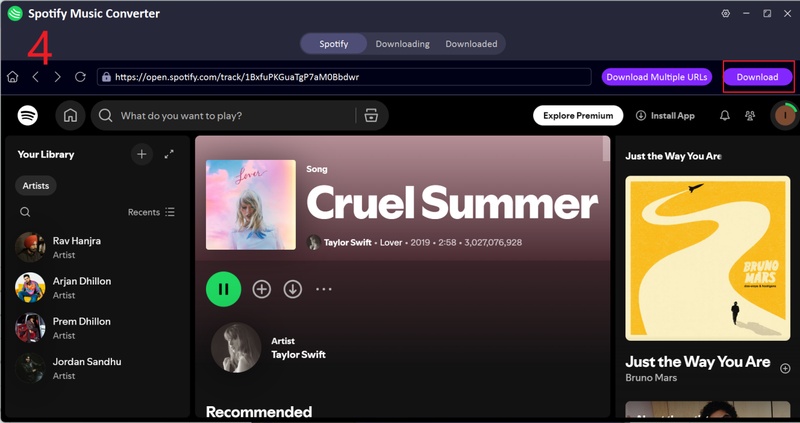
Choose the songs, playlists, or albums you want to download. Click Download, and UltConv will start converting them to MP3.
-
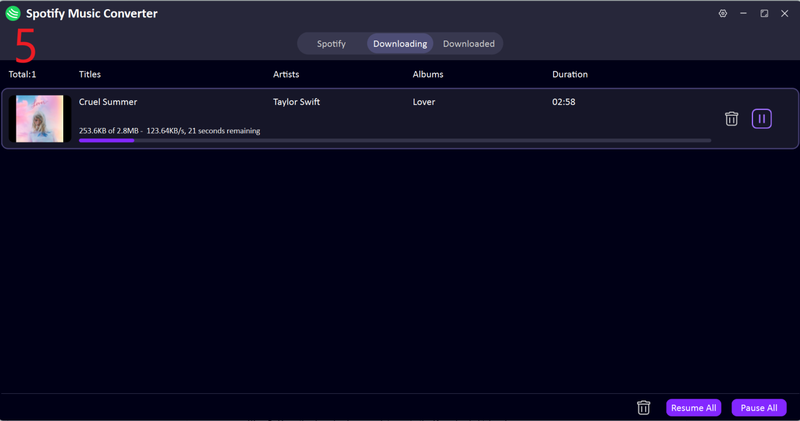
Once the conversion is finished, open the Downloaded tab to find all your files. Your Spotify music is now saved as MP3 and ready to play offline on any device.


With UltConv Spotify Converter, your songs are downloaded straight to your computer in your preferred format, bypassing Spotify’s restrictions and letting you enjoy offline playback anywhere.
FAQs
Q1. How to transfer a playlist from Apple Music to Spotify for free?
You can use browser-based tools like Tune My Music or Stamp to move playlists without paying. Simply connect your Apple Music and Spotify accounts, select the playlist you want to transfer, and start the process.
Q2. How to transfer Apple Music to Spotify for free using SongShift?
With SongShift, you can use the free version on your iPhone or browser. Sign in to both Apple Music and Spotify, pick the playlist you want to move, and confirm the matches. The app will transfer the songs automatically.
Conclusion
We hope you have a clear idea of how to convert Apple Music playlist to Spotify. Whether you use a browser tool or an iPhone app, there are options for free and paid users alike. Browser tools are quick and easy for one-off transfers, while iPhone apps like SongShift and Playlisty give you more control and accuracy.
And if you ever want to download your playlists for offline use, desktop tools like FliFlik UltConv Spotify Converter make it simple to save entire playlists, albums, or artists directly to your computer in high-quality formats. With the right tool, your music is always where you want it, organized, offline, and ready to play.
 Secure Download
Secure Download
Secure Download
Hello, I research and introduce useful solutions for AI videos, images, and audio tips in our daily life. If you learn these things, you can easily deal with the problems of the new era.

