

 By
By  8 minutes read


You press play on 9anime, and everything loads fine, but the subtitles just don’t show up. That’s the very common problem of the 9anime website. The 9anime subtitle not showing issues are more common than people expect, and yeah, it can completely break the watching experience.
The tricky part is that it’s not always one clear reason behind this issue. Sometimes it’s a small setting inside the player, sometimes your browser blocks something, and other times the subtitle track just doesn’t load properly. It feels random, but there’s usually a fix. In this article, we’ll show you the 10 quick and easiest solutions that actually work, so you’re not stuck guessing what went wrong.

Part 1. Why Aren’t 9anime Subtitles Showing?
9anime is one of the go-to sites for streaming anime online, especially if you prefer subbed content. It’s fast, has multiple servers, and usually works without much setup. But when subtitles disappear, that’s where things get annoying. If you’ve ever searched things like “9anime subtitles not showing reddit” or “why can’t I see subtitles on 9anime,” you’ve probably noticed there isn’t just one clear answer. It can happen for different reasons, sometimes small, sometimes a bit technical. Here are the most common causes:
- Fake or Clone Websites: Not all 9anime sites are real. Some clones don’t load subtitles properly or miss subtitle tracks entirely.
- Selected Server or Player Issues: 9anime uses different servers (like Vidstream or Vidcloud). Some servers fail to load subtitles, even when others work fine.
- Ad-blocker Interference: Strong ad-blockers can block subtitle scripts along with ads, which stops subtitles from appearing.
- Browser Conflicts: Certain browsers or extensions can interfere with the video player, causing subtitle loading issues.
- Corrupted Browser Cache: Old cache or cookies can break how the player loads subtitles, especially after updates.
- Raw Videos Without Subtitles: Some uploads are “raw,” meaning they don’t include subtitles at all, so nothing shows up no matter what you try.
Part 2. 10 Quick Ways to Fix 9anime Not Showing Subtitles
If you’re stuck with “9anime not showing subtitles,” the good news is that most fixes are simple. Go through these one by one, and you’ll likely fix it quickly.
Way 1: Use Official Domain
This is the first thing you should check. Many users don’t realize they’re on a clone version of 9anime, and those copies often don’t support subtitles properly. Even if the video plays fine, subtitle tracks might be missing or broken. Using the correct domain avoids a lot of unnecessary troubleshooting.
Way 2: Change Video Server
9anime provides multiple servers for a reason. Sometimes one server fails to load subtitles while another works perfectly. This isn’t unusual, especially during high traffic or server issues. Switching servers is often the quickest fix.
▼ Steps to Fix:
- Step 1: Play your video on 9anime.
- Step 2: Locate the server options under the player.
- Step 3: Switch to another server like Vidstream or Vidcloud.
- Step 4: Reload the video and check the subtitles.
Way 3: Disable Ad Blocker or Other Extensions
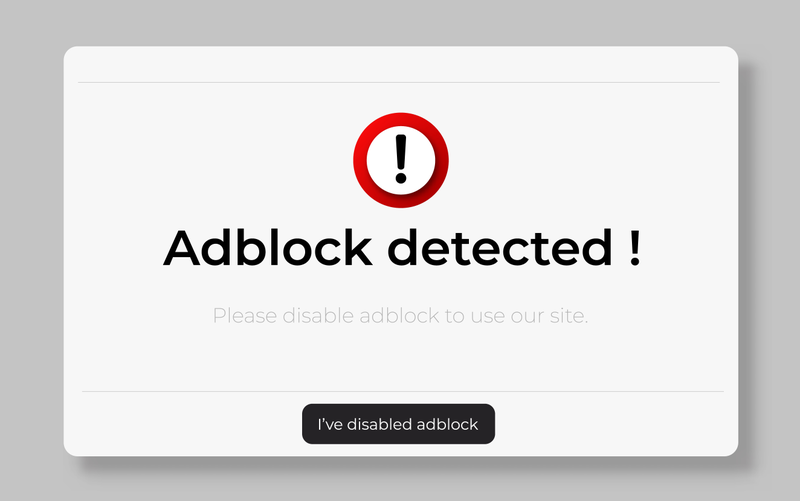
Ad-blockers can interfere more than expected. They don’t just block ads; sometimes they block scripts responsible for loading subtitles. Other browser extensions can also cause similar conflicts. Temporarily disabling them helps you confirm if that’s the issue.
▼ Steps to Fix:
- Step 1: Turn off your ad-blocker.
- Step 2: Disable other browser extensions if needed.
-
Step 3:
Refresh the page and play the video again.

Way 4: Update Browser and Clear Browser Data
An outdated browser or corrupted cache can break how the video player loads subtitles. Old stored data sometimes conflicts with updated site scripts. Clearing it resets everything and often fixes playback issues of 9anime not showing subtitles.
▼ Steps to Fix:
- Step 1: Update your browser to the latest version.
- Step 2: Go to browser settings and clear cache and cookies.
- Step 3: Restart your browser.
- Step 4: Open 9anime and test the video again.
If the 9anime subtitles are still not showing up, try the fixes below.
Way 5: Toggle CC Button
Sometimes subtitles are already available but simply turned off. This happens more often than you’d think, especially when switching servers or videos. Always check the CC option before trying more complex fixes.
▼ Steps to Fix:
- Step 1: Start playing the video.
-
Step 2:
Click on the CC or subtitle icon.
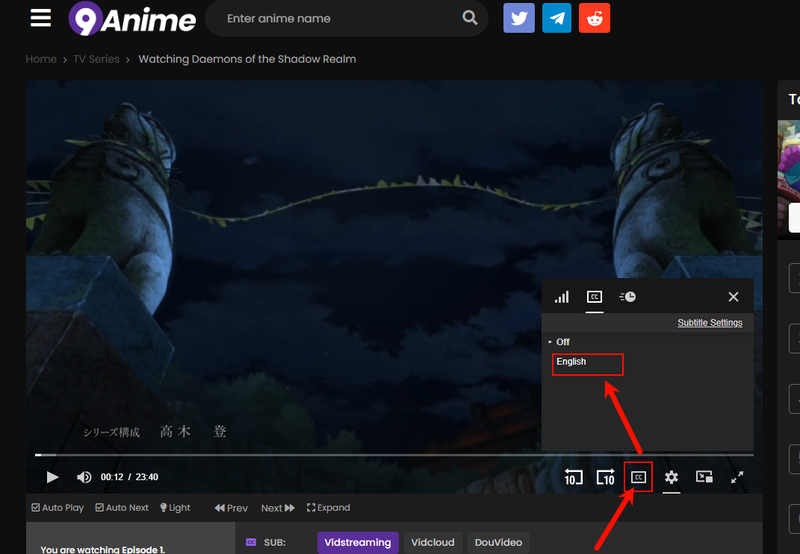
- Step 3: Select the available subtitle track.

Way 6: Try Incognito / Private Mode
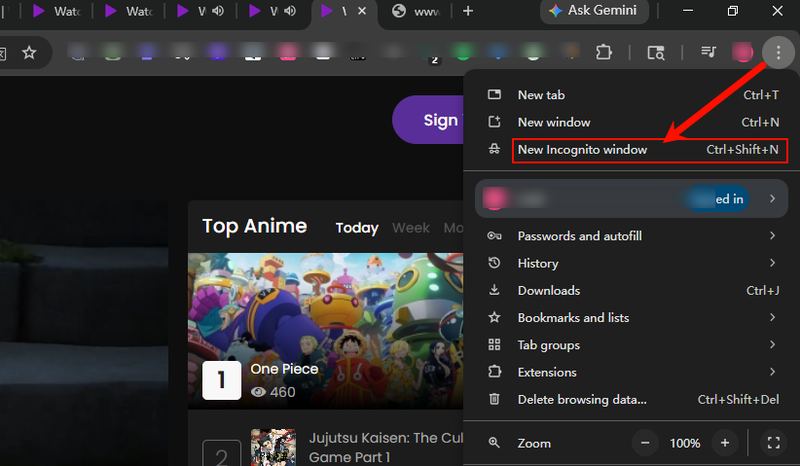
Incognito mode disables extensions and ignores stored cache, which makes it useful for testing. If subtitles work here, the issue is likely caused by your browser settings or extensions.
▼ Steps to Fix:
-
Step 1:
Open an incognito or private window.
- Step 2: Visit 9anime.
- Step 3: Play the same video and check the subtitles.

Way 7: Switch Browsers
Different browsers handle video players differently. If one browser fails to load subtitles, another might work without any issue. It’s a quick way to rule out compatibility problems.
▼ Steps to Fix:
- Step 1: Open another browser like Chrome, Firefox, or Edge.
- Step 2: Go to 9anime.
- Step 3: Play the video and check the subtitles.
Way 8: Refresh Internet Connection
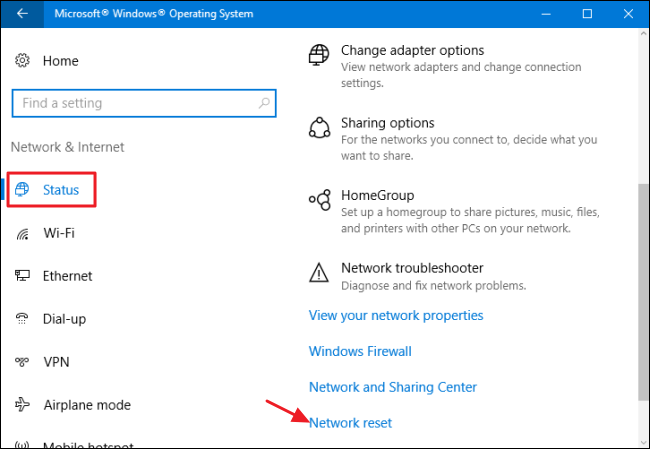
A slow or unstable internet connection can interrupt subtitle loading. Even if the video plays, 9anime subtitles not showing up completely. Resetting your connection can help.
▼ Steps to Fix:
- Step 1: Turn off your Wi-Fi or mobile data.
- Step 2: Wait a few seconds and reconnect.
-
Step 3:
Reload the video and check the subtitles.

Way 9: Change Your Device
Sometimes the issue is device-specific. What doesn’t work on your phone might work fine on a laptop or tablet. Testing on another device helps you quickly identify this.
Way 10: Contact 9anime Customer Support
If nothing works, the problem might be on the site’s end. Some videos may have missing or broken subtitle files. In that case, reporting the issue is the only option.
▼ Steps to Fix:
- Step 1: Find the support or contact section on 9anime.
- Step 2: Share the video link and explain the issue.
- Step 3: Wait for a fix or response.
Best Solution: Using UltConv to Download Anime with Subtitle from 9anime
If streaming on 9anime keeps giving you subtitle issues, the more reliable option is to download the video properly with a desktop tool. FliFlik UltConv 9anime Downloader is built exactly for that. It’s not just about downloading. The tool supports 10,000+ websites, so you’re not locked to one platform. You can save anime in multiple formats like MP4, MKV, or MP3, depending on how you want to watch or store it. It also gives you control over video quality, from 720p all the way up to 4K and even 8K, which matters if you care about clarity.
One thing that actually makes a difference is batch downloading. Instead of saving episodes one by one, you can download an entire series or playlist in one go. It also handles subtitle saving, which is the whole point here. Once the file is downloaded, subtitles stay with the video, with no loading errors and no missing tracks. Add in fast download speeds, audio conversion without quality loss, and even live stream downloading, and it becomes more than just a simple downloader.

- Download videos from 10,000+ websites, YouTube, TikTok, Instagram, etc
- Save anime with subtitles in MP4, MKV, MP3, and 100+ formats
- Batch download full episodes, playlists, or entire series
- Convert video to audio (MP3, AAC, FLAC) without quality loss
- Download in HD, 1080p, 2K, 4K, and even 8K resolution
- Built-in browser for direct searching and downloading
- Up to 10x faster download speed for large files
- Download live streams directly to MP4 in real time
▼ Steps to Download Anime from 9anime with UltConv
If you want a stable way to save anime with subtitles from 9anime, the process with FliFlik UltConv 9anime Downloader is simple and doesn’t take much time.
-
Download and install UltConv on your Windows or Mac. Once the setup is complete, open the program.
FREE DOWNLOAD![secure download]() Secure Download
FREE DOWNLOAD
Secure Download
FREE DOWNLOAD![secure download]() Secure Download
Secure Download
-
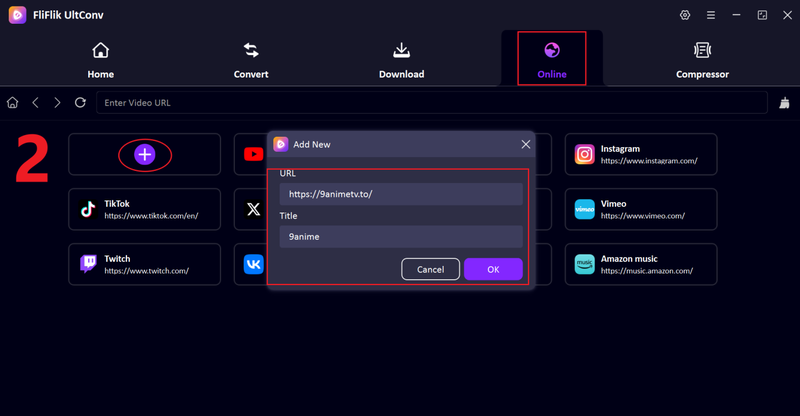
Open UltConv and click the “+” tab. Paste the 9anime link into the pop-up window and write the title as well, then click OK to continue.
-
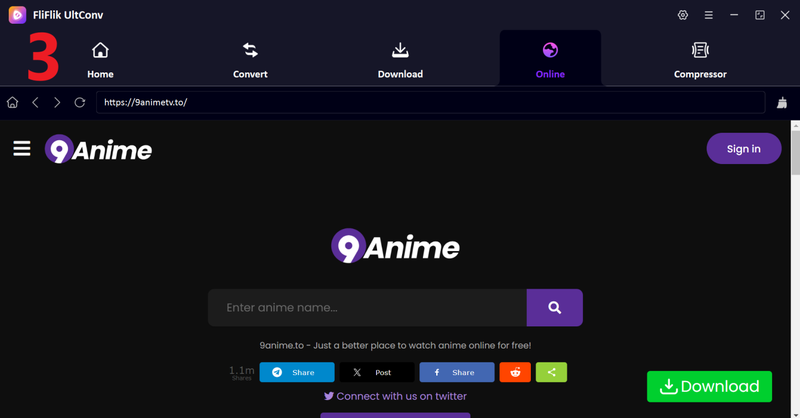
The 9anime site will load inside UltConv’s built-in browser, so you can browse and stream directly within the tool.
-
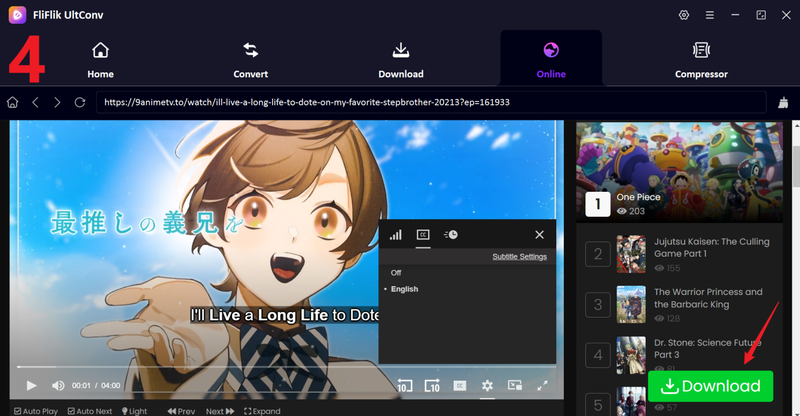
Find the anime episode you want, play it, and click the Download button. Make sure subtitles are enabled if needed.
-
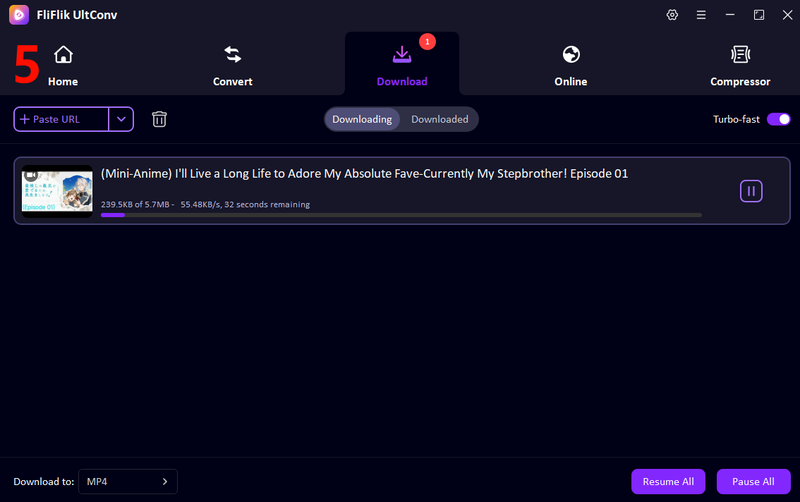
UltConv will start downloading the video with subtitles. Once finished, go to the Downloaded section and watch your anime offline anytime without subtitle issues.


Final Words
No doubt, subtitle issues can really ruin the flow, especially when you’re dealing with 9anime subtitles not showing right when things get interesting. Most of the time, it comes down to servers, browser conflicts, or simple playback glitches, and yes, it can get frustrating fast. You’ve seen the fixes, and they usually work. But if you want to skip the trial-and-error completely, downloading is the cleaner option. That’s where FliFlik UltConv Anime Downloader can really help you. You can save episodes with subtitles, watch offline, and avoid streaming errors altogether. No buffering, no missing captions, no switching servers. Just your anime, ready when you are.
 Secure Download
Secure Download
Secure Download
FAQs
Q1. Is there an alternative to 9anime with better subtitles?
Yes, other anime streaming platforms offer more consistent subtitle support and better player stability, likeHiAnime,Crunchyroll,Anime-Planet, etc. However, even on those sites, subtitle quality can depend on the source of the video and the server being used. So while some 9anime alternatives may feel smoother, they’re not always completely problem-free.
Q2. What is the free website to watch anime with subtitles?
There are many free anime streaming websites available online that provide subtitled content, such as AnimeKai, Animepahe, GoGoAnime, kissanime, etc.
Q3. Could browser extensions affect 9anime subtitles?
Yes, browser extensions can definitely interfere. Ad-blockers, script blockers, or privacy-focused extensions may block certain elements required for subtitles to load properly. If subtitles suddenly stop appearing, disabling extensions or testing in incognito mode is often a quick way to confirm if that’s the cause.
