

 9 minutes read


AMV is a compact video format designed for old-school MP4 players and other simple media devices. Its lightweight structure keeps files small and easy to play, which is why it remains relevant even in 2026.
Today, most videos use the MP4 format on phones, YouTube, cameras, and downloads but older MP4 players often cannot handle it. To watch modern videos on these devices, you need to convert MP4 to AMV. In this article, we’ll explain why AMV still matters, how MP4-to-AMV conversion works, and which tools make the process fast and straightforward.

Part 1. Why Need an MP4 to AMV Converter?

From mobile devices to YouTube, MP4 is the universal standard for almost every video you encounter. Older MP4 players and low-cost media devices struggle with MP4 files because they were built for a single purpose: playing AMV files. AMV was designed for small screens and limited hardware, using simple video and audio codecs that run at low resolution. This allows videos to load quickly and play smoothly, even on inexpensive players. Modern MP4 files are too large and complex, so these devices cannot open them.
A MP4 to AMV converter solves this problem by transforming your MP4 videos into a format your player can read. The content stays the same, including video and audio, but it becomes lighter and compatible. If you still use an MP4 player for music videos, cartoons, or movies on the go, converting MP4 to AMV is not optional, it is necessary. Here is the key difference you need to understand.
MP4 vs AMV Quick Comparison
| Feature | MP4 | AMV |
|---|---|---|
| Main use | Phones, PCs, streaming | Old MP4 players |
| Video quality | High | Low |
| File size | Large | Small |
| Device support | Almost all devices | Only AMV-based players |
| Codec complexity | Modern and heavy | Simple and light |
| Playback on old MP4 players | Often fails | Always works |
MP4 is made for today. AMV is made for those tiny players in your pocket. If your device only understands AMV, you have to convert. That is the only way your videos will play.
Part 2. Top 6 Free MP4 to AMV Converters in 2026
1. FliFlik UltConv Video Converter
The first tool we recommend for converting MP4 to AMV is FliFlik UltConv Video Converter. It’s a reliable, all-in-one solution for anyone who needs fast, high-quality video and audio conversion. It doesn’t just handle MP4 it works with formats like MOV, AVI, MKV, and more, so you can easily prepare files for almost any device.
UltConv Video Converter handles them quickly, and it even supports batch conversion to save time. Whether you want to extract audio from videos or convert multiple files at once, this tool keeps everything simple and efficient.

- Convert videos to AMV, MP4, MOV, AVI, MKV, and 100+ formats
- Extract audio to MP3, AAC, FLAC, and other formats
- Ultra-fast conversion for large files, including 4K and 8K
- Batch conversion for multiple files in one go
- Optimized output for iPhone, Android, iPad, and other devices
- Built-in presets to ensure your files play perfectly on any device
▼ Steps to Convert MP4 to AMV with FliFlik UltConv Video Converter:
-
Download and install FliFlik UltConv from the official website, ensuring the setup completes correctly.
FREE DOWNLOAD![secure download]() Secure Download
FREE DOWNLOAD
Secure Download
FREE DOWNLOAD![secure download]() Secure Download
Secure Download
-
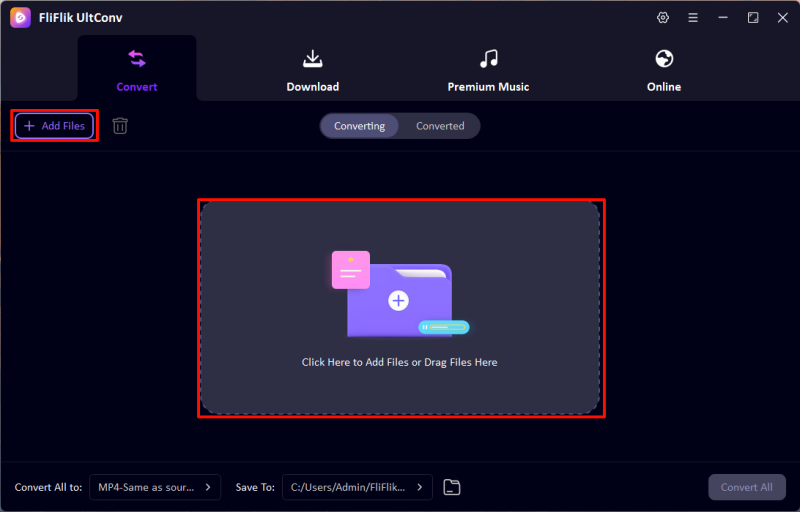
Now, launch UltConv and go to the ‘Convert’ section. Add the MP4 files you want to convert by dragging them in or using the ‘Add File’ button. You can import several files at once.
-
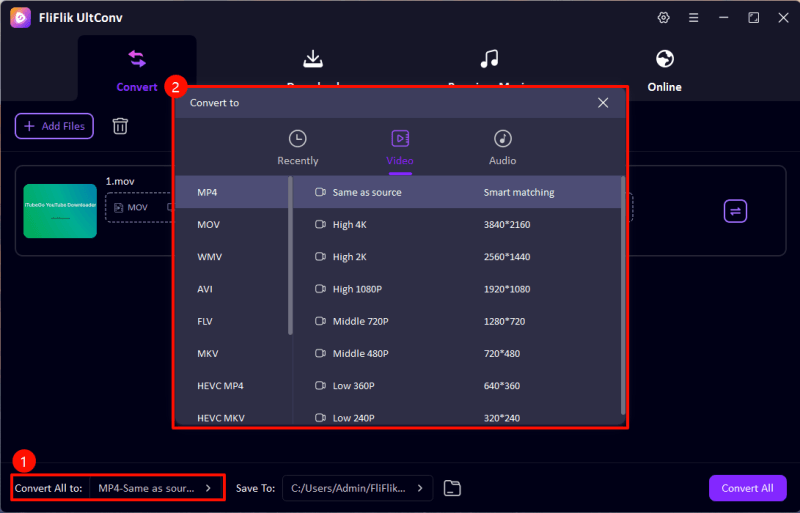
Choose AMV as the output format from the available options.
-
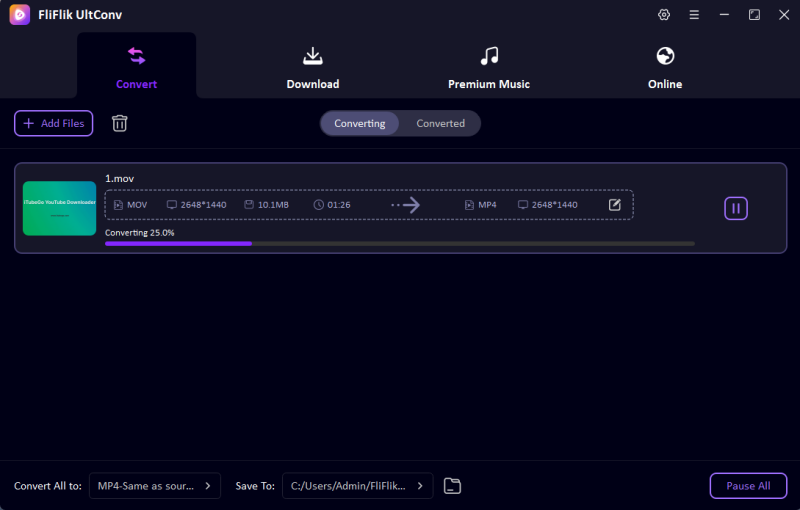
Select the destination folder for the converted files and click ‘Convert All’ to start. UltConv will quickly turn your MP4 files into the AMV format.


2. AnyConv Video Converter

AnyConv Video Converter is a web-based converter that makes it easy to change MP4 files to AMV and many other formats without installing software. It works directly in your browser, so it’s handy if you just need a quick conversion on any device. The interface is simple, and you can also convert documents, images, and audio. While it’s convenient, file size limits can slow down larger conversions, and it won’t work offline. AnyConv is a straightforward option when you need a fast, lightweight tool for small to medium files without extra features.
- No installation needed
- Simple interface
- Supports many formats
- Limited file size
- Requires internet
3. MConverter

If you need another browser-based option, MConverter is worth trying. It supports MP4 to AMV conversion along with other video formats. MConverter lets you adjust basic settings like resolution and audio quality before converting, which can be helpful for smaller screens or older devices. The interface is clean and easy to follow, making it suitable for beginners. Compared to AnyConv, it may be slightly slower with larger files, and advanced customization is limited. But it’s still a good next option if you want a simple online converter without downloading software.
- No software installation
- Adjustable resolution
- Multiple formats supported
- Can be slow with large files
- Limited advanced options
4. ConvertFiles

Like the previous tools, ConvertFiles allows you to upload MP4 files and convert them to AMV or other formats directly in the browser. It’s convenient for quick conversions and doesn’t require creating an account. ConvertFiles supports many media types, but it doesn’t allow batch processing, so you’ll need to convert multiple files one at a time. Upload speed and conversion time depend heavily on your internet connection. If you only need to convert one or two files at a time and don’t want software, ConvertFiles offers a simple, no-frills solution.
- Simple to use
- Supports multiple formats
- No account needed
- No batch conversion
- Depends on internet speed
5. Converthelper

Converthelper is another browser-based MP4 to AMV converter with a clear interface that guides you through the process step by step. It supports several video and audio formats and is easy to use for beginners. Like ConvertFiles, it doesn’t support batch conversion, so multiple files require repeated uploads. Larger files can take longer, and the tool lacks advanced options like bitrate adjustment. Still, Converthelper is a decent option when you need a simple and fast conversion online without installing software. Its step-by-step guidance makes it beginner-friendly compared to other web converters.
- Easy to use
- Step-by-step guide
- Supports multiple formats
- No batch processing
- Slower for large files
6. FFmpeg

For those who want a more technical approach, FFmpeg is a free, open-source tool that handles MP4 to AMV conversion and many other formats. Unlike the previous web-based tools, FFmpeg runs on your computer and works through command-line instructions. This gives you full control over resolution, frame rate, and quality, but it can feel complicated if you’re not familiar with command-line tools. FFmpeg is lightweight, fast, and reliable for batch conversions once you know the commands.
- Powerful and flexible
- Supports batch conversion
- Works offline
- Command-line interface can be tricky
- Not beginner-friendly
FAQs
Q1. What is the best MP4 to AMV converter online?
If you need a quick online option, AnyConv or MConverter are simple and work directly in your browser. They are good for small files and fast conversions without installing software.
Q2. Is there an MP4 to AMV converter for Android users?
Yes, browser-based tools like AnyConv or Converthelper can work on Android devices. You just need an internet connection and a browser. For offline use, apps like FliFlik UltConv Video Converter can be installed on PC or Mac and transfer files to your phone.
Q3. How to convert MP4 to AMV online?
Open any online converter, upload your MP4 file, choose AMV as the output format, adjust settings if available, and click convert. Once finished, download the converted file to your device.
Conclusion
Converting MP4 to AMV is straightforward if you use the right tool. Online converters are handy for quick jobs, but they come with limits on file size and features. For a complete, fast, and reliable solution, FliFlik UltConv Video Converter stands out.
It supports batch conversion, 100+ formats, and works with videos from over 10,000 websites. Whether you want to convert local files or online videos, this tool handles everything smoothly, saving you time while keeping quality intact.
 Secure Download
Secure Download
Secure Download
Hello, I research and introduce useful solutions for AI videos, images, and audio tips in our daily life. If you learn these things, you can easily deal with the problems of the new era.

