5 minutes read


Downloading a normal YouTube video is easy, but downloading 360 videos from YouTube can be different. Some online tools may save the file, but the video may not play correctly in a VR player or headset. That is why choosing the right YouTube 360 video downloader matters.
In this guide, we will show you several simple ways to download YouTube 360 videos on Windows, Mac, Android, and online. You can compare the tools, follow step-by-step instructions, and learn how to play the downloaded 360° videos on your computer or VR headset.

Part 1. What’s YouTube 360° Video (VR Video)?
A 360-degree video is a type of video recorded simultaneously in all directions using an omnidirectional camera or a rig of multiple cameras. Unlike a standard video where the camera is fixed to a single viewpoint, a 360° video captures the entire surrounding environment. Viewers can rotate their perspective — panning left, right, up, or down — to “look around” the scene as if they were physically there.
VR (Virtual Reality) videos are closely related. While all VR videos are shot in 360°, not every 360° video is a true VR experience. Full VR videos often use stereoscopic filming (one lens per eye) to create a sense of depth and presence that’s felt on a headset. On YouTube, you’ll see both labeled simply as “360° video” or “VR video.” Common formats for these videos include equirectangular projection (the most widely supported) and side-by-side (SBS) stereoscopic video.
How to Watch a 360-Degree Video on YouTube
- On Desktop: Open any 360° video and click and drag inside the player to look around. You’ll see a small compass/navigation icon in the top-left corner of the player.
- On Mobile (iOS/Android): Open the YouTube app, play a 360° video, and physically move your phone around to change your viewing angle — it uses your phone’s gyroscope.
- On a VR Headset: Use the YouTube VR app (available on Meta Quest, PlayStation VR, and others) to experience 360° content in full immersive mode. This is where the format truly shines.
Why Download Instead of Stream? Streaming 360° video at high resolution (4K, 5.7K, or 8K) demands a very fast internet connection. Downloading lets you watch at peak quality, even offline, and transfer files to headsets that don’t support streaming.
Part 2. 4+ Easy Methods to Download 360 Video from YouTube
Before you choose a YouTube 360 video downloader, here is a quick comparison of the most practical options for desktop, browser, and Android users:
| Method | Platform | Speed | Quality | Ease of Use | Free? |
|---|---|---|---|---|---|
| UltConv Video Downloader | Windows / Mac / Android | ⚡⚡⚡ Fast | Up to 8K | ★★★★★ Very Easy | Free trial |
| SSYouTube (Online) | Any browser | ⚡⚡ Medium | Up to 1080p | ★★★★☆ Easy | ✅ Yes |
| Socialcal.app (Online) | Any browser | ⚡⚡ Medium | Up to 4K | ★★★★☆ Easy | ✅ Yes |
| Easy Video Downloader (Chrome) | Chrome | ⚡⚡ Medium | Varies | ★★★☆☆ Moderate | ✅ Yes |
Method 1: UltConv — Best YouTube 360° Video Downloader for Windows & Mac
UltConv YouTube Video Downloader is a simple and reliable YouTube 360 video downloader for Windows and Mac users. If you want to download YouTube VR video content or save 360° travel, sports, or educational videos for offline viewing, UltConv offers a more stable experience than many browser-based tools.
Besides YouTube, UltConv also supports downloading videos from 10,000+ websites, including playlists and channels. You can save your favorite videos in MP4 or MKV formats, extract audio as MP3, and even batch download multiple files at once. With its built-in browser and beginner-friendly interface, it makes downloading YouTube 360° videos fast and convenient for everyday users.

- Download videos from YouTube, Vimeo, Facebook, Dailymotion, and 10,000+ other platforms
- Batch download multiple videos, entire playlists, or complete channels at once
- Save as MP4, MKV for video, and MP3, WAV, OGG for audio
- Enjoy video quality up to 8K, 4K, or 1080p, and audio up to 320 kbps
- Remove DRM from Apple Music and Spotify tracks, converting them to MP3
▼ How to Download 360° Videos from YouTube with UltConv:
-
Visit the official website and download UltConv Video Downloader for Windows or Mac. The installation process takes under two minutes.
FREE DOWNLOAD![secure download]() Secure Download
FREE DOWNLOAD
Secure Download
FREE DOWNLOAD![secure download]() Secure Download
Secure Download
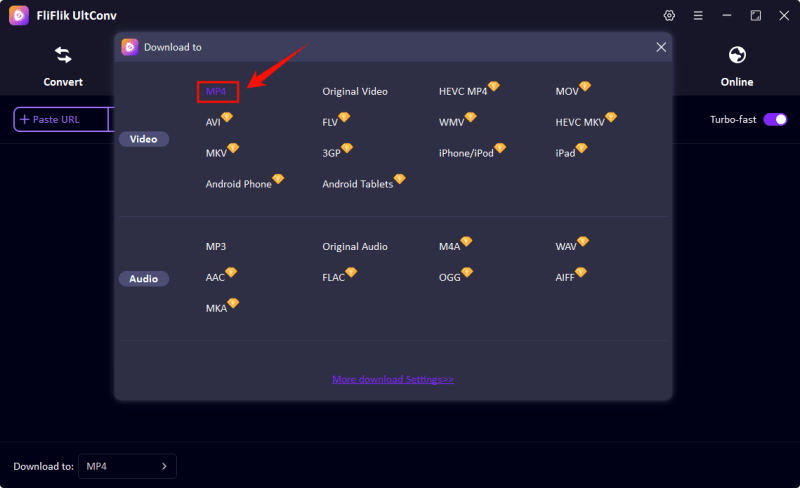
Click the Preference icon in the top-right corner to select your desired video quality and output format (MP4 recommended for broadest VR compatibility).
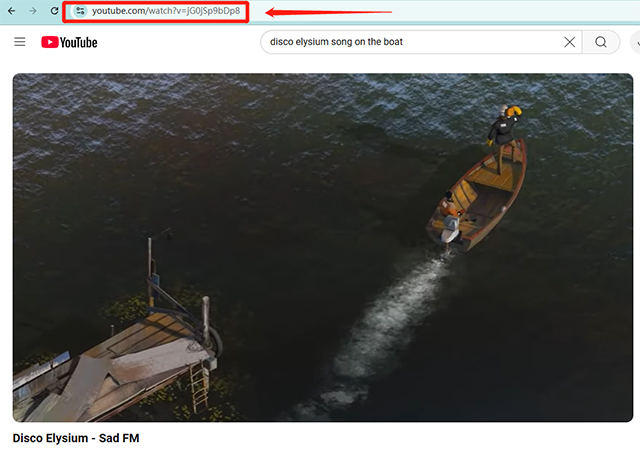
Open YouTube in the UltConv built-in browser, find the 360° video you want, play it, and copy its link from the address bar.
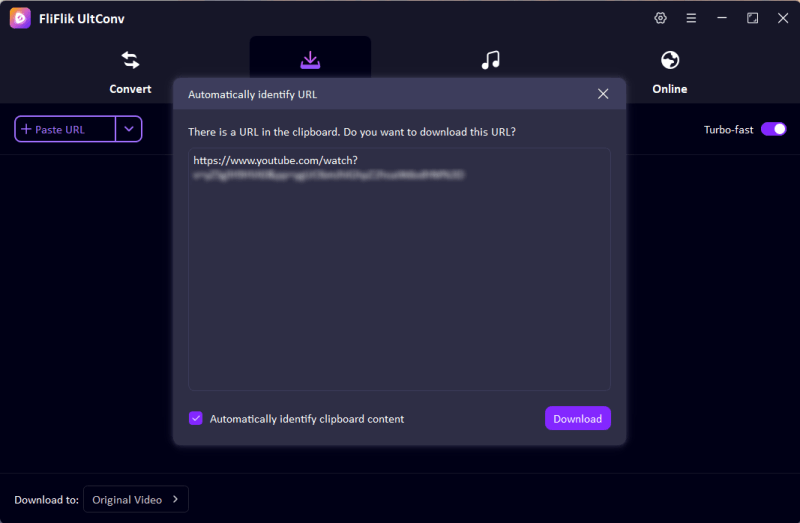
Go back to UltConv. The program will detect the copied URL automatically. Click Download to start saving your 360° video with full spherical metadata preserved.
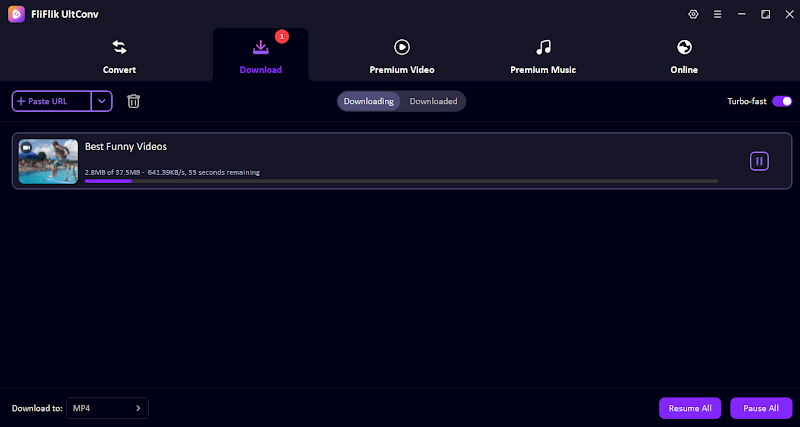
Once the download finishes, go to the Downloaded tab within YouTube Downloader. Your videos will be saved locally and available for offline viewing anytime you want.
✅ Best For: Users who want high video quality, better 360° playback compatibility, and a stable desktop experience on Windows or Mac. Ideal for VR content fans, educators, and frequent offline viewers.
Method 2: Save YouTube 360° Video with Free Online Downloaders
Online tools are the fastest way to grab a 360° video without installing any software. No sign-up, no downloads — just paste a link and go. The trade-off is that most cap resolution at 1080p or 4K, and not all of them preserve spherical metadata. Still, for quick casual downloads, they’re hard to beat.
① SSYouTube
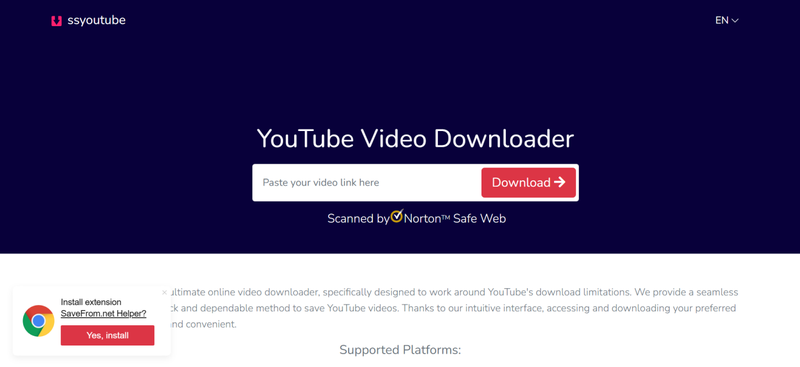
SSYouTube is one of the most widely used free YouTube download services. It’s fast, ad-supported but usable, and requires no account. Great for quick, one-off downloads when you need a 360° video in standard HD.
👍 Pros:- Works instantly in any browser, no software needed
- Supports MP4 and WebM formats
- No account or registration required
👎 Cons:- Maximum resolution typically capped at 1080p
- May not always preserve 360° spherical metadata
- Ad-heavy interface can be distracting
- Step 1: Open YouTube and navigate to the 360° video you want to download. Copy the full video URL from the address bar.
- Step 2: Go to en.ssyoutube.com and paste the URL into the search box.
- Step 3: Click the Download button. The tool will fetch available formats and resolutions.
- Step 4: Select your preferred resolution (choose the highest available) and click the download link. Your browser will save the file.
✅ Best For: Users who need a quick and simple way to download a YouTube 360 video online without installing software. Best for one-time downloads and casual offline viewing.
② Socialcal.app
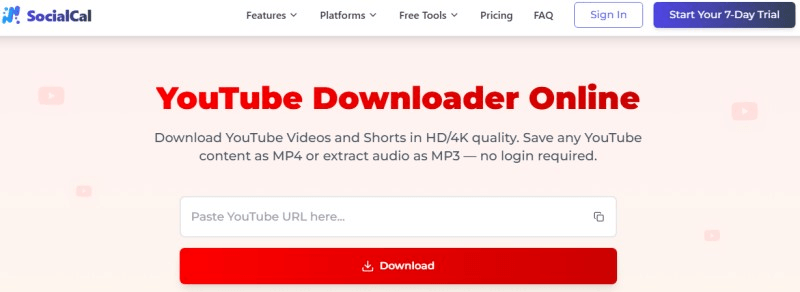
Socialcal.app is a newer, more polished online YouTube downloader that supports up to 4K resolution — a meaningful upgrade over most free web tools. Its clean interface and support for YouTube Shorts alongside regular videos make it a versatile choice.
👍 Pros:- Supports up to 4K resolution downloads
- Clean, modern interface without aggressive ads
- Works for standard videos, 360° content, and YouTube Shorts
👎 Cons:- 360° metadata preservation not guaranteed
- Free tier may have daily download limits
- Requires a stable internet connection throughout
- Step 1: Find your target 360° video on YouTube and copy its URL.
- Step 2: Open socialcal.app/youtube-downloader in your browser. Paste the copied URL into the input field and press Download.
- Step 3: Wait while the tool analyzes the video. A list of available resolutions and formats will appear.
- Step 4: Choose the highest resolution available (4K if offered) in MP4 format, then click the corresponding download button and save the file.
✅ Best For: Users who prefer a cleaner online downloader and want to save YouTube 360 video files in higher quality when available. It is a good option for quick browser-based downloads.
Method 3: Use a Chrome Extension for Quick YouTube 360° Video Download
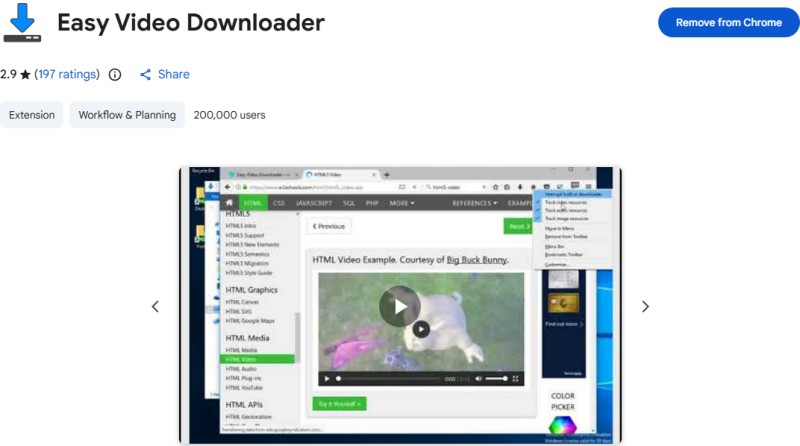
If you spend a lot of time on YouTube and want the most seamless download experience, the Easy Video Downloader Chrome extension puts a download button directly on your browser — no copy-pasting URLs or visiting separate websites required.
👍 Pros:- Adds a visible download button directly to YouTube video pages
- Works across many video sites, not just YouTube
- One-click experience once installed
- Completely free
👎 Cons:- Chrome-only (won’t work on Firefox or Safari)
- Quality options may be limited vs. dedicated desktop software
- YouTube may occasionally update its player to break compatibility
- Step 1: Open the Chrome Web Store and search for “Easy Video Downloader”, or go directly to the Chrome Web Store link. Click Add to Chrome and confirm the permissions. The extension icon will appear in your Chrome toolbar.
- Step 2: Navigate to YouTube and open the 360° video you want to download.
- Step 3: Look for the download button that the extension adds to the video player or alongside the video title. Click it.
- Step 4: A menu will appear showing available formats and resolutions. Select your preferred option and the download will begin through your browser. Find the saved file in your Downloads folder.
✅ Best For: Users who download videos from YouTube frequently and want a one-click YouTube 360 video download option directly inside Chrome.
💡 Tip- If the extension’s download button doesn’t appear on a particular video, try refreshing the page or checking the extension’s popup by clicking its icon in the Chrome toolbar.
Method 4: Download YouTube VR Video on Android
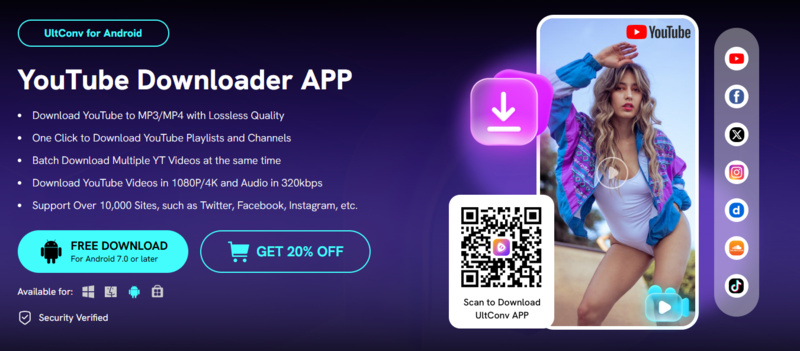
Downloading 360° VR videos directly to your Android device opens up possibilities that streaming can’t offer — particularly for sideloading content onto standalone VR headsets like the Meta Quest, which connects to Android phones during setup. FliFlik UltConv for Android handles this with ease.
👍 Pros:- Downloads 360° videos directly to your Android device
- Supports up to 4K resolution
- Built-in browser for finding and queuing videos
- Intuitive mobile-first interface
👎 Cons:- Requires installation (not browser-based)
- Free version may limit simultaneous downloads
- Step 1: Download and install the UltConv app from the official website on your Android device.
- Step 2: Launch UltConv and go to its built-in browser tab.
- Step 3: Browse to YouTube, find the 360° video you want, and play it.
- Step 4: Tap the Download button that appears once the app detects the video stream.
- Step 5: Choose MP4 as the format, select your preferred quality, and confirm to save the video directly to your device’s gallery.
✅ Best For: Android users who want to download YouTube VR video or save 360° videos directly on their phone for offline playback or transfer to a VR headset.
💡 Tip- After downloading, connect your Android phone to your Meta Quest or other headset via USB, and transfer the file to the headset’s local Videos folder for offline VR playback.
Part 3. How to Play Downloaded 360° Videos on VR Headsets
Download the file in MP4 (H.264) format — it’s the most universally supported. Make sure your downloader preserves the spherical metadata, otherwise any player will treat the file as a flat video. Here are the recommended players by device:
Device Recommended App Meta Quest 2 / 3 Meta Quest Gallery, Skybox VR Player PlayStation VR / VR2 PlayStation Media Player HTC Vive / Valve Index Skybox VR Player (via Virtual Desktop) Desktop (Windows / Mac) VLC 3.0+, GOM Player Android Fulldive VR, YouTube VR app Quick transfer for Meta Quest: Connect via USB → copy the MP4 into the Movies folder → open Meta Quest Gallery → Videos.
Common Fixes- Video plays flat? Spherical metadata is missing. Re-download with UltConv, or manually set the projection to “equirectangular” in Skybox VR Player.
- Looks blurry? Download at 4K or higher — 1080p stretches badly across a full sphere.
- File not showing up? Make sure the file is .mp4, not .webm, and is placed in the correct folder.
FAQs
Q1. Why does my VR video look blurry after downloading?
Because 360° videos stretch the resolution across the whole viewing area. A 1080p video may look clear on a normal screen but blurry in VR. For better quality, download the video in 4K or higher and play it with a VR-compatible player.
Q2. What is the best format for YouTube 360 videos?
MP4 is usually the safest format for YouTube 360 video download because it works well on most computers, phones, and VR headsets. If your player supports it, MKV can also be a good option for high-quality video storage.
Q3. Can I download YouTube 360 videos in 4K or 8K?
Yes, but it depends on the original YouTube video quality and the downloader you use. For the best viewing experience on a VR headset, choose 4K or higher whenever available, because 1080p may look blurry when stretched across a 360° view.
Conclusion
If you want to download 360 videos from YouTube and watch them offline without playback issues, choosing the right tool matters. For most desktop users, UltConv YouTube Video Downloader is a practical YouTube 360 video downloader because it supports high-quality downloads, batch saving, and popular formats like MP4 and MKV.
For quick one-time use, online tools like SSYouTube or Socialcal.app can help you save YouTube 360 video files without installation. If you prefer mobile downloads, the Android method is also convenient. No matter which method you choose, make sure the downloaded file plays correctly on your computer, phone, or VR headset, and use the content for personal offline viewing only.
FREE DOWNLOAD![secure download]() Secure Download
FREE DOWNLOAD
Secure Download
FREE DOWNLOAD![secure download]() Secure Download
Recent stories by Nora Jane:Nora Jane
Secure Download
Recent stories by Nora Jane:Nora JaneSpecializing in multimedia downloading, video/audio conversion, and file optimization, with professional expertise in delivering secure, efficient, and user-friendly solutions for cross-format media processing and offline media management.