

 By
By  8 minutes read


Many people search for how to screen record OnlyFans because they want to save videos for offline viewing. However, the process is not always straightforward. Depending on the device, browser, recording settings, and video type, some screen recorders may capture a black screen, record without audio, or fail to start.
This guide explains how to screen record OnlyFans on Windows, macOS, Android, and iPhone using OBS Studio, QuickTime Player, FliFlik Online Screen Recorder, and built-in mobile recording tools. We also compare their limitations and introduce a direct download alternative when real-time screen recording does not work as expected. Only save content that you own or have permission to use, and do not redistribute creator content without authorization.

- Part 1. Why Does OnlyFans Screen Recording Fail, and Can It Be Detected?
- Part 2. How to Screen Record OnlyFans: Best Methods Compared
- Part 3. How to Screen Record OnlyFans on Windows and macOS
- Part 4. How to Screen Record OnlyFans on Android and iPhone
- Part 5. Still Getting a Black Screen? Try a More Reliable Alternative
- Part 6. FAQs About Screen Recording OnlyFans
- Final Thoughts
Content Table:
Part 1. Why Does OnlyFans Screen Recording Fail, and Can It Be Detected?
OnlyFans screen recording may result in a black screen, missing audio, frozen playback, or an incomplete file. Possible causes include playback protection, missing screen-recording permissions, incorrect audio settings, outdated software, browser hardware acceleration, limited storage, or device compatibility. Before recording a full video, create a short test clip to check both the picture and sound.
OnlyFans does not publicly describe a feature that notifies creators whenever a user starts a local screen recording. However, creator content remains protected by copyright and the platform’s terms. Only record content that you own or have permission to save, and never repost, sell, or distribute it without authorization.
Part 2. How to Screen Record OnlyFans: Best Methods Compared
The best option depends on your device, recording length, desired quality, and whether the video can be captured normally. The table below compares the main methods covered in this guide.
| Method | Device | Cost | Video Quality | Batch Download | Download Speed | Output Format |
|---|---|---|---|---|---|---|
| OBS Studio | Windows and macOS | Free | Depends on screen resolution and recording settings | ❌ Not supported | 1× Real-time | MKV, MP4, MOV, and more |
| QuickTime Player | macOS | Free | Depends on Mac display resolution | ❌ Not supported | 1× Real-time | MOV |
| FliFlik Online Screen Recorder | Windows and macOS | Free | Depends on screen and browser settings | ❌ Not supported | 1× Real-time | Depends on browser |
| Android Screen Recorder | Android | Free | Depends on device and screen settings | ❌ Not supported | 1× Real-time | Usually MP4 |
| iPhone Screen Recording | iPhone | Free | Depends on iPhone screen resolution | ❌ Not supported | 1× Real-time | Usually MOV or MP4 |
| FliFlik UltConv | Windows, macOS, and Android | Free trial / Paid | Up to 4K when available | ✅ Download multiple videos at once | Up to 10× Faster | MP4, MKV, MOV, and more |
Part 3. How to Screen Record OnlyFans Videos on Windows and macOS
If you search for OnlyFans screen recorders, you will find many options, but their reliability, audio support, and compatibility can vary because of playback protection. Below are three practical ways to screen record OnlyFans on Windows and macOS.
1. OBS Studio
OBS Studio is a free, open-source program for recording screen activity on Windows and macOS. It allows users to select a display or application window and configure the output resolution, frame rate, audio sources, and recording format.
▼ Steps to Use OBS Studio to Screen Record OnlyFans:
- Step 1: Download and install OBS Studio from its official website.
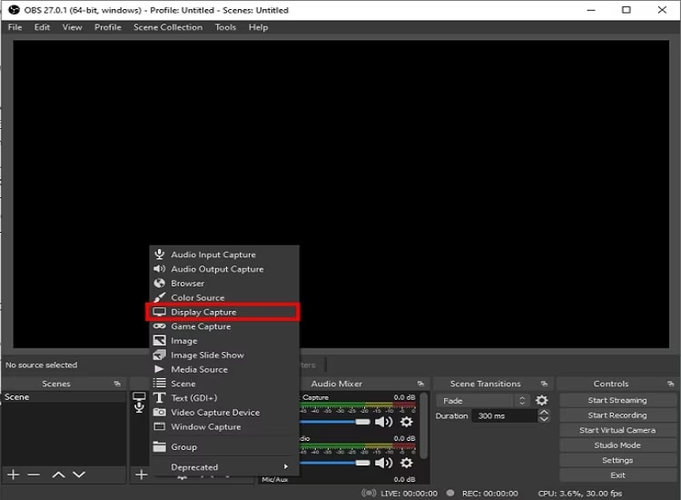
- Step 2: Open OBS and click the “+” button under Sources.
-
Step 3:
Select Display Capture to record the full screen or Window Capture to record a specific browser window.
- Step 4: Select the browser or display where the authorized OnlyFans video is playing.
- Step 5: Check the Desktop Audio meter to confirm that system sound is being detected, then click Start Recording.
- Step 6: Click Stop Recording when playback finishes. Open the recording folder and check the saved video.

- Free and open-source.
- Supports custom resolution, frame rate, and audio settings.
- Can record the full display or a specific browser window.
- Initial setup may be difficult for beginners.
- Audio sources must be configured correctly.
- Some protected playback windows may not be captured normally.
2. QuickTime Player
QuickTime Player is built into macOS and provides a simple way to record the full screen or a selected area. It is suitable for basic screen recording, although recording system audio may require additional configuration.
▼ Steps to Use QuickTime Player to Screen Record OnlyFans:
- Step 1: Open QuickTime Player on your Mac.
-
Step 2:
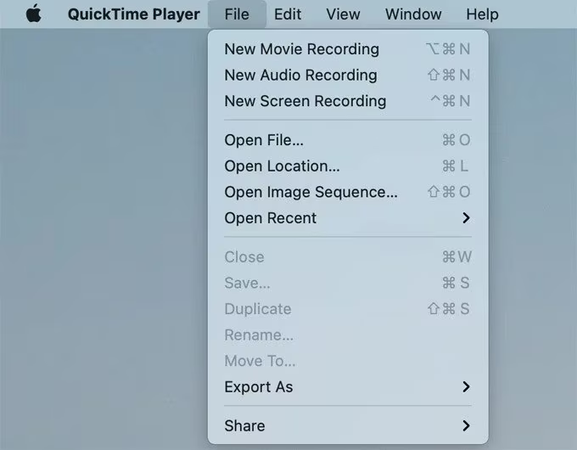
Click File → New Screen Recording.
- Step 3: Choose whether to record the full screen or a selected area, then review the microphone and save-location settings.
- Step 4: Open the authorized OnlyFans video in your browser, click Record, and begin playback.
- Step 5: Click the Stop icon in the menu bar when the video finishes, then save and review the recording.

- Already included with macOS.
- Simple interface with minimal setup.
- Suitable for occasional short recordings.
- System audio recording may require extra setup.
- Offers fewer recording controls than OBS.
- Some protected videos may appear black or record without audio.
3. FliFlik Online Screen Recorder
FliFlik Online Screen Recorder is a free browser-based tool that lets you record your screen without installing desktop software. It is suitable for users who want a quick way to screen record OnlyFans videos on Windows or macOS.
You can select a browser tab, application window, or the entire screen and capture system audio when the browser supports it. The recording runs in real time, so the video must remain open and play from beginning to end. Protected playback may still result in a black screen or missing audio.
▼ Steps to Screen Record OnlyFans with FliFlik Online Screen Recorder:
- Step 1: Open FliFlik Online Screen Recorder in a supported desktop browser.
-
Step 2:
Click Start Recording and allow the browser to access your screen and audio when prompted.
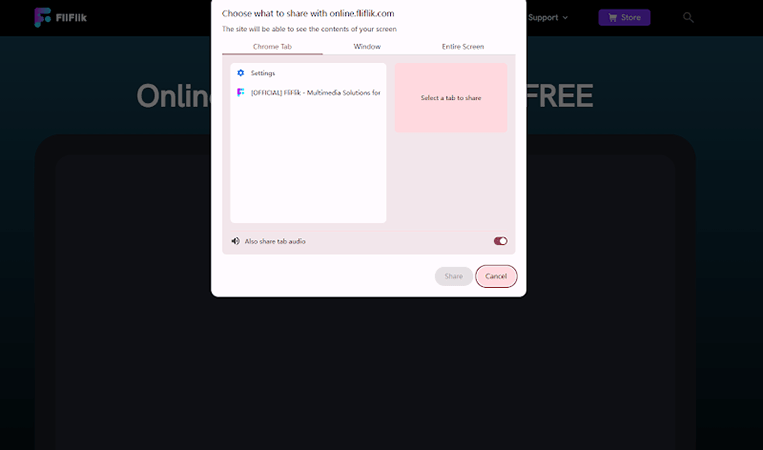
- Step 3: Select the OnlyFans browser tab, an application window, or the entire screen. Enable the option to share tab or system audio when it is available.
- Step 4: Start recording, return to the authorized OnlyFans video, and play it from beginning to end.
-
Step 5:
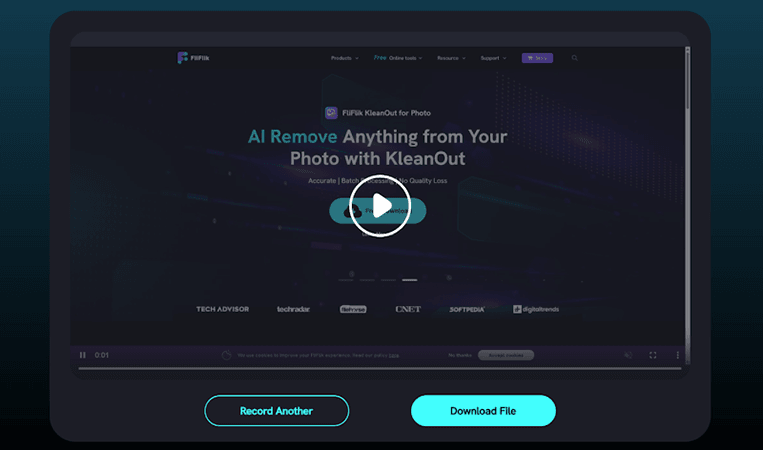
Stop the recording when playback finishes, preview the result, and save the recorded file to your computer.


- Free to use without installing software.
- No account registration is required.
- No watermark is added to the recording.
- Simple setup for occasional screen recording.
- The video must be recorded in real time.
- Recording quality depends on the screen and browser settings.
- Protected videos may appear black or record without audio.
- It does not support batch recording.
Part 4. How to Screen Record OnlyFans Videos on Android and iPhone
Most modern Android phones and iPhones include built-in screen recording tools. These are convenient for short recordings because no additional software is required. However, internal audio support and video capture results may vary depending on the device, operating system, browser, app, and video type.
Using the Built-in Screen Recorder on Android and iPhone
▼ For Android:
- Step 1: Open the authorized video in the OnlyFans app or a supported browser.
- Step 2: Swipe down from the top of the screen to open the Quick Settings panel.
-
Step 3:
Tap Screen Record. On some devices, you may need to edit the Quick Settings panel before the option appears.
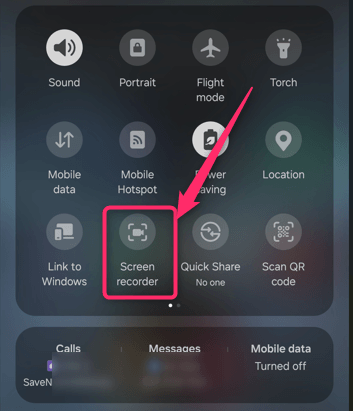
- Step 4: Choose whether to record device audio, microphone audio, or both when these options are available.
- Step 5: Tap Start, return to the video, and begin playback.
- Step 6: Stop the recording from the notification panel. The saved file will usually appear in the Gallery or Photos app.

▼ For iPhone:
- Step 1: Open Settings → Control Center and add Screen Recording when it is not already available.
- Step 2: Open the authorized OnlyFans video and confirm that it plays normally.
- Step 3: Swipe down from the upper-right corner of the screen. On older iPhone models, swipe up from the bottom.
-
Step 4:
Tap the Screen Recording icon and wait for the three-second countdown. Return to the video and begin playback.
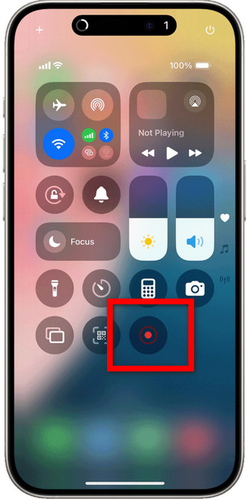
- Step 5: Tap the red recording indicator and select Stop. The video will be saved in the Photos app.

- Free and already available on most modern phones.
- No additional application is required.
- Convenient for short clips and occasional use.
- Protected videos may appear black or record without audio.
- Recording controls vary between devices.
- Long recordings may use significant storage and battery power.
Part 5. Still Getting a Black Screen? Try a More Reliable Alternative
If you keep getting black screen results when trying to screen record OnlyFans, it is usually because of DRM protection and platform security restrictions. That is why many users search for better ways to save content instead of relying on screen recording methods. A more stable solution is FliFlik UltConv OnlyFans Downloader, a dedicated downloader designed to directly save streaming content instead of recording it in real time.
FliFlik UltConv allows users to download OnlyFans videos directly as standard MP4 files, which means you can watch them anytime without worrying about playback blocks. It supports high-quality downloads up to 4K, including 1080p and 720p options, depending on source quality. Users can also download DM videos, bulk content from multiple posts, and even save profile images for offline backup. The tool works through its built-in browser, allowing safe login and direct access to subscribed content.

- Save supported OnlyFans videos as MP4 in available HD or 4K quality.
- Download supported DM videos for personal offline viewing.
- Process multiple compatible videos in batches.
- Save supported profile images and media files.
- Support Fansly, JustForFans, LoyalFans, Patreon, and other sites.
- Work with videos from more than 10,000 supported websites.
▼ How to Download OnlyFans Videos with FliFlik UltConv?
-
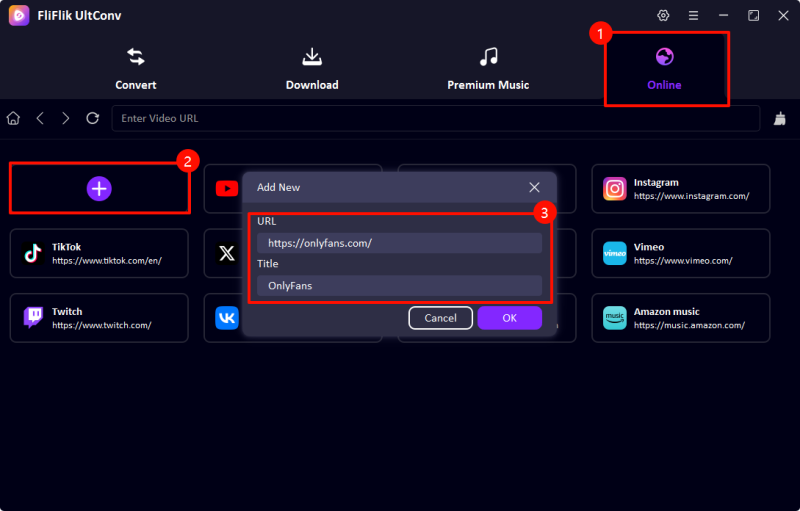
Download and install UltConv from the official website. Open the software and go to the Online section. Paste the OnlyFans video link into the search bar.
-
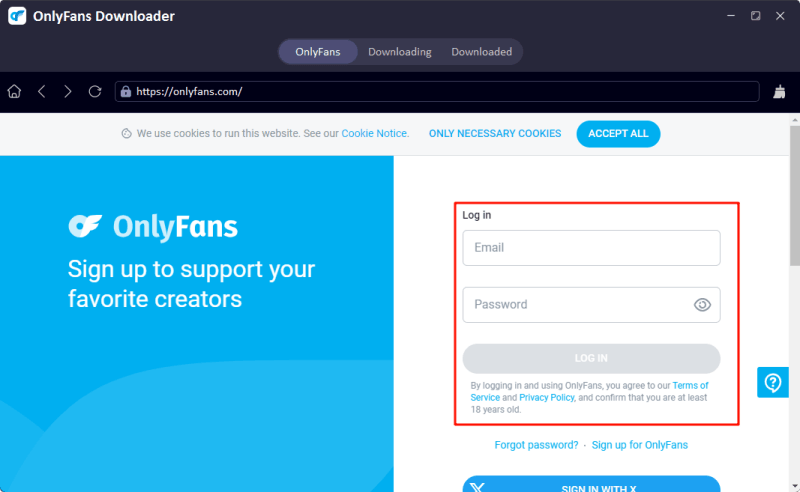
Log into your OnlyFans account inside the UltConv built-in browser to access your subscribed content.
-
Browse your feed and find the video you want. Click Download and select your preferred resolution and format.

-
Wait for the download to finish. The video will be saved locally for offline viewing.
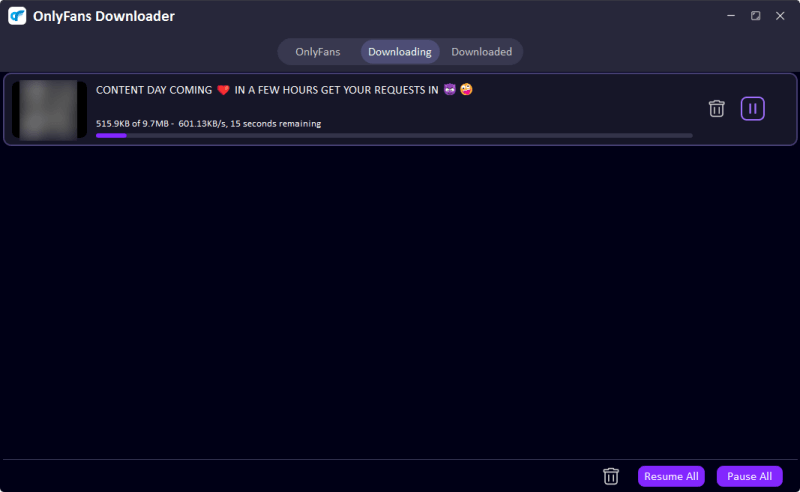


A direct download tool may be more convenient than recording a long video in real time, especially when multiple supported files need to be saved. Results still depend on the source video and current platform compatibility.
Part 6. FAQs About Screen Recording OnlyFans
OnlyFans does not publicly describe a feature that automatically notifies creators when a user starts a local screen recording. However, recording content does not give you permission to repost, sell, or distribute it without the creator’s authorization.
Final Thoughts
So, how to screen record OnlyFans? Windows and macOS users can try OBS Studio, QuickTime Player, or FliFlik Online Screen Recorder, while Android and iPhone users can use the built-in screen recorder. However, screen recording may still produce a black screen, missing audio, or incomplete files because of playback protection, browser settings, permissions, or device compatibility.
For a smoother and faster alternative, FliFlik UltConv OnlyFans Downloader lets you save supported OnlyFans videos in available HD or 4K quality, download compatible DM videos, and process multiple files in batches without recording each video in real time. It is a practical solution for bypassing playback recording blocks and saving content directly to your device. Only download content that you own or have permission to save, and do not redistribute creator content without authorization.
 Secure Download
Secure Download
Secure Download
