

 By
By  5 minutes read


If you suddenly notice Apple Music songs greyed out in your library, playlists, or albums, it can be confusing and frustrating. These greyed-out tracks usually mean the songs are unavailable for playback, not properly synced, or restricted due to account or region issues. Many users also experience this problem after updating iOS or macOS, when settings, downloads, or iCloud Music Library may temporarily fail to sync correctly. In this article, we will share the most common reasons behind greyed-out songs and share simple fixes to restore your Apple Music library.

Part 1. Why Are Apple Music Songs Greyed Out?
Apple Music songs may appear greyed out for several different reasons, and it usually means the track is not currently available for playback. This can happen due to account issues, syncing problems, content restrictions, or changes in the Apple Music catalog. In many cases, the problem appears after switching devices, updating iOS/macOS, or signing in with a different Apple ID.
- Wrong Apple ID or not authorized device: Purchased songs may grey out if you’re not signed in with the correct Apple account or haven’t authorized the device.
- Explicit content restrictions enabled: If your settings are set to “Clean,” explicit songs will be hidden or greyed out.
- Song removed from Apple Music catalog: Tracks marked as “No Longer Available” are no longer supported in the streaming library.
- Hidden songs in the library: If a song is hidden, it will appear greyed out until you unhide it.
Part 2. How to Fix Apple Music Songs Greyed Out — 12 Easy Ways
If you are facing songs greyed out Apple Music issues, there are several simple fixes you can try to restore playback. Most of the time, the problem is related to syncing, settings, or account configuration and can be resolved in a few quick steps.
- Fix 1. Search and Re-add the Song from Apple Music
- Fix 2. Turn Sync Library Off and On Again
- Fix 3. Sign Out and Sign Back into Apple Music
- Fix 4. Check Country or Region Availability
- Fix 5. Enable Explicit Content
- Fix 6. Authorize Your Computer for Purchased Songs
- Fix 7. Unhide Purchased Music
- Fix 8. Locate Missing Local Files
- Fix 9. Delete and Redownload the Playlist
- Fix 10. Update iOS, macOS, Apple Music, or iTunes
- Fix 11. Check Apple Music Subscription and DRM Status
- Fix 12. Contact Apple Support If the Whole Library Is Greyed Out
Quick Fix List:
Fix 1: Search and Re-add the Song from Apple Music
Sometimes a song appears greyed out when the link between your library and Apple Music catalog breaks. This usually happens due to syncing glitches or temporary catalog updates. Re-adding the song refreshes its connection and often restores playback.
-
Step 1: Open Apple Music and search for the greyed-out song again.
-
Step 2: Remove the existing greyed-out version from your library.
-
Step 3: Tap + Add to Library to add it again.
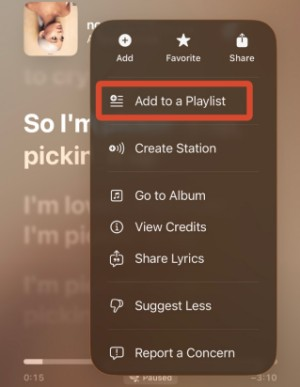
-
Step 4: Wait a few seconds and check if the song is now playable.
Fix 2: Turn Sync Library Off and On Again
Sync Library issues can cause songs not to appear correctly across your devices. When syncing fails, Apple Music may show tracks as unavailable or greyed out until the library is refreshed.
▼ Steps to Enable Sync Library on iPhone:
-
Step 1: Go to Settings > Music.
-
Step 2: Tap Sync Library.
-
Step 3: Turn it off and wait for a few seconds.
-
Step 4: Turn it back on and reopen Apple Music.
▼ Steps to Enable Sync Library on Mac:
-
Step 1: Open the Apple Music app.
-
Step 2: Go to Settings > General.
-
Step 3: Find the Sync Library option.
-
Step 4: Turn it off and then enable it again.
▼ Steps to Enable Sync Library on Windows:
-
Step 1: Open Apple Music or iTunes.
-
Step 2: Go to Settings or Preferences.
-
Step 3: Enable the iCloud Music Library / Sync Library option.
-
Step 4: Restart the app to refresh your library.
Fix 3: Sign Out and Sign Back into Apple Music
Apple Music account sessions can sometimes glitch, especially after updates or long usage. This can temporarily make songs unavailable or greyed out.
-
Step 1: Go to Settings and open your Apple ID profile.
-
Step 2: Sign out of your Apple account.
-
Step 3: Restart your device or Apple Music app.
-
Step 4: Sign back in and check your library again.
Fix 4: Check Country or Region Availability
Sometimes songs appear greyed out because Apple Music does not have licensing rights for that track in your current country or region. This is a very common issue when users travel, change their Apple ID region, or switch devices. When a song is unavailable in your region, Apple Music automatically disables playback and marks it as greyed out. This is why you may see songs greyed out in Apple Music even if they were previously playable.
-
Step 1: Open Apple Music and check if the song shows “Not Available” or a similar message.
-
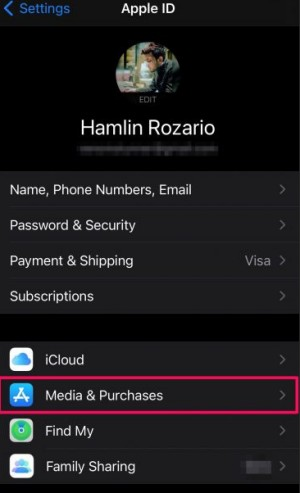
Step 2: Go to Settings > Apple ID > Media & Purchases > View Account.
-
Step 3: Check your Country/Region settings.
-
Step 4: Make sure the song is available in your current region.
Fix 5: Enable Explicit Content
Apple Music has built-in content restrictions that can hide or disable explicit songs. If your device is set to “Clean” mode under Screen Time settings, any explicit track will automatically appear greyed out. This often happens on shared devices, family accounts, or after Screen Time settings are enabled without realizing it.
-
Step 1: Go to Settings > Screen Time.
-
Step 2: Tap Content & Privacy Restrictions.
-
Step 3: Open Content Restrictions > Music, Podcasts & News.
![enable explicit news in apple music]()
-
Step 4: Select “Explicit” instead of “Clean”.

Fix 6: Authorize Your Computer for Purchased Songs
Purchased songs from the iTunes Store may not play if your computer is not properly authorized with the Apple ID used for purchase. This usually happens when switching devices or reinstalling iTunes or macOS. Without authorization, Apple cannot verify ownership of purchased tracks, causing them to appear greyed out.
-
Step 1: Open Apple Music or iTunes on your computer.
-
Step 2: Click Account from the top menu.
-
Step 3: Select Authorizations > Authorize This Computer.
-
Step 4: Sign in with your Apple ID and confirm authorization.
Fix 7: Unhide Purchased Music
Sometimes users accidentally hide songs from their Apple Music or iTunes library. When this happens, the songs remain in your account but are not visible for playback, causing them to appear greyed out. This is especially common when managing large libraries or syncing across multiple devices.
-
Step 1: Open Apple Music settings or iTunes account settings.
-
Step 2: Go to Hidden Purchases.
-
Step 3: Find the hidden song.
-
Step 4: Click “Unhide” to restore it to your library.
Fix 8: Locate Missing Local Files
If you imported songs from CDs or downloaded MP3 files, Apple Music needs access to the original file location. If the file is moved, renamed, or deleted, the song will appear greyed out. This usually happens when files are reorganized or stored on external drives that are no longer connected.
-
Step 1: Check the original folder where the song file was stored.
-
Step 2: If missing, re-download or restore the file.
-
Step 3: Re-import the file into Apple Music or iTunes.
-
Step 4: Refresh your library to update changes.
Fix 9: Delete and Redownload the Playlist
When multiple songs in a playlist are greyed out, the issue is often caused by sync corruption or outdated playlist data. This can happen after updates or when switching devices. Re-downloading the playlist forces Apple Music to rebuild the connection and restore missing tracks.
-
Step 1: Open the affected playlist in Apple Music.
-
Step 2: Delete the playlist from your library.
-
Step 3: Restart Apple Music or your device.
-
Step 4: Recreate or re-download the playlist again.
Fix 10: Update iOS, macOS, Apple Music, or iTunes
Outdated software or post-update bugs can interfere with Apple Music syncing and playback. This can result in songs appearing greyed out or not loading properly. Apple regularly releases updates to fix these bugs and improve music library stability.
-
Step 1: Go to Settings > General > Software Update (iPhone/Mac).
-
Step 2: Install any available updates.
-
Step 3: Update Apple Music or iTunes on Windows if needed.
-
Step 4: Restart your device after updating.
Fix 11: Check Apple Music Subscription and DRM Status
Apple Music tracks are protected by DRM and require an active subscription to remain playable. If your subscription expires or there is an issue with your account, songs may become unavailable and appear greyed out. Even downloaded songs may stop working until the subscription is renewed.
-
Step 1: Open Settings and go to Apple ID > Subscriptions.
-
Step 2: Check if Apple Music is active.
-
Step 3: Renew your subscription if it has expired.
![check apple music subscription]()
-
Step 4: Reopen Apple Music and sync your library again.

Fix 12: Contact Apple Support If the Whole Library Is Greyed Out
If your entire Apple Music library is greyed out and none of the previous fixes work, the issue is likely related to account syncing, server problems, or deeper system errors. In such cases, manual fixes may not be enough, and Apple Support can help diagnose the issue directly.
-
Step 1: Visit the Apple Support website or open the Support app.
-
Step 2: Select Apple Music and describe the issue.
-
Step 3: Provide your Apple ID and device details.
-
Step 4: Follow the guided troubleshooting from the Apple Support team.
Part 3. Best Way to Prevent Apple Music Songs from Being Greyed Out Again
While earlier fixes can resolve Apple Music songs greyed out issues, they may still come back due to DRM, licensing, region limits, or subscription changes. Songs can also become unavailable if Apple Music updates its catalog or removes access rights. To avoid this problem long-term, many users prefer a more stable offline option, such as FliFlik UltConv Apple Music Converter.
FliFlik UltConv Apple Music Converter is an advanced tool designed to download and convert Apple Music tracks into MP4, MP3, and over 100+ formats. It allows users to keep high-quality 320kbps music files permanently on their devices, even if songs later disappear from Apple Music. With fast conversion speed, batch processing, and support for multiple formats, it makes music management simple and reliable for offline listening. The tool also ensures high-quality output and supports downloading entire playlists and albums at once.

- Convert Apple Music songs to MP3, AAC, WAV, or FLAC
- Download MP3 from Apple Music, Spotify, Amazon Music, and SoundCloud
- Remove DRM protection from Apple Music for personal offline listening
- Download and convert playlists, albums, and tracks in bulk
- Maintain high-quality audio output up to 320kbps
- Support fast batch conversion for multiple files at once
▼ How to Convert Apple Music Songs to MP3 with FliFlik UltConv?
 Secure Download
Secure Download
Secure Download
- Step 1: Visit the official UltConv website and download the Apple Music Converter for your Windows or Mac computer. Complete the installation and launch the program.
-
Step 2:
Open UltConv and in the Home tab, select the Music section from the main interface. Then choose Apple Music Converter to continue.

-
Step 3:
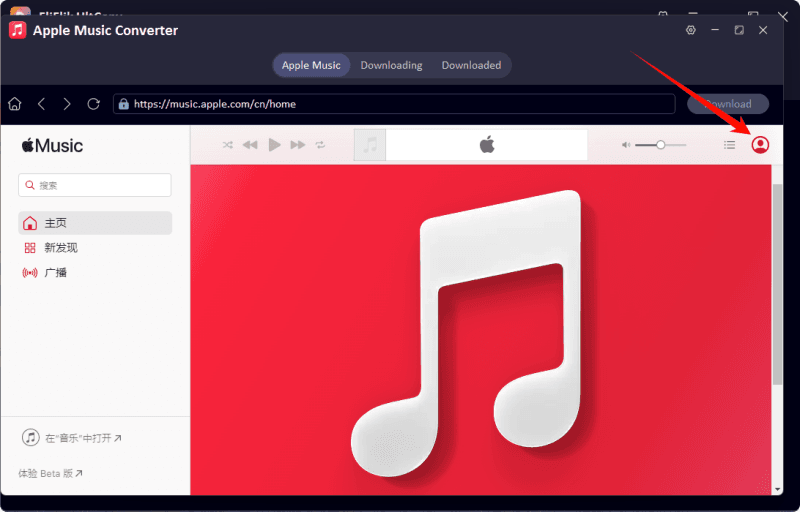
Sign in with your Apple ID inside the built-in Apple Music player. After logging in, your playlists, albums, and saved songs will automatically load into UltConv.
-
Step 4:
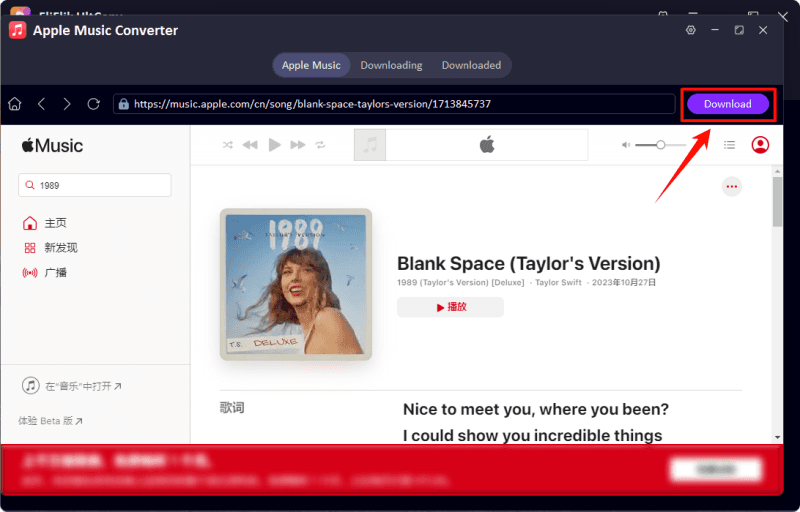
Browse your Apple Music library and select the tracks, playlists, or albums you want to save offline. Click the Download button and choose your preferred output format and quality settings.
-
Step 5:
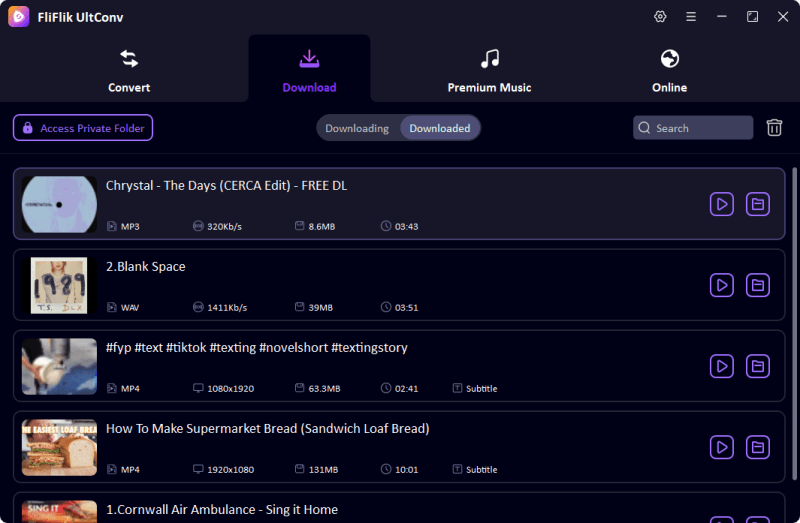
UltConv will begin converting and downloading your music files. Once finished, your songs will be saved as DRM-free audio files, including MP3 formats with high-quality 320kbps output for offline playback anytime.


Part 4. FAQs about Apple Music Songs Greyed Out
Q1. Why does Apple Music say a song is not available in my country or region?
This usually happens because Apple Music licensing agreements vary between countries. Some songs or albums may only be available in specific regions, so changing your Apple ID location or traveling abroad can cause tracks to become unavailable or greyed out.
Q2. Will my Apple Music songs be greyed out if I cancel my subscription?
Yes. Apple Music songs are protected by DRM and require an active subscription to stay playable. If your subscription ends, downloaded tracks from the Apple Music catalog may become greyed out and stop working.
Q3. How can I keep Apple Music songs playable offline forever?
Many users use tools like FliFlik UltConv Apple Music Converter to convert Apple Music tracks into common audio formats for personal offline listening. This helps avoid issues caused by subscription expiration, DRM, or catalog changes.
Conclusion
Apple Music songs can become greyed out for many reasons, including sync issues, DRM restrictions, expired subscriptions, regional limitations, or catalog updates. Fortunately, most problems can be fixed with simple troubleshooting steps like refreshing Sync Library, re-adding songs, or updating your device. For users who want a more stable offline listening experience, FliFlik UltConv Apple Music Converter offers an easy way to save music in common audio formats and keep favorite tracks accessible anytime without worrying about future playback issues.
Secure Download
Secure Download