

 By
By  9 minutes read


HandBrake is one of the most popular free tools for video conversion, compression, and DVD ripping, but many users still ask the same question before installing it: is HandBrake safe to use? Since the software is downloaded from the internet and often used for ripping or converting media files, it is understandable that users want to know whether it is secure, trustworthy, and legal to use in 2026.
In this guide, we’ll take a closer look at HandBrake’s safety. We’ll also discuss some limitations of HandBrake and introduce several safer HandBrake alternatives that offer easier workflows and additional features for video conversion and downloading.

Part 1. Is HandBrake Video Converter Safe?
Yes, HandBrake is generally considered safe when downloaded from the official website. It is a trusted open-source video converter widely used for video compression, conversion, and DVD ripping without bundled malware or unwanted software. Although a compromised download mirror briefly distributed a malicious Mac installer in 2017, the HandBrake team quickly resolved the issue, and the software itself was not infected. In normal use, HandBrake is safe and reliable, though video encoding can heavily use CPU resources during large compression tasks, especially with 4K videos.
Is HandBrake Free?
Yes, HandBrake is completely free to use. There are no subscriptions, hidden fees, or premium upgrades required. Users can download and use all of its video conversion and compression features without paying anything. It supports Windows, Mac, and Linux, making it a popular free solution for both casual users and advanced video editors.
Part 2. How to Download and Use HandBrake Safely
To use HandBrake safely, the most important step is downloading it only from the official website and avoiding third-party download pages that may bundle unsafe installers or outdated versions.
▼ Steps to Download and Use HandBrake Safely
-
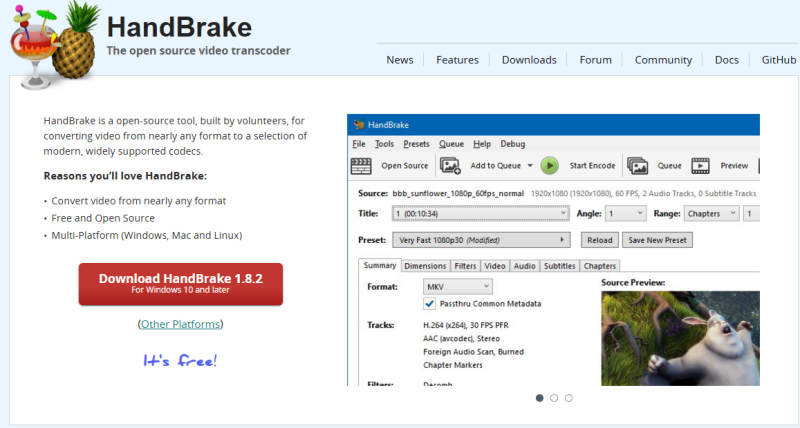
Step 1: Visit the official HandBrake website and download the correct version for your Windows, Mac, or Linux system.
- Step 2: Install HandBrake on your computer and launch the software after installation is complete.
-
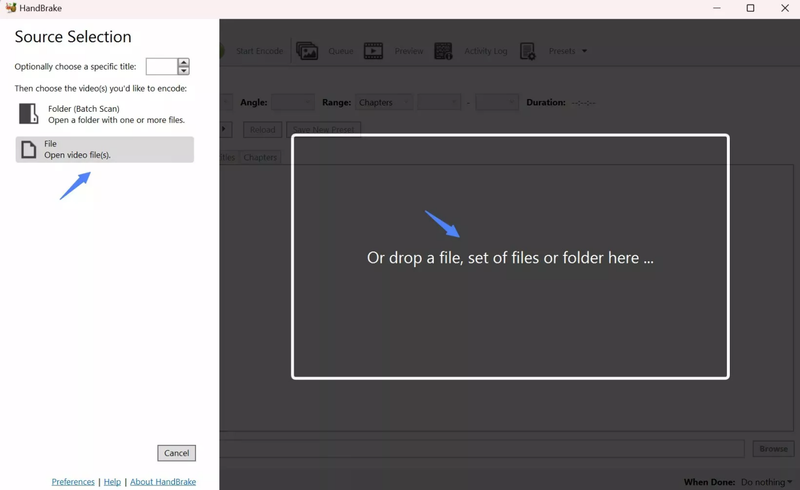
Step 3: Click the
Open Source
button and import the video or DVD file you want to convert.
-
Step 4: Choose an output format such as MP4, MKV, or WebM, then select a preset based on your preferred quality and device compatibility.
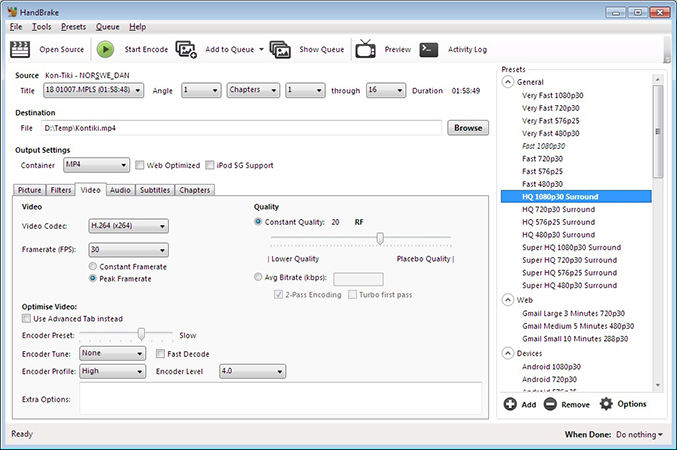
- Step 5: Adjust additional settings like video quality, resolution, bitrate, subtitles, audio, or compression options if needed.
-
Step 6: Use the
Preview
feature to check how the final converted video will look before processing.
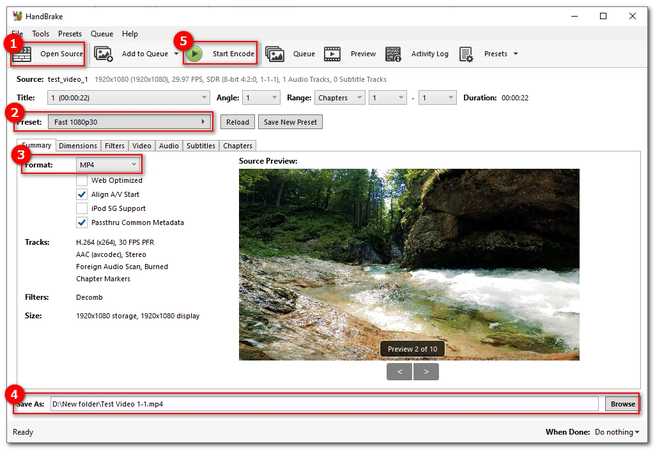
- Step 7: Click Browse to choose where the converted file should be saved on your computer.
- Step 8: Press the Start Encode button to begin converting or compressing the video.
- Step 9: Once the process is finished, open the output folder to access your converted video file.


 Note:
Note:
If HandBrake shows a “No Valid Source Found” error, the file may be unsupported, corrupted, or DRM-protected. Updating HandBrake or converting the file first with another media tool may help resolve the issue.
Part 3. Why Do You Need a HandBrake Alternative?
HandBrake’s interface is not user-friendly for beginners, and its technical parameters such as bitrate and encoder can be confusing. For users who simply want quick compression or conversion, the operation is overly complex. Furthermore, it consumes a lot of CPU resources when processing 4K encoding, which can slow down older computers and impact work efficiency.
HandBrake primarily supports MP4, MKV, and WebM, resulting in limited format compatibility. It also lacks video download and editing capabilities and cannot directly acquire videos from web pages. Therefore, users seeking a “one-stop” experience (download + conversion + ease of use) will typically choose more modern and feature-rich alternatives.
Part 4. Top 5 HandBrake Alternatives in 2026
If HandBrake feels too technical or limited for your workflow, there are several modern alternatives. Below are 5 of the best HandBrake alternatives to consider in 2026.
1. FliFlik UltConv Video Downloader
FliFlik UltConv Video Downloader is a more feature-rich alternative to HandBrake for users who want not only video conversion and compression, but also built-in downloading support for streaming websites and social platforms. Unlike HandBrake, UltConv combines v ideo downloading, music conversion, DRM removal, and batch processing into one simplified interface, making it much easier for beginners and everyday users.
It supports downloading videos and audio from over 10,000+ websites, including YouTube, TikTok, Twitch, Spotify, SoundCloud, and many more. Users can save videos in resolutions up to 4K or 8K, convert files into multiple formats, download playlists in bulk, and even extract audio without noticeable quality loss.
▼ System Support
- Windows 10 (64-bit) / Windows 11
- macOS

- Download videos from 10,000+ streaming and social media sites
- Save videos and music in MP4, MP3, and 100+ output formats
- Batch download playlists, channels, albums, and multiple videos
- Download HD videos in 1080p, 2K, 4K, and even 8K quality
- Remove DRM from Spotify and Apple Music tracks
▼ Steps to Download YouTube Videos to MP4 with FliFlik UltConv
Install FliFlik UltConv Video Downloader on your Windows or Mac computer. After installation, launch the software to begin.
 Secure Download
Secure Download
Secure Download
-
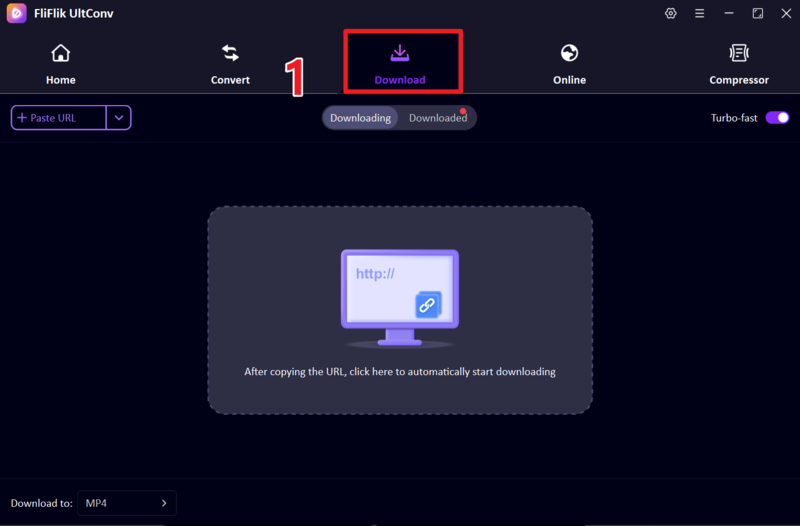
Open the Download tab and click the “Download To” option to set your output preferences.
-
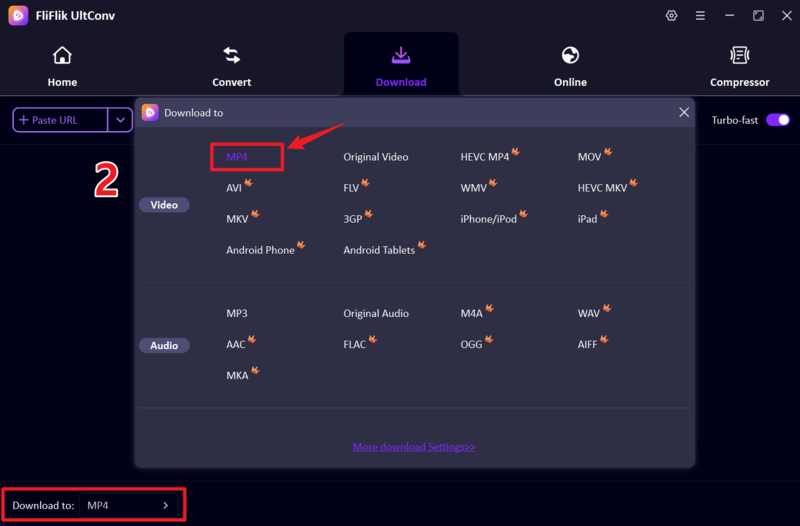
Choose MP4 as your preferred output format from the available format list. You can also choose Audio formats like MP3 to download music only.
-
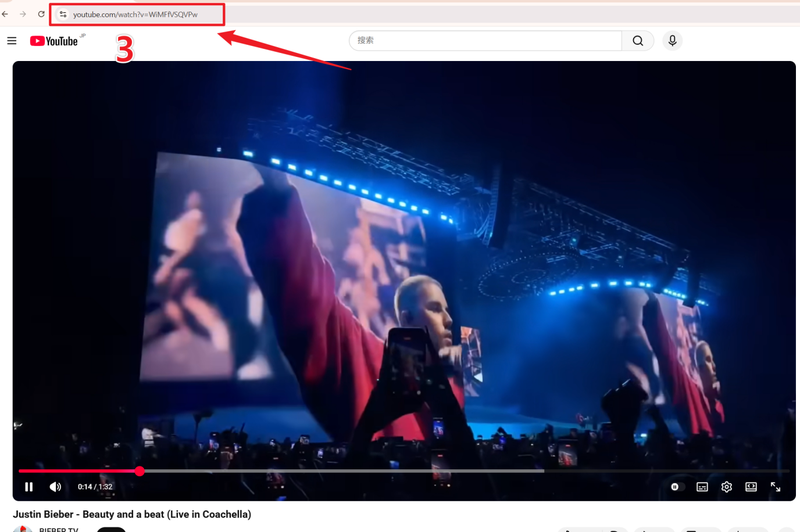
Open YouTube in your browser, select your video, and copy its URL from the address bar.
-
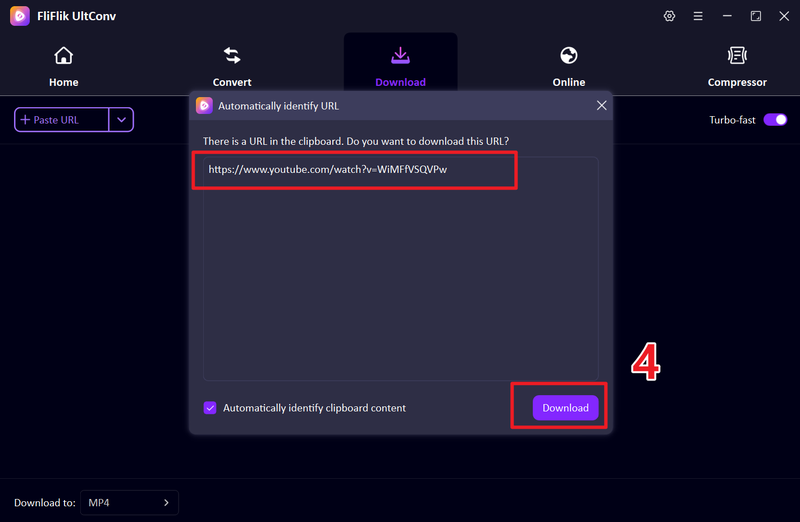
Return to UltConv. The tool will automatically detect the copied link, or you can paste it manually, then click Download.
-
You will see the tool will start downloading your videos immediately. Wait for the download to complete.
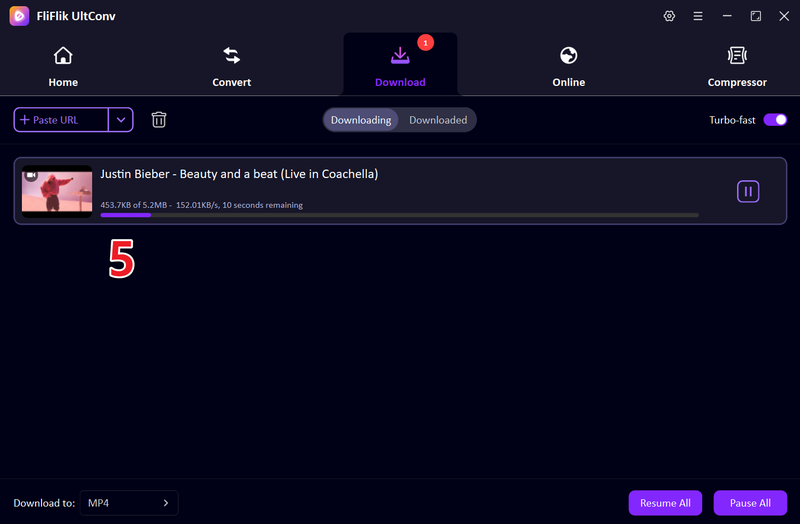


Once finished, open the output folder and play your MP4 video offline anytime.
2. FFmpeg

FFmpeg is a powerful open-source multimedia framework widely used for video compression, conversion, and advanced editing through command-line control. Unlike beginner-friendly tools, it is mainly designed for developers and advanced users who need full control over encoding settings, formats, and compression quality. FFmpeg supports almost every video and audio format and is highly efficient for batch processing and automation workflows.
3. VLC Media Player

VLC Media Player is not only a popular video player but also a useful tool for basic video conversion and compression. It allows users to convert videos into formats like MP4 and adjust simple encoding settings without installing extra software. While it is not as powerful as dedicated compressors, VLC is a convenient option for quick and lightweight video compression tasks.
4. Any Video Converter

Any Video Converter is a user-friendly video conversion and compression tool designed for beginners who want fast and simple results. It supports a wide range of video formats and allows users to compress, convert, and edit videos with just a few clicks. It also includes presets for different devices and platforms, making it easy to optimize videos for social media, mobile, or web sharing.
5. FreeConvert

FreeConvert is a powerful online universal file converter that supports over 1,500 formats across video, audio, images, and documents. Its core competitive advantage lies in its generous free tier, allowing anonymous users to upload single files up to 1GB and support direct imports from cloud services like Google Drive and Dropbox, making it a top choice for handling large file conversions.
FAQs
Q1. What is the best alternative for HandBrake?
The best alternative depends on your needs, but FliFlik UltConv Video Downloader is a popular option because it offers easier controls, faster processing, and extra features compared to HandBrake.
Q2. Is HandBrake free?
Yes, HandBrake is completely free and open-source. It does not require any subscription or payment to use its video conversion and compression features.
Q3. Does HandBrake remove DVD protection?
HandBrake does not natively remove most DVD copy protections. To handle encrypted DVDs, additional tools or libraries are usually required.
Conclusion
HandBrake is a powerhouse for precision encoding, but its complexity and lack of a download feature can be a hurdle.
FliFlik UltConv Video Downloader bridges that gap by offering an all-in-one solution. It streamlines the process by combining high-speed downloading and conversion into a single, intuitive workflow—perfect for users who want fast results without the technical headache.
Secure Download
Secure Download