

 By
By  8 minutes read


If you’ve ever wanted to save your favorite Spotify tracks for offline listening without paying for a premium subscription, you’ve probably gone down the rabbit hole of music downloaders, and that’s likely how you stumbled across OnTheSpot.
So, what exactly is it? Simply put, OnTheSpot is a free, open-source tool that lets you download music directly from Spotify to your device. No complicated workarounds, no sketchy websites, just a straightforward downloader built by the community, for the community. In this guide, we’ll walk you through everything you need to know about what OnTheSpot does, how to set it up, and how to fix download errors you might run into along the way.

Part 1. What is OnTheSpot Downloader?

OnTheSpot Downloader is a free, open-source music downloader built specifically for Spotify, and it does a surprisingly clean job at it. At its core, OnTheSpot is a Qt-based music downloader written in Python, developed by an independent developer and maintained on OnTheSpot GitHub. It’s not a browser extension or a web app; it’s a proper desktop application you install and run on your computer.
- Search & Download : Search for songs, artists, albums, or playlists directly within the app and download them with a single click.
- URL-Based Downloading : Paste any Spotify URL into the search field and hit download; no need to search manually.
- Bulk Downloads : Download entire playlists or albums in one go using the bulk download option.
- Customizable File Naming : You can set the naming scheme of downloaded tracks using variables like artist, album, track name, release year, and more.
- Multiple Output Formats : Choose your preferred media format for downloaded files (MP3, OGG, etc.).
- Cross-Platform : Available for Windows, Linux, and macOS.
- Completely Free & Open Source : Licensed under GPL-2.0, with the full source code publicly available on GitHub.
Part 2. How to Use OnTheSpot to Download Music for Free?
Getting started with OnTheSpot Spotify downloads is simpler than you might think. Whether you’re on Windows/Mac/Linux or just getting familiar with the tool, here’s a step-by-step walkthrough from installation all the way to saving your first track.
Step 1: Install OnTheSpot
-
Go to the official OnTheSpot GitHub Releases page and download the latest Windows version. If you see OnTheSpot_win_ffm.exe, choose that it already includes FFmpeg and requires less setup.
-
Double-click the downloaded .exe file to open OnTheSpot. No installation is needed; it launches immediately.
-
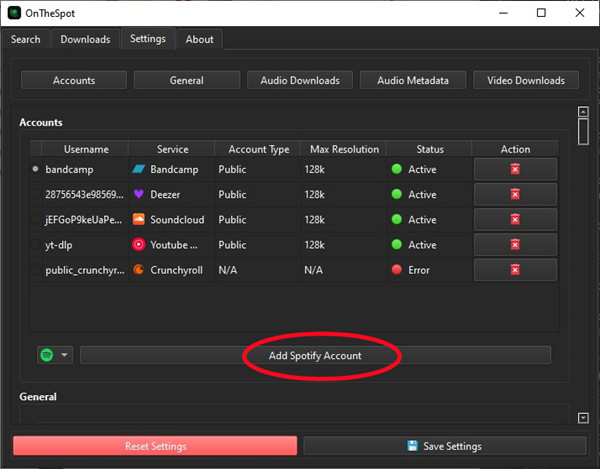
On the main screen, click “Add Spotify Account” to connect your Spotify profile.
-
OnTheSpot will request device permission. Open Spotify on your computer, go to the Devices list, and select OnTheSpot to approve it.
-
Once approved, OnTheSpot appears as a connected device. Keep it connected while using the app.

Step 2: Set Up Accounts and Download Settings
-
Go to the Settings tab and open Accounts to add more Spotify accounts. Multiple accounts allow faster, parallel downloads.
-
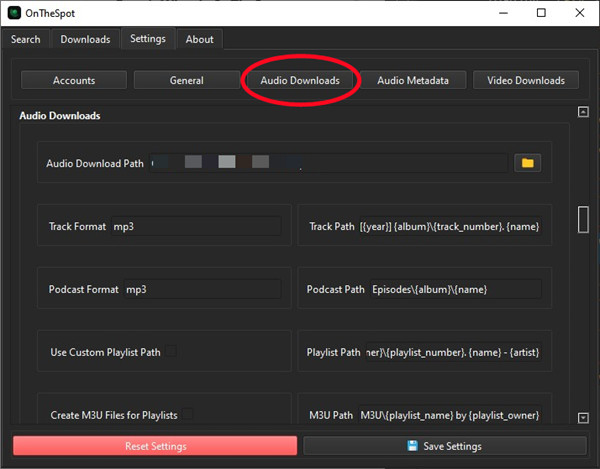
Open Audio Downloads in Settings and choose a save location for your downloaded files. Also, set the number of download workers (more = faster, but may affect stability). Also, select your preferred audio format (MP3, OGG, etc.)

Step 3: Search and Download Music
-
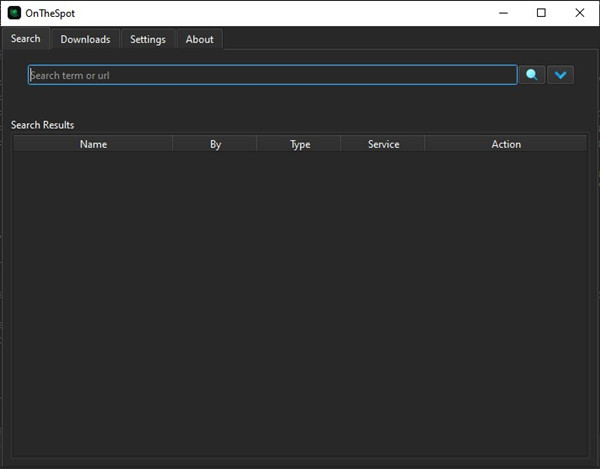
Click the Search tab from the top navigation bar.
-
Type a song name, artist, album, or paste a Spotify URL into the search field, then click Search.
-
Click the Download button next to any result to start saving it.
-
Switch to the Progress tab to monitor your downloads. Each item will show as queued, downloading, or finished.
-
Downloads continue running in the background even if you switch tabs, so you can keep searching while your music saves.

Part 3. How to Fix OnTheSpot Download Failed?
Downloads failing in OnTheSpot can be frustrating, especially when you’re midway through a playlist. The good news is that most errors come down to one or two common causes, and they’re fixable. Let’s walk through them.
Fix 1: Switch to a Different Account
The most common reason downloads fail in OnTheSpot is a decode error, which usually means your Spotify account has been temporarily restricted by Spotify’s servers. If you are receiving a decode error, your account might have been restricted. The recommended fix is to wait some time or try a different account.
▼ Steps to Change Your Spotify Account
- Step 1: Open OnTheSpot and go to the Settings tab.
- Step 2: Open the Accounts section and remove the current Spotify account connected to the app.
- Step 3: Click Add Spotify Account and sign in with another Spotify account.
- Step 4: Reconnect the new account through Spotify device authorization and try downloading the music again.
Fix 2: Using A Better Alternative
If OnTheSpot keeps failing, throwing errors, or just feels too unreliable for your needs, it might be time to try something more stable. FliFlik UltConv Spotify Downloader is one of the best alternatives out there, and it’s built specifically to make downloading Spotify music as smooth and hassle-free as possible. The software lets users download Spotify songs, playlists, albums, podcasts, and artists in just a few clicks while preserving sound quality and metadata information. It also supports multiple output formats such as MP3, FLAC, WAV, AAC, and M4A, making it easy to play downloaded music on different devices. Besides Spotify, UltConv Music Downloader works with many streaming services, including SoundCloud, Deezer, TIDAL, Bandcamp, and more, giving users a complete all-in-one music downloader without complicated setup steps.

- Download Spotify songs, albums, playlists, podcasts, and artists
- Convert music to MP3, FLAC, WAV, AAC, M4A, and more
- Support up to 320 Kbps high-quality audio output
- Keep full ID3 tags and album artwork automatically
- Batch download playlists and albums at 10× faster speed
- Support 10,000+ streaming music websites, including Spotify, Deezer, TIDAL, SoundCloud, and Bandcamp
▼ Steps to Download Spotify Songs with UltConv Spotify Downloader
-
Download FliFlik UltConv Music Downloader from the official website and install it on your Windows/macOS computer. After the setup finishes, launch the software.
FREE DOWNLOAD![secure download]() Secure Download
FREE DOWNLOAD
Secure Download
FREE DOWNLOAD![secure download]() Secure Download
Secure Download
-
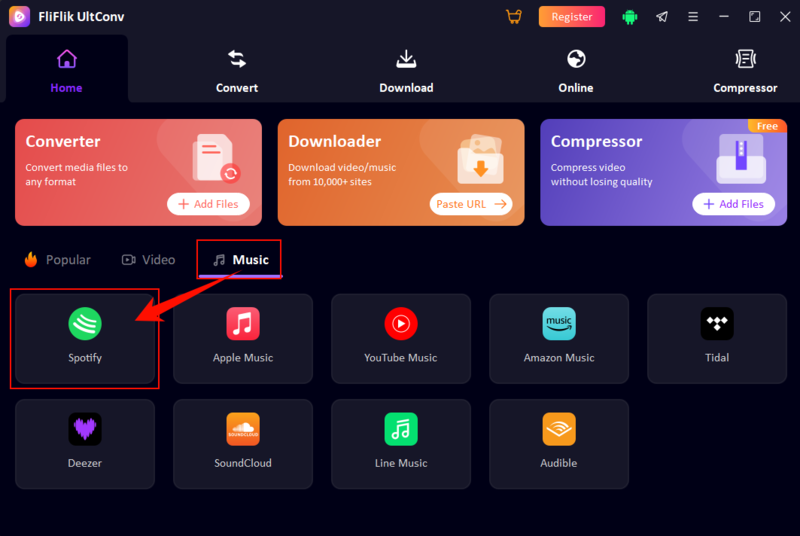
In the main interface, go to the Music tab under the Home section and click the Spotify icon.
-
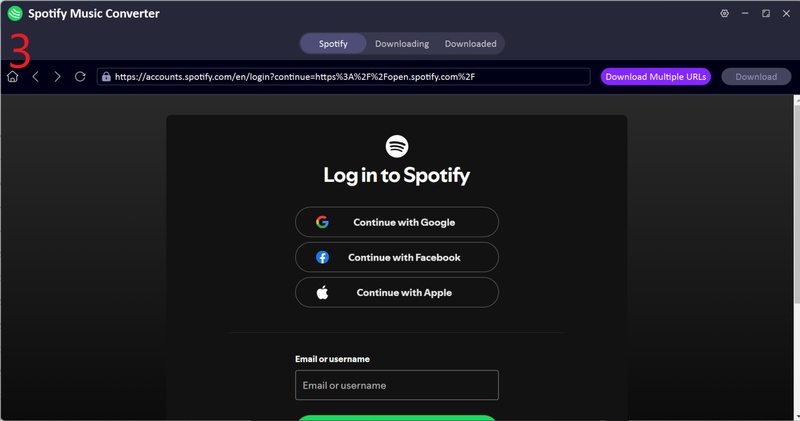
Log in to your Spotify account using the built-in web player. It supports both Free and Premium accounts.
-
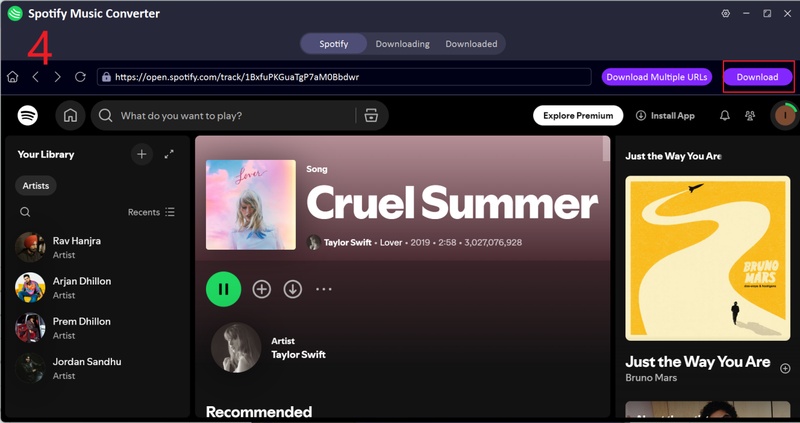
Browse your library and open the song, album, or playlist you want to save, then start the download process.
-
Wait for the conversion to finish, then go to the Downloaded section to find your saved files with full ID3 tags and artwork.
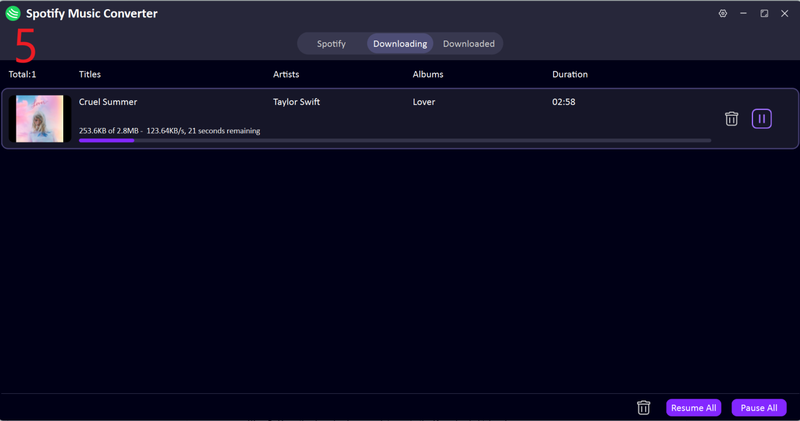
Your Spotify music is now ready for offline listening without ads or restrictions.


Final Words
Whether you’re just getting started or have been using OnTheSpot for a while, it’s clear that this open-source tool offers a solid set of features for downloading Spotify music for free. However, when errors pile up and downloads keep failing, having a reliable backup plan matters. That’s where FliFlik UltConv Music Downloader comes in. With support for 10,000+ streaming sites, lossless 320 Kbps audio, and a clean, no-fuss interface, it’s the upgrade your music library deserves.
 Secure Download
Secure Download
Secure Download