7 minutes read


Compressing videos sounds easy until you actually try doing it yourself. Sometimes the file stays too large, sometimes the quality becomes blurry, and sometimes the tool adds annoying watermarks or limits basic features behind a paywall. That’s why online tools like the Clideo video compressor have become popular, especially for users who want a quick way to reduce video size without installing heavy software.
But is Clideo actually good enough in 2026, or are there better alternatives now? In this review, we’ll take a closer look at the Clideo Video Compressor, its features, ease of use, performance, safety, and overall limitations. We’ll also compare it with better alternative. Let’s begin.

- Part 1. Quick Overview: What is Clideo Video Compressor
- Part 2. Is Clideo Video Compressor Free to Use?
- Part 3. How to Use Clideo to Compress Video
- Part 4. Best Clideo Alternatives—Fliflik UltConv Free Video Compressor
- Part 5. Clideo vs. FliFlik UltConv: Which is the Best?
- Final Thoughts
Content Table:
Part 1. Quick Overview: What is Clideo Video Compressor

Clideo Video Compressor is an online video compression tool designed for users who want to reduce video file size quickly without installing desktop software. It mainly focuses on simplicity, making it useful for casual users who need to compress videos for platforms like YouTube, Instagram, Facebook, or email sharing. The tool works directly in your browser, supports multiple video formats, and allows users to preview compressed files before downloading them. One reason many people use it is that the interface feels very beginner-friendly. You simply upload a file, wait for processing, and download the smaller version.
- Fully online tool with no installation required
- Simple and beginner-friendly interface
- Supports many video formats like MP4, MOV, AVI, WMV, and more
- Useful for social media uploads and quick file sharing
- Works on both desktop and mobile browsers
- Upload and compression speed depend on the internet connection
- Free version has limitations and watermark restrictions
- Less advanced control compared to desktop compressors
- Large video files may take longer to process
- Privacy concerns may exist for sensitive videos uploaded online
Part 2. Is Clideo Video Compressor Free to Use?
Yes, Clideo’s video compressor does offer a free version, but it mainly covers basic compression features. You can upload videos, reduce file size, and download compressed files without paying upfront, which is useful for quick or occasional use. However, the free version comes with some limitations, especially for users who work with videos regularly.
To unlock premium features, Clideo offers a Pro subscription starting at around $9 per month, or about $6 per month with the annual plan. The Pro version removes watermarks, allows longer cloud storage time for projects, and provides a smoother overall editing experience without many of the restrictions found in the free plan.

So while the tool is technically free to use, the more advanced and unrestricted experience is mostly reserved for paid users.
Part 3. How to Use Clideo to Compress Video
Using Clideo to compress videos is fairly simple since everything works directly in your browser. You don’t need to install any software, which makes it convenient for quick video compression tasks on both desktop and mobile devices.
-
Step 1: Open your browser, search for Clideo Video Compressor, and go to the official compression tool page.
-
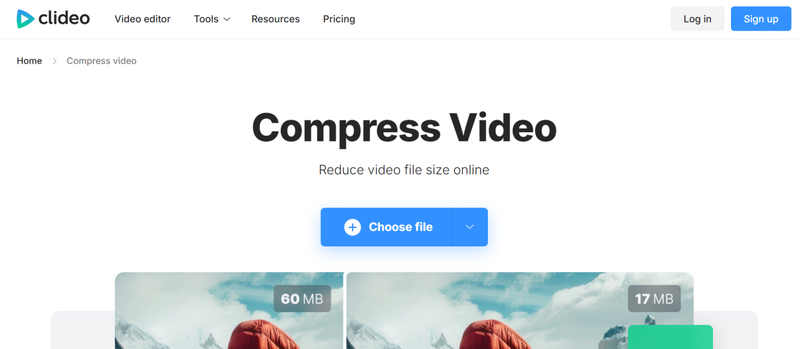
Step 2: Click the “Choose File” button and upload the video you want to compress from your computer or device.
-
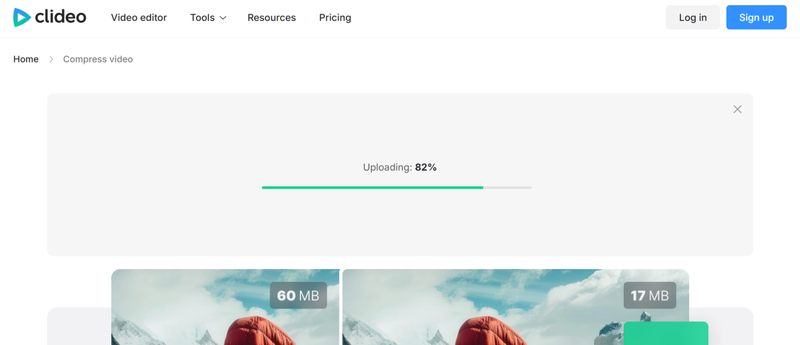
Step 3: Wait while the video uploads to Clideo’s servers. Upload speed may depend on your internet connection and file size.
-
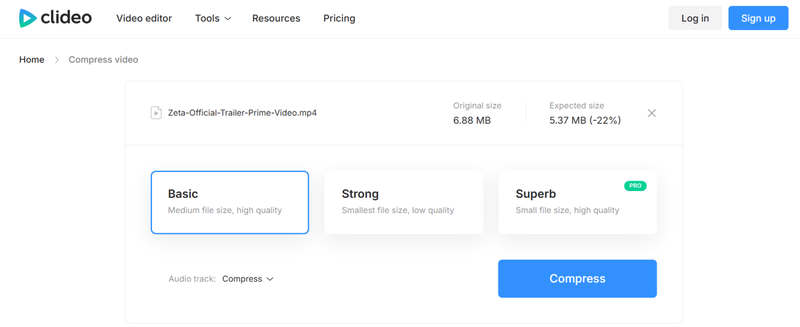
Step 4: Select a compression preset like Basic, Strong, or Superb, depending on your preferred output quality and available plan features.
-
Step 5: Click the ” Compress ” button to start reducing the video file size. Once finished, download the compressed video back to your device.



Part 4. Best Clideo Alternatives—Fliflik UltConv Free Video Compressor

While Clideo is good for quick online compression, it often comes with limits like slow uploads, watermark restrictions, internet dependency, and less control over output quality. One strong alternative is FliFlik UltConv Video Compressor, which focuses on faster local compression without requiring cloud uploads or browser processing. Since everything runs directly on your computer, the compression process is usually more stable, faster, and better suited for large or batch files. It gives users more control over file size, quality balance, and format compatibility compared to most browser-based compressors.
Unlike many online tools that only support basic MP4 files, UltConv Video Compressor supports 100+ video and audio formats, including MP4, MOV, MKV, AVI, MP3, FLAC, and more. It also includes built-in preview support before compression, which helps users check visual quality before the compression starts and makes it more efficient. For creators handling lots of media regularly, the batch compression system is especially useful because multiple files or folders can be compressed together instead of processing videos one at a time.

- Compress videos and audio files completely free
- Supports 100+ video and audio formats
- 10x faster batch compression processing
- Compress files without adding watermarks
- Preview compressed video quality before compression
- Flexible size and quality adjustment controls
- Works well with HD, 4K, and even 8K videos
▼ Steps to Compress a Video with FliFlik UltConv Free Video Compressor
-
Install FliFlik UltConv Video Compressor on your Windows PC or Mac, then open the program after installation is complete.
FREE DOWNLOAD![secure download]() Secure Download
FREE DOWNLOAD
Secure Download
FREE DOWNLOAD![secure download]() Secure Download
Secure Download
-
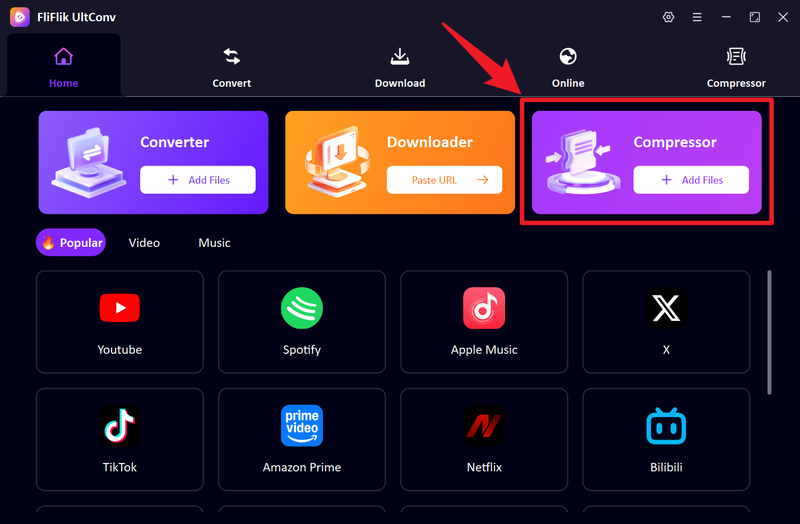
Go to the Compressor section and drag your video file directly into the software window to import it.
-
Drag and drop the videos you want to compress into the box. With support for MP4, MOV, AVI, and more, you won’t have to worry about file compatibility.
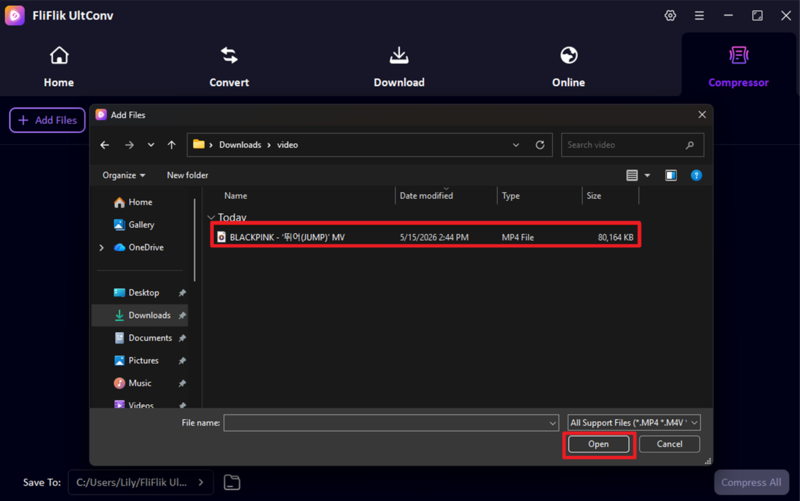
-
Click the gear icon to select your preferred compression level and adjust the output quality or target file size. You can also preview the result before final compression.
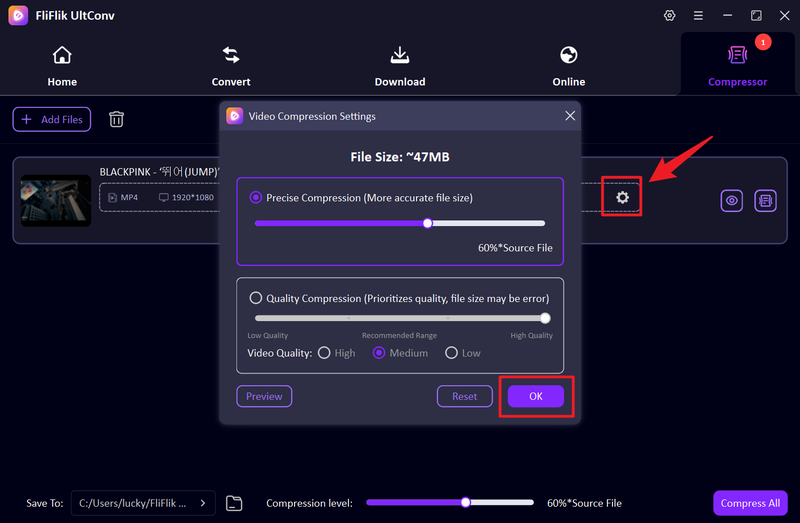
-
Click the ” Compress All ” button to start compressing your video file.
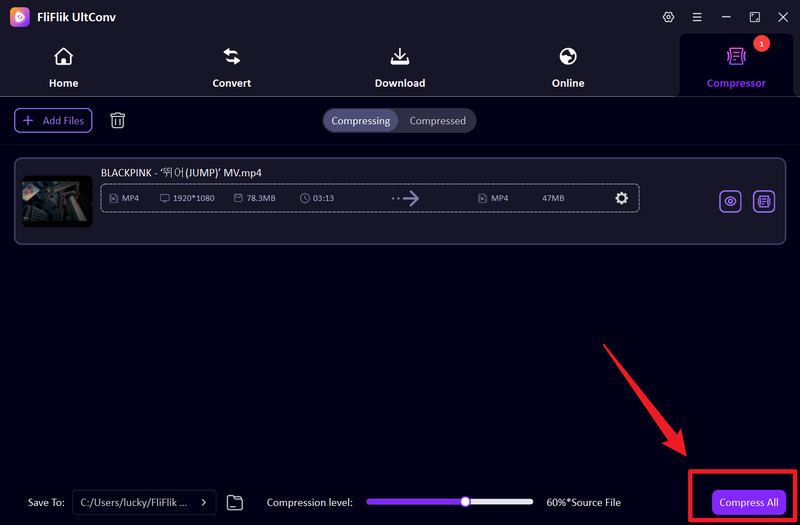
-
Once the process is finished, go to the Compressed tab or open the output folder to access your newly reduced video file.
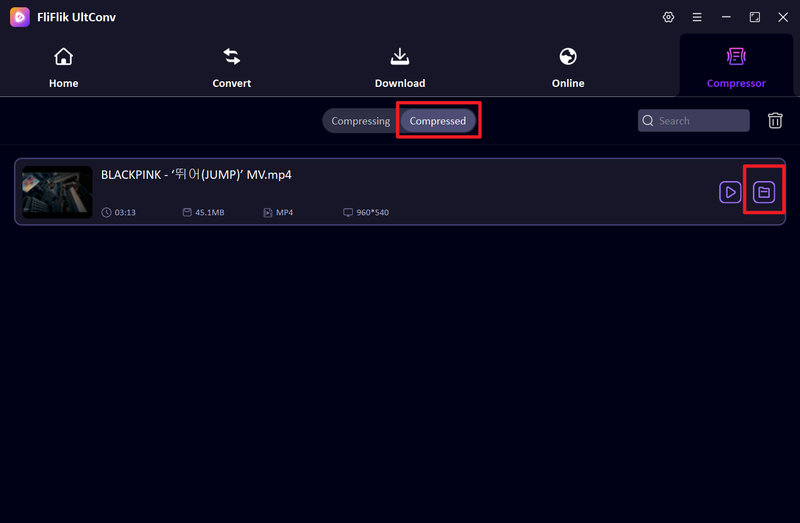


Part 5. Clideo vs. FliFlik UltConv: Which is the Best?
Clideo and FliFlik UltConv both aim to compress videos, but they work in very different ways. Clideo is mainly a browser-based tool, which is great for quick and simple tasks. UltConv Video Compressor, on the other hand, is a desktop solution designed for faster processing, more control, and heavier workloads like large or multiple video files. Here’s a clear comparison between the two tools:
| Feature | FliFlik UltConv Compressor | Clideo Video Compressor |
|---|---|---|
| Type | Desktop software | Online (browser-based tool) |
| Speed | Faster due to local processing + acceleration | Depends on the internet upload speed |
| Supported Formats | 100+ video & audio formats | Common formats (MP4, MOV, AVI, etc.) |
| Batch Processing | Full batch compression support | Paid-only features |
| Watermark-Free | No watermark in exports | Paid plan required |
| Preview Feature | Built-in preview before compression | Available before download |
| Price | 100% Free | Free + Pro plan |
Final Thoughts
Overall, Clideo video compressor is a simple and convenient option if you just need to quickly reduce video size without installing any software. It works well for basic, occasional use, especially when you’re dealing with small files or quick sharing tasks. If you need something faster, more stable, and flexible, a desktop solution like FliFlik UltConv Video Compressor is a much stronger choice. It supports batch processing, higher quality output, and 100+ formats while giving you more control over compression results. If you want smoother video compression without limits, UltConv Video Compressor is definitely worth trying.
 Secure Download
Secure Download
Secure Download
Hey there! I am Maxwell Clark. I'm always looking for new tech tools that make a difference, from making visuals and audio better to making workflows better. I'm going to share tips and tricks for using AI tools for videos, audio, and images. I'm excited to help you navigate the digital world more efficiently and creatively!