

 By
By  7 minutes read


AVI (Audio Video Interleave) is an older video format that was once widely used for storing movies and clips in high quality. While it still delivers good video and audio performance, the problem is that many modern devices and apps don’t support it smoothly anymore.
That’s why users often run into issues like “file not supported,” no sound, or videos not playing at all, especially on smartphones, Mac systems, or default media players. In this article, we will share simple ways of how to play AVI files on Any Device.

Part 1. How to Play AVI Files on Windows
On Windows, not every AVI file plays smoothly, especially if it uses older or less common codecs. In many cases, users face issues like lagging video, missing audio, or unsupported format errors.
Why Convert AVI to MP4?
MP4 is the most widely supported video format today. It works smoothly on Windows, Mac, smartphones, browsers, and almost every media player. Compared to AVI, MP4 files are usually smaller in size and more optimized for modern devices without losing noticeable quality. Here’s a simple comparison between both types:
| Feature | AVI | MP4 |
|---|---|---|
| Compatibility | Limited on modern devices | Works on almost all devices |
| File Size | Larger | Smaller and compressed |
| Video Quality | High but less optimized | High with better compression |
| Mobile Support | Poor | Excellent |
| Playback Performance | May lag on some players | Smooth and stable |
🔥 FliFlik UltConv Video Converter
FliFlik UltConv Video Converter converts AVI into MP4 for better compatibility in just a few clicks. While keeping the original video quality intact, so you don’t lose clarity during conversion. It also handles large video files efficiently, meaning you don’t have to worry about system slowdowns or long processing times.
Beyond basic conversion, it helps you prepare videos for different devices, whether you’re watching on Windows, mobile, or sharing online, by ensuring the output format is always compatible and ready to play. In short, it turns complicated video format issues into a quick, user-friendly process.

- Support 10,000+ websites, YouTube, Instagram, Netflix, Spotify etc.
- Batch download videos, in MP4, MP3, and 100+ formats
- Download videos in HD, 2K, 4K, and up to 8K quality
- Remove DRM protection from music platforms
- Save live streams in real time from platforms like YouTube, Twitch, and TikTok
- 10x faster download speed with support for large files and playlists
▼ How to Convert AVI to MP4 with UltConv?
First, download and install UltConv Video Converter from the official website. After installation, open the program and follow the steps below.
 Secure Download
Secure Download
Secure Download
-
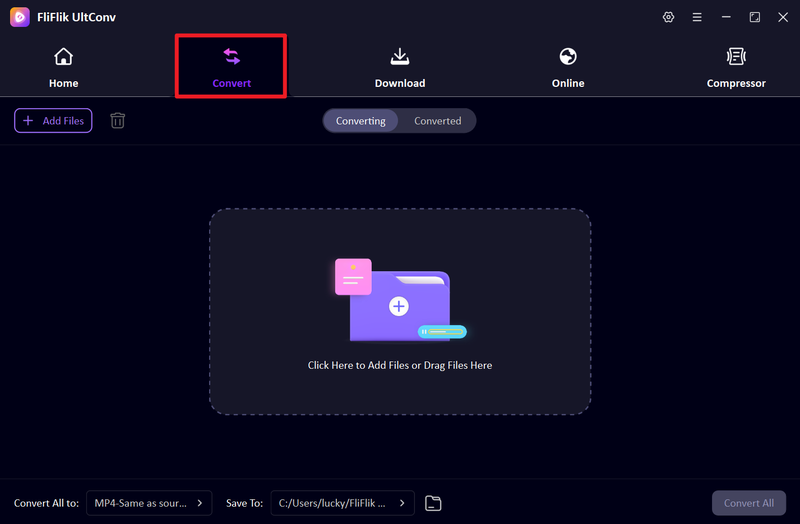
Open the UltConv on your PC, click the Convert tab, and then find “Convert all to” in the bottom left corner of the screen.
-
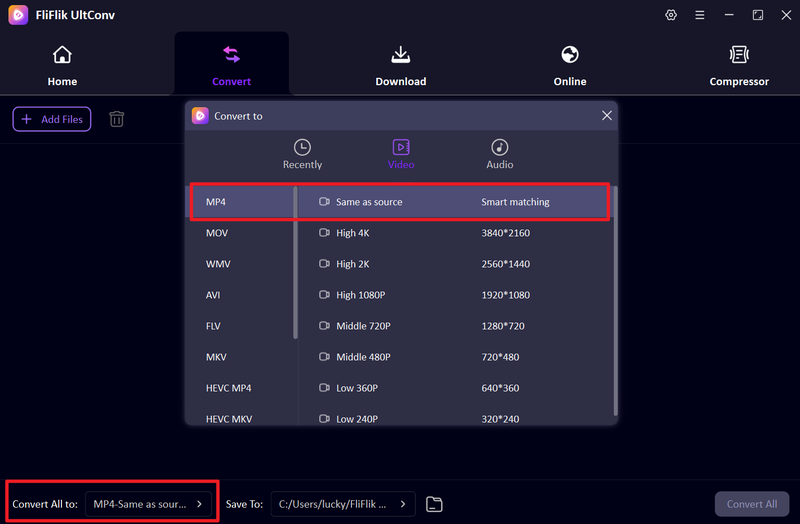
A pop-up will then appear, allowing you to select any output format you prefer.
-
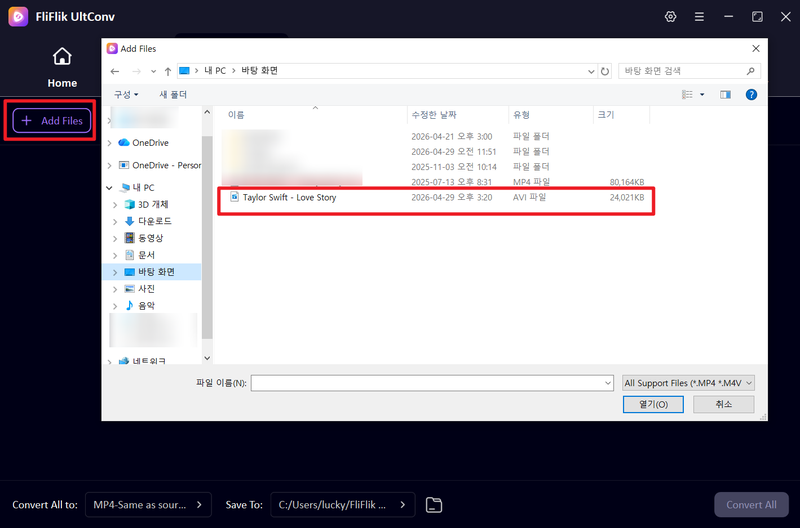
Add your files by clicking the button or dragging them directly into the application. Keep in mind that the app supports processing multiple files at once.
-
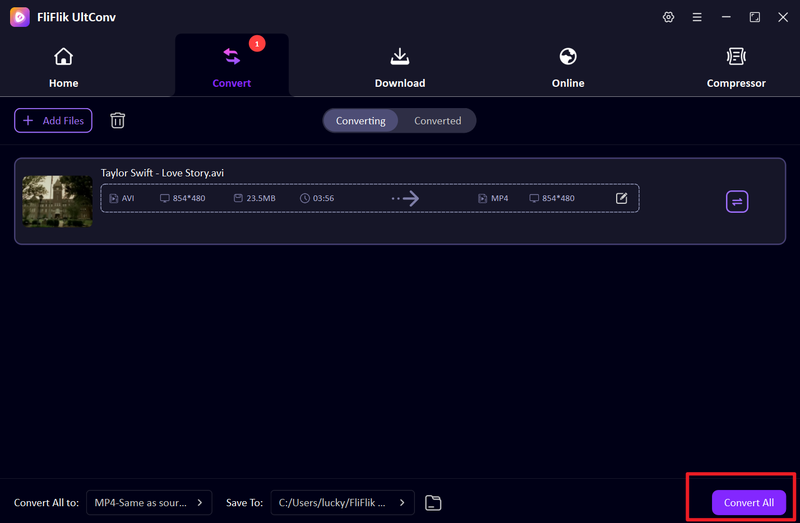
Just click “Convert All” and your AVI-to-MP4 conversion will begin.
-
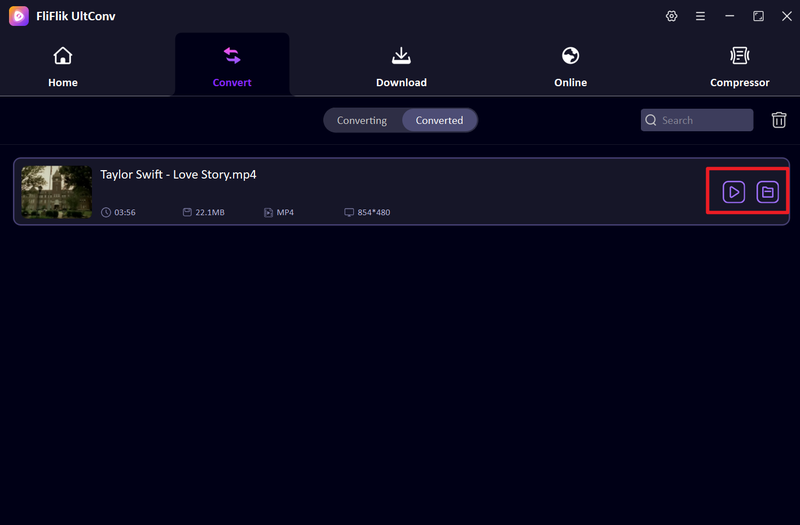
Wait just a few seconds, and you’ll find the converted MP4 video in the “Converted” tab. Simply click the play button to watch it on your computer.


Part 2. How to Play AVI Files on Mac
1. VLC Media Player

Mac users often run into issues when trying to open AVI files because macOS doesn’t fully support this format by default. Instead of dealing with errors or installing multiple codecs, the easiest solution is to use a reliable third-party media player. VLC Media Player is one of the most popular options for this. It’s a free, open-source media player that can handle almost any video format, including AVI, without needing extra plugins or conversions. It also offers useful playback controls and works consistently across different video types, making it a dependable choice for Mac users who frequently deal with AVI files.
Part 3. How to Play AVI Files on iPhone & Android
Contents
AVI files don’t always play smoothly on iPhone and Android because of limited format support. To fix this, you can either use a universal media player like VLC or convert the file into MP4 for easier playback.
1. VLC App

On mobile devices like iPhones and Androids, AVI files usually don’t play directly because the default media players don’t support all video codecs. Instead of struggling with format errors or installing multiple apps, a simple solution is to use a universal media player. VLC App is a free mobile media player that supports a wide range of formats, including AVI, without needing conversion. It also supports subtitles, playback controls, and background audio, making it a reliable choice for watching videos on mobile devices.
2. FreeConvert (AVI to MP4)
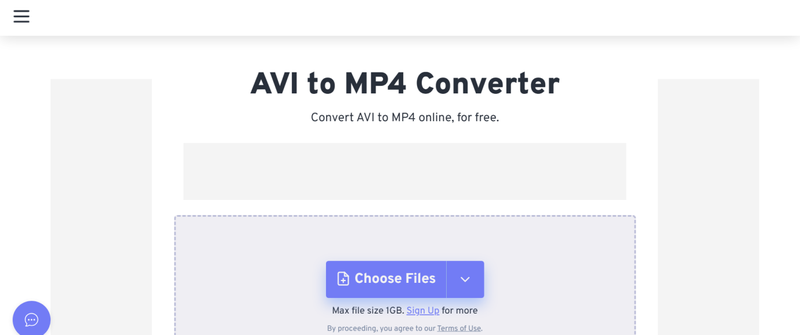
If you don’t want to install any media player, an easier option is to convert AVI files into a mobile-friendly format like MP4. FreeConvert is an online tool that lets you convert AVI to MP4 directly from your browser. Since MP4 works smoothly on both iPhone and Android, it makes playback simple without needing extra apps.
- Step 1: Open the FreeConvert AVI to MP4 page in your browser.
-
Step 2:
Upload your AVI file from your device.
- Step 3: Select MP4 as the output format.
- Step 4: Click Convert and wait for the process to finish.
- Step 5: Download the converted MP4 file and play it on your phone using any default video player.

FAQs
Q1. How do you play AVI files on a Mac?
You can play AVI files on Mac using third-party media players like VLC Media Player, since macOS does not fully support AVI by default. These players allow smooth playback without needing conversion.
Q2. How to download YouTube AVI videos?
You can use video downloader tools or converters like FliFlik UltConv Video Converter that support YouTube links and allow you to save videos in AVI or other formats. However, most users prefer downloading in MP4 for better compatibility.
Q3. Can an AVI file be converted to MP4?
Yes, AVI files can easily be converted to MP4 using online converters or desktop tools like FliFlik UltConv Video Converter. MP4 is more widely supported, smaller in size, and works better on modern devices.
Conclusion
Due to its poor compatibility, the AVI format often encounters playback issues on modern devices. Converting it to MP4 is the quickest way to ensure smooth playback on Windows, Mac, or smartphones.
FliFlik UltConv Video Converter is the ideal all-in-one solution. Not only does it support ultra-fast conversion while preserving the original video quality, but it also features intuitive one-click operation. Even users with no prior experience can complete the format conversion in seconds, ensuring seamless playback on all devices..
Secure Download
Secure Download
