

 By
By  8 minutes read


VOB is a DVD-era format used to store movies, subtitles, and menus. While once a standard, its aging codec makes it difficult to play on modern devices like iPhones, Macs, or Android phones, often resulting in errors or failed playback.
This guide explains why VOB files struggle on modern systems and provides simple solutions to fix it. We’ll show you how to play VOB easily or convert them into MP4 for smooth, seamless viewing on any device.

Part 1. What is a VOB File?
A VOB file, short for “Video Object” file, is a video container format commonly used on DVD discs. It is designed to store not only video content, but also audio tracks, subtitles, DVD menus, and navigation information in a single file. VOB files are usually found inside the VIDEO_TS folder on DVDs and typically use the “.vob” file extension.
Because VOB files were created mainly for DVD playback, they are not always fully compatible with modern devices, smartphones, or media players. Some systems may fail to open them directly, while others may play them without sound or subtitles. In most cases, users either need a compatible media player or convert the VOB file into a more widely supported format like MP4 for easier playback and sharing.
Part 2. How to Play VOB Files on Windows 11
Playing VOB files on Windows 11 can be tricky since most built-in media players don’t fully support the format, leading to playback issues like missing audio, lagging video, or broken subtitles. The easiest fix is to convert the VOB file to MP4 before playing it. FliFlik UltConv Video Converter is an all-in-one media conversion tool designed to handle VOB files quickly and smoothly.
You can convert large VOB files from DVDs into smaller and more compatible formats for smoother playback, easier sharing, and reduced storage usage. It also supports extracting audio from VOB files into formats like MP3 or AAC, which is useful for saving movie soundtracks or DVD audio content. UltConv combines 4K/HD support with hardware acceleration for fast, high-quality results. It offers complete control over file size and subtitles while remaining simple and beginner-friendly.

- Convert VOB files to MP4, MOV, MKV, AVI, MP3, and many other formats
- Supports ultra-fast conversion speed for large HD and 4K videos
- Batch convert multiple VOB files at the same time
- Optimized output presets for iPhone, Android, iPad, and other devices
- Preserves original video and audio quality during conversion
- Supports both video-to-video and video-to-audio conversion
▼ Steps to Convert VOB to MP4 with FliFlik UltConv Video Converter
-
Download and install FliFlik UltConv Video Converter on your Windows or Mac computer from the official website. After installation, launch the program to get started.
FREE DOWNLOAD![secure download]() Secure Download
FREE DOWNLOAD
Secure Download
FREE DOWNLOAD![secure download]() Secure Download
Secure Download
-
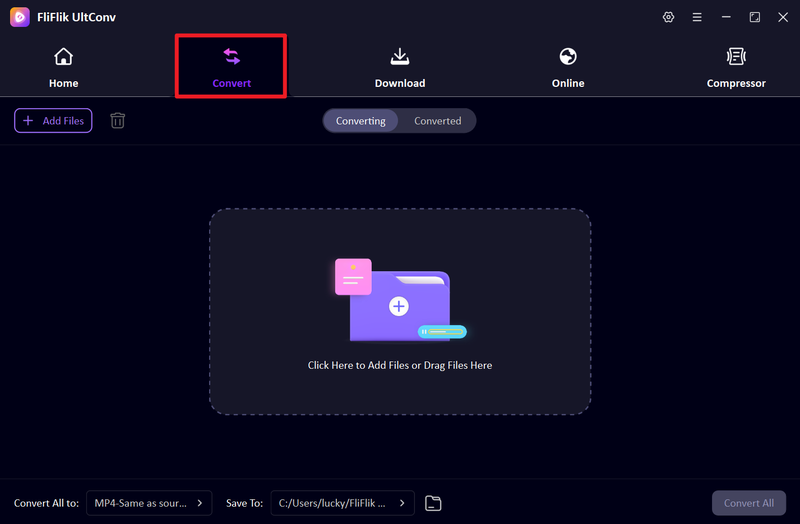
Open the software and switch to the Convert section. Click Add File to import your VOB files, or simply drag and drop the files directly into the interface. Batch importing multiple VOB files is also supported.
-
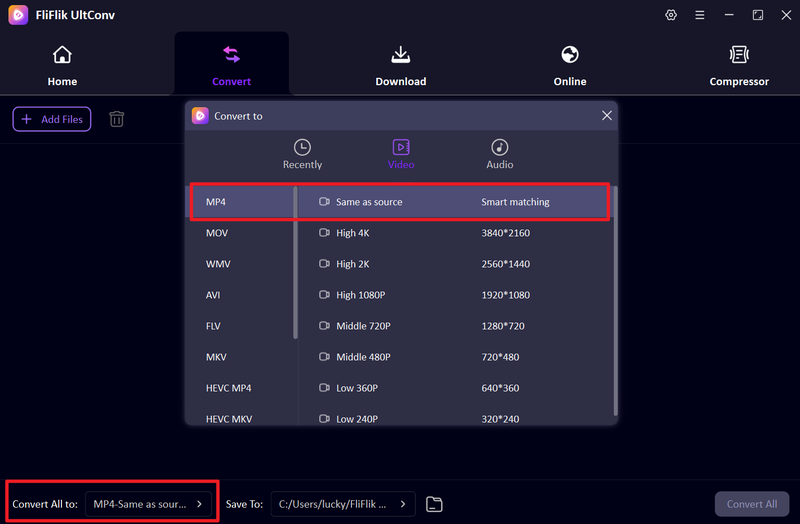
Open the output format menu and select MP4 as the target format. You can also customize video quality, resolution, or codec settings if needed.
-
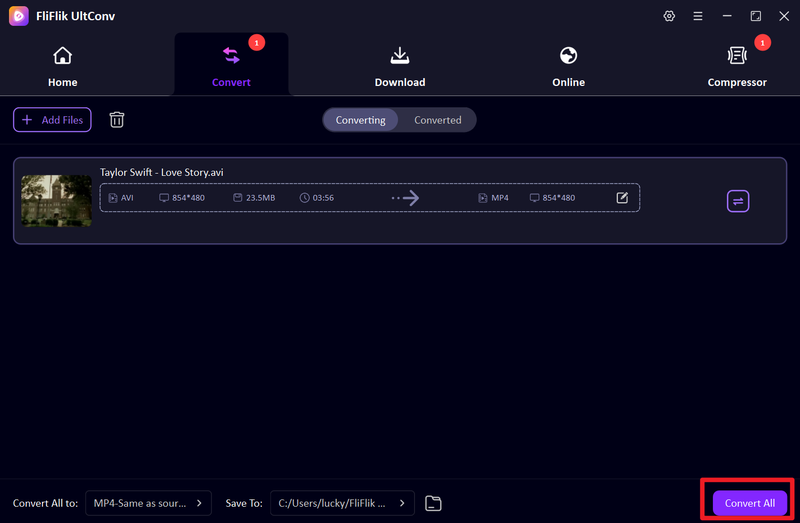
Choose the folder where you want the converted MP4 files to be saved. After that, click Convert All to begin converting your VOB videos.
-
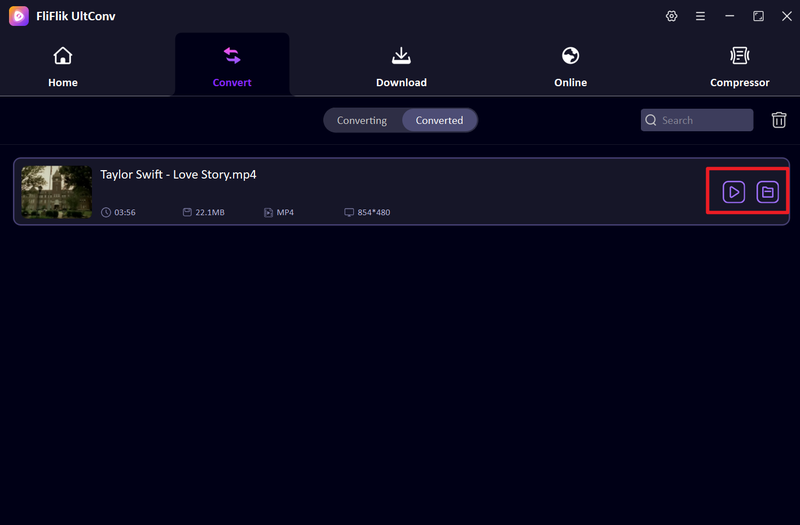
Once the process finishes, your converted MP4 videos will be ready in the selected folder and can be played smoothly on Windows, Mac, phones, tablets, and other devices.


Part 3. How to Play VOB Files on Mac
QuickTime Player is the default media player on macOS and works well for many video formats. However, some VOB files may not open properly because the format was originally designed for DVD playback. In many cases, QuickTime can still play simple VOB videos, especially if the file is not heavily encrypted or damaged.
▼ Steps to Play VOB Files on Mac with QuickTime
-
Step 1:
Locate the VOB file on your Mac and right-click the file. Choose
Open With > QuickTime Player.
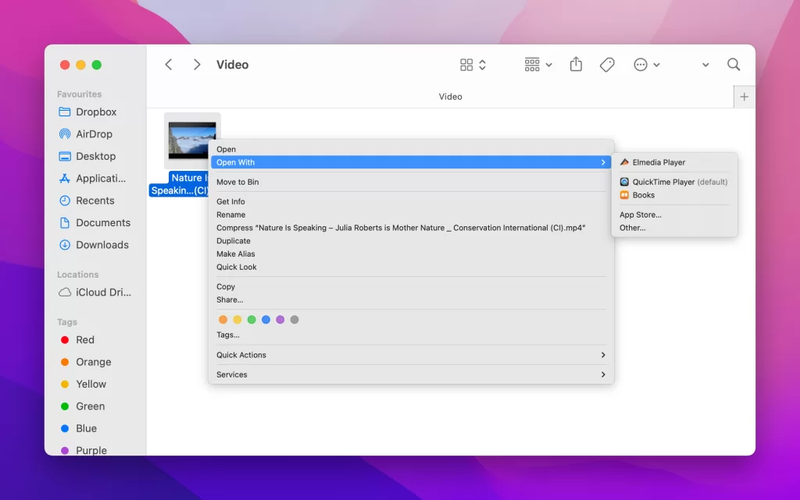
- Step 2: Wait for QuickTime Player to load the file. If the VOB format is supported, the video will begin playing automatically.
- Step 3: If the file does not open correctly, convert the VOB file into MP4 format using a converter tool for better compatibility.

Part 4. How to Play VOB Files on Android & iPhone
VLC for Mobile is one of the best free media players for Android and iPhone because it supports many video formats, including VOB files. Unlike default mobile video players, VLC can open DVD video formats without requiring additional codecs or plugins.

▼ Steps to Play VOB Files on Android & iPhone with VLC
- Step 1: Download and install VLC for Mobile from the Google Play Store or Apple App Store.
- Step 2: Transfer your VOB file to your phone using USB, cloud storage, or file-sharing apps.
- Step 3: Open VLC for Mobile and allow the app to scan your device storage for media files.
- Step 4: Tap the VOB file from the media library to start playback instantly on your mobile device.
Why Should You Convert VOB to MP4 Before Playing?
Although VOB files still work for DVDs, MP4 is a much more practical format for modern devices and media players. Converting VOB to MP4 can solve many playback and compatibility problems.
Better Device Compatibility
MP4 files work smoothly on Windows, Mac, Android, iPhone, smart TVs, tablets, and gaming consoles without requiring special DVD software or codecs.
Smaller File Size
VOB files are usually larger because they were designed for DVDs. MP4 files can maintain good video quality while significantly reducing storage usage.
Easier Sharing
MP4 videos are easier to upload, share, and transfer through email, social media, cloud storage, and messaging apps.
Comparison: VOB vs. MP4
Before deciding whether to keep a VOB file or convert it, it helps to understand the main differences between VOB and MP4 formats. VOB and MP4 are built for different purposes, and understanding the difference makes it easier to decide which format works best for your needs.
| Feature | VOB | MP4 |
|---|---|---|
| Main Usage | DVD Video Storage | Universal Video Format |
| Compatibility | Limited on modern devices | Excellent compatibility |
| File Size | Usually large | Smaller and compressed |
| Streaming Support | Poor | Excellent |
| Editing Support | Limited | Widely supported |
| Mobile Playback | Sometimes unsupported | Fully supported |
| Video Quality | High DVD quality | High quality with compression |
| Best For | DVDs and disc playback | Daily playback and sharing |
FAQs
Q1. Is the MP4 format better than VOB?
MP4 is superior to VOB for modern use. It offers smaller file sizes and universal compatibility across all devices and software, whereas VOB is a legacy DVD format that often causes playback issues on newer systems.
Q2. Are VOB files still relevant in 2026?
While VOB remains relevant for DVD archiving and movie collections, the rise of digital playback means most users now convert it to MP4 for easier storage and better compatibility.
Conclusion
VOB files were designed for DVD playback, but most modern devices and media players have moved on. Playing them on Windows, Mac, Android, or iPhone often leads to compatibility issues that make the whole experience frustrating. Converting VOB to MP4 is the simplest fix.
FliFlik UltConv Video Converter makes that conversion quick and straightforward, giving you a file that plays smoothly across all your devices without any compatibility headaches.
 Secure Download
Secure Download
Secure Download
