

 By
By  8 minutes read


These days, most of the music and audio we listen to comes from streaming platforms like Spotify and YouTube. It’s quick, convenient, and always available online. But streaming doesn’t always mean you can keep what you’re listening to. That’s why more people are now looking for ways to record streaming audio directly from their browser or desktop apps.
A streaming audio recorder basically lets you capture sound while it plays, so you can save it for offline use. Some tools are simple and free, while others come with extra features like higher quality output, batch recording, or format options. In this article, we’ll go through some of the best free and paid audio recorders, compare what they offer, and help you figure out which one actually fits your needs.

Part 1. 5 Best Streaming Audio Recorders (Free vs. Paid)
Streaming audio recorders are useful when you want to save sound from your browser or desktop apps. Here are five popular options you can try.
1. SoundTap Streaming Audio Recorder

SoundTap Streaming Audio Recorder is built for one main job: recording anything that plays on your computer. Whether it’s music, radio, webinars, or online meetings, it captures the sound directly as it plays and saves it in good quality. It works in the background using a system-level driver, so the audio stays close to the original digital source without much loss. It’s mostly used by people who want reliable recording for long sessions, like podcasts or live streams. It feels more like a practical utility than a creative tool, which is exactly what some users prefer.
| Feature | Details |
|---|---|
| Feature details | Records system audio directly in digital quality, supports streaming audio, radio, VoIP calls, and conferences |
| Compatible OS | Windows |
| Pricing | Free trial + paid version |
| Pros | Good audio quality, records all system sound, simple workflow |
| Cons | Windows only, outdated interface compared to modern tools |
| Best for | Recording webinars, online meetings, and streaming audio sessions |
2. Audacity

Audacity is one of the most well-known audio recording and editing tools out there. It’s open-source, free, and works across multiple platforms. Unlike simple recorders, it gives you full control over editing, mixing, and improving your audio after recording. That makes it popular with podcasters, students, and even musicians. It can record system audio (with the right setup), but its real strength is what you can do after recording. You can clean noise, cut parts, mix tracks, and export in different formats.
| Feature | Details |
|---|---|
| Feature details | Audio recording + advanced editing, noise removal, multi-track editing, plugin support, format conversion |
| Compatible OS | Windows, macOS, Linux |
| Pricing | Free (open-source) |
| Pros | Completely free, powerful editing tools, cross-platform |
| Cons | Slight learning curve, not plug-and-play for beginners |
| Best for | Editing podcasts, music production, and detailed audio cleanup |
3. FliFlik Online Screen Recorder

FliFlik Online Screen Recorder is a browser-based tool that lets you capture both your screen and system audio without installing anything. It’s a simple option if you just want to quickly save streaming audio or video content. Since it runs online, you can start recording almost instantly. It works best for casual use like saving songs, clips, or short sessions. You just pick what you want to record and let it run while audio plays in the background.
| Feature | Details |
|---|---|
| Feature details | Browser-based screen + audio recording, system sound capture, HD output, no watermark |
| Compatible OS | Any (web-based) |
| Pricing | Free |
| Pros | No installation needed, easy to use, no watermark |
| Cons | Real-time recording only |
| Best for | Quick browser audio recording and casual streaming capture |
4. OBS Studio

OBS Studio is a powerful free tool mostly known for live streaming, but it also works very well for recording audio and video. It lets you combine multiple sources like system audio, microphones, webcams, and even browser windows. That flexibility makes it a favorite among streamers and content creators. It does take a bit of time to set up, but once you get used to it, you can create very professional recordings.
| Feature | Details |
|---|---|
| Feature details | Multi-source recording, real-time audio/video mixing, scene switching, VST support, filters, and effects |
| Compatible OS | Windows, macOS, Linux |
| Pricing | Free (open-source) |
| Pros | Extremely powerful, highly customizable, and no cost |
| Cons | Steeper learning curve, setup can feel complex |
| Best for | Streaming, professional recording, and multi-source content creation |
5. QuickTime

QuickTime is Apple’s built-in media tool for macOS. While it’s very simple, it can still record the screen and audio for basic needs. It’s not designed for advanced editing or streaming workflows, but it works fine for quick voice recordings or capturing simple audio sessions. Because it comes pre-installed on Mac, it’s convenient and lightweight. You won’t find advanced features, but for basic recording tasks, it gets the job done without any setup.
| Feature | Details |
|---|---|
| Feature details | Basic screen/audio recording, simple interface, system-level recording on macOS |
| Compatible OS | macOS |
| Pricing | Free (built-in) |
| Pros | Already installed on Mac, very easy to use, lightweight |
| Cons | Limited features, no advanced editing tools, Mac-only |
| Best for | Quick audio recordings and basic screen capture on Mac |
Part 2. How to Use SoundTap to Record Streaming Audio (Recommended)
SoundTap is pretty simple once you get the hang of it. You just pick the audio source, start recording, and save the file when you’re done. It works in the background, so you can keep using your computer normally while it records.
▼ Record Streaming Audio From Your Computer with SoundTap
- Step 1: Select the stream or audio source you want to record on your computer.
-
Step 2:
Open SoundTap and click the
Record
button to start capturing the audio.
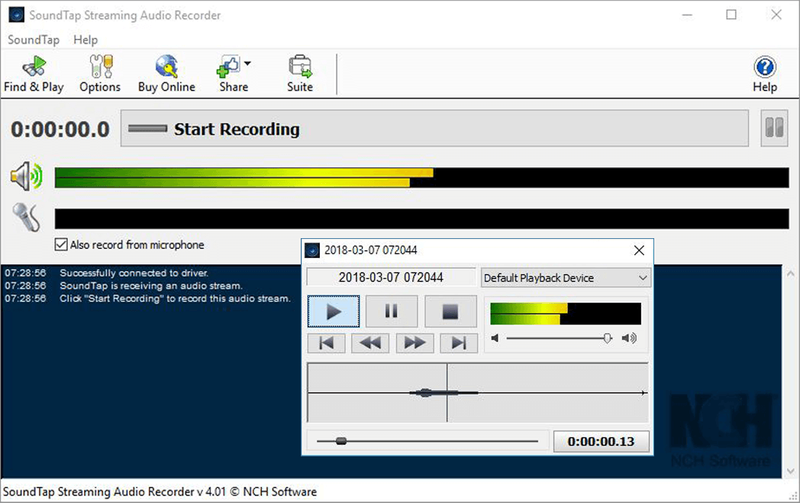
- Step 3: Once finished, save the recording as a WAV or MP3 and access it anytime.

Bonus Tip. How to Download Video Instead of Recording?
If recording feels slow or a little outdated then there’s an easier way: just download the video directly instead. With FliFlik UltConv Video Downloader, you can save full videos, playlists, or even entire channels in one go. It also supports a wide range of quality options, from standard HD up to 4K and 8K, so you can choose what fits your device or storage.
Another thing that makes it useful is how flexible it is with formats. You’re not limited to video files; you can convert videos into audio formats like MP3 or FLAC if you only need the sound. This is especially helpful for music, podcasts, or lectures. And if you’re downloading a lot of content, the batch download feature lets you save multiple videos at once instead of repeating the same steps over and over.

- Supports 10,000+ websites, including YouTube, TikTok, Twitch, and more
- Batch download videos, playlists, and channels in one click
- Download videos in up to 4K, 2K, 1080p, and audio up to 320kbps
- Convert video to audio in formats 100+ like MP3, WAV, AAC, FLAC etc.
- Built-in browser for direct searching and downloading from streaming sites
▼ Steps to Download YouTube Videos to MP4 with UltConv Video Downloader
Downloading a video from YouTube or other streaming services with UltConv is simple. After installing the software, follow these steps.
 Secure Download
Secure Download
Secure Download
-
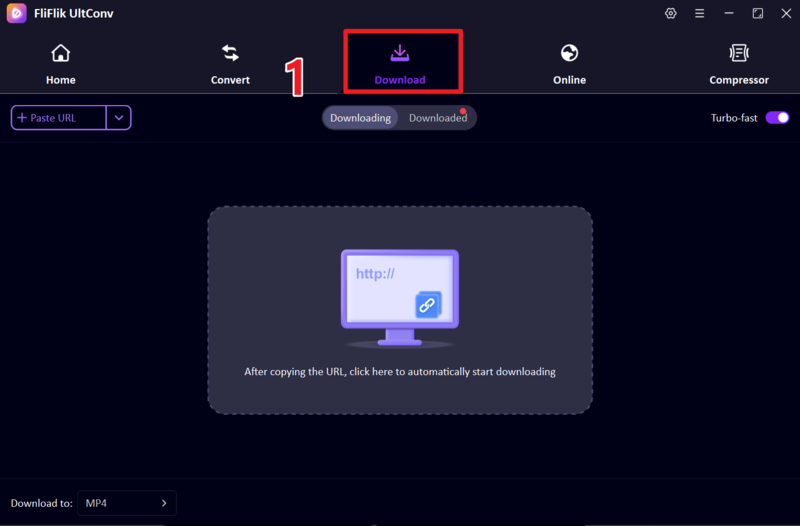
Open UltConv and go to the Download tab. Click the Download to option at the bottom to set your format.
-
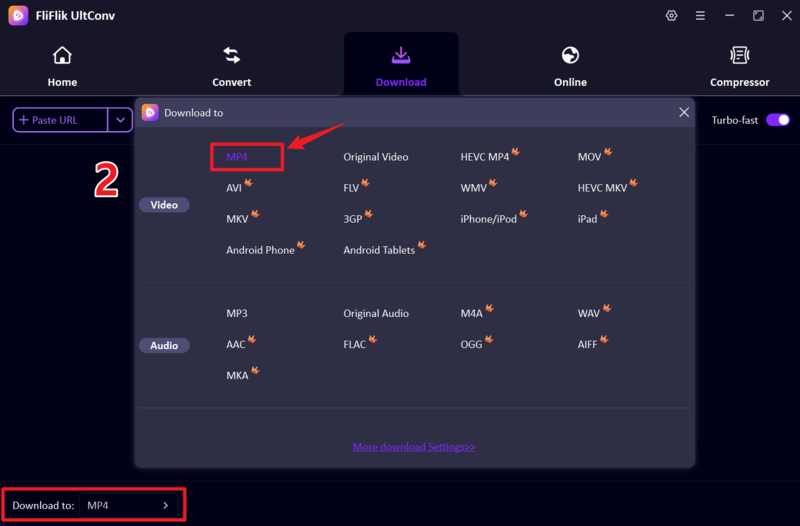
Choose the output format and quality. Most users select MP4 so the video can be played on phones, tablets, and computers.
-
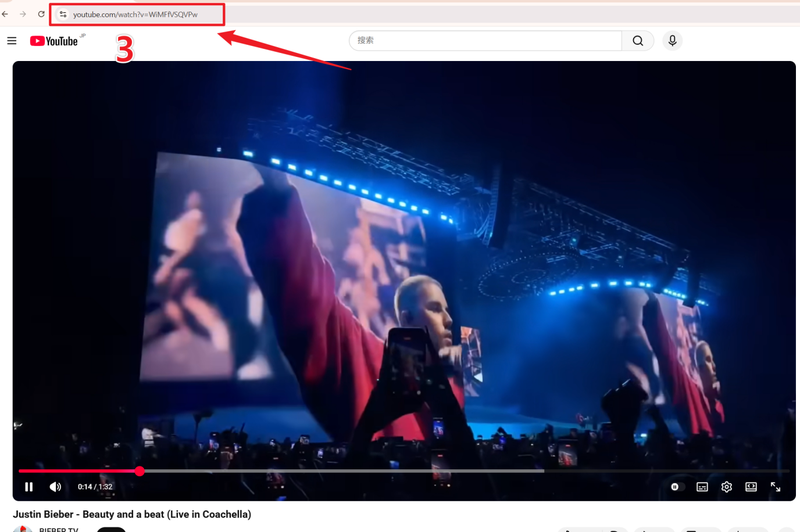
Open YouTube in your browser and find the video you want to download. Copy the video URL from the address bar.
-
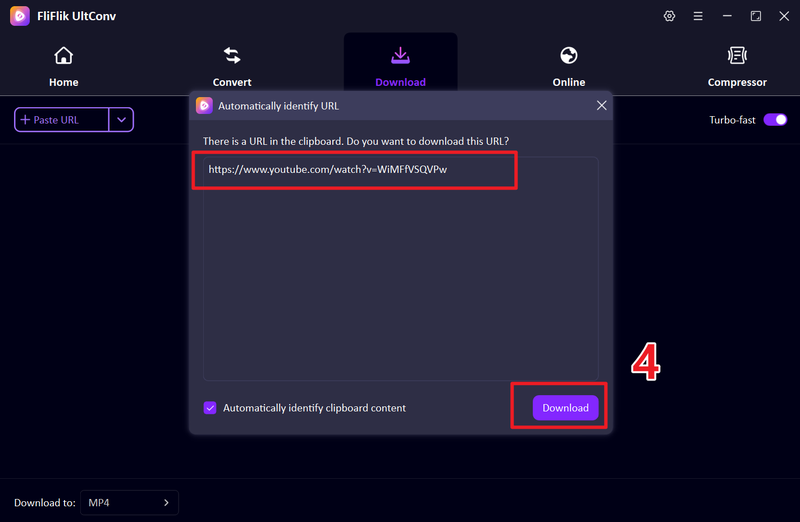
Return to UltConv and paste the copied link into the downloader. The software will detect the video link automatically and will show you a Download button.
-
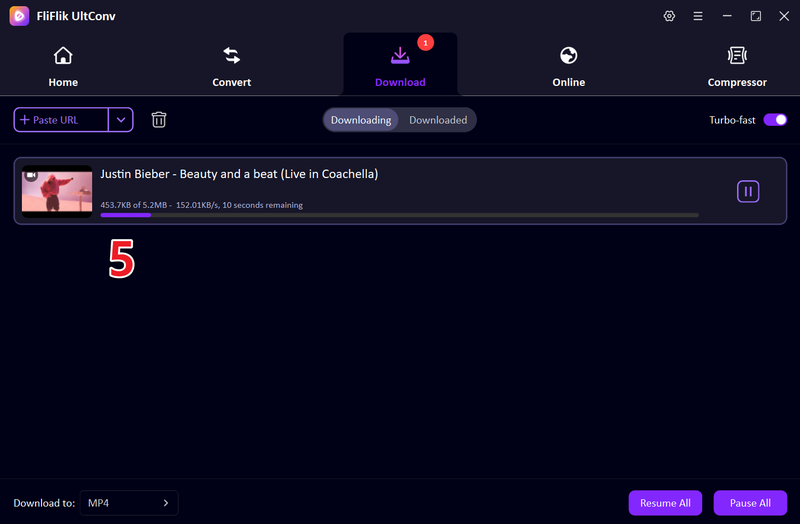
If the link is not detected, paste the link in UltConv manually and click Download to start saving the video. Once the process finishes, the file will be stored on your computer and can be watched offline anytime.


FAQs
Q1. What is the best streaming audio recorder?
It depends on what you need. If you want something simple and free, tools like Audacity or online recorders can do the job. If you need more control and consistent results, a tool like FliFlik UltConv Video Downloader to download videos in high quality.
Q2. How do I record streaming audio on a Mac?
On Mac, you can use built-in tools like QuickTime for basic recording, or install apps like Audacity or OBS Studio for more control. Another easy option is using an online recorder in your browser. Just select system audio (or screen + audio), play your stream, and start recording.
Q3. Can I record audio from a live stream?
Yes, you can. Most streaming audio recorders let you capture sound in real time while the stream is playing. Just start the recorder before the stream begins, and it will save everything as it plays. Keep in mind, recording live streams usually happens in real time, so it takes as long as the stream itself.
Conclusion
Streaming audio is easy to access, but saving it isn’t always as straightforward. That’s where streaming audio recorders come in. Whether you need something quick and free or a more advanced setup, some tools fit different needs and skill levels. Overall, the best option is FliFlik UltConv Video Downloader.
It lets you download videos and audio directly, supports high-quality formats, and works with a wide range of websites. You skip the waiting, keep better quality, and have your files ready to use right away. For most people, that’s a much simpler way to save streaming content.
Secure Download
Secure Download
