

 8 minutes read


UltConv OnlyFans Downloader is a desktop tool that lets you save OnlyFans content directly to your computer. This is a much clearer solution if you are exploring how to download videos from OnlyFans without dealing with sketchy online tools or complicated setups. It supports downloading OnlyFans videos in MP4 format for max compability, so you never have to compromise on clarity. For users with a lot of content to save, bulk downloading means you can grab multiple videos at once instead of going one by one.
- Download OnlyFans videos to MP4/MKV in up to 4K
- Save OnlyFans DM/message videos in one click
- Bulk download multiple OnlyFans videos at once
- Download profile images without limitations
This guide will explain how to set up the tool, activate it, and start using it.
Part 1. How to Register and Activate UltConv OnlyFans Downloader
Before using UltConv OnlyFans Downloader, you’ll need to install, register, and activate it first. Here’s how to get started.
How to Download and Install UltConv?
To start using the UltConv OnlyFans Downloader, you first need to install it on your computer. The setup process is simple and works on both Windows and Mac.
-
Open your browser and go to the official UltConv website.
-
Click the ” Free Download ” button for Windows or macOS. The installer file will begin downloading automatically.
FREE DOWNLOAD![secure download]() Secure Download
FREE DOWNLOAD
Secure Download
FREE DOWNLOAD![secure download]() Secure Download
Secure Download
-
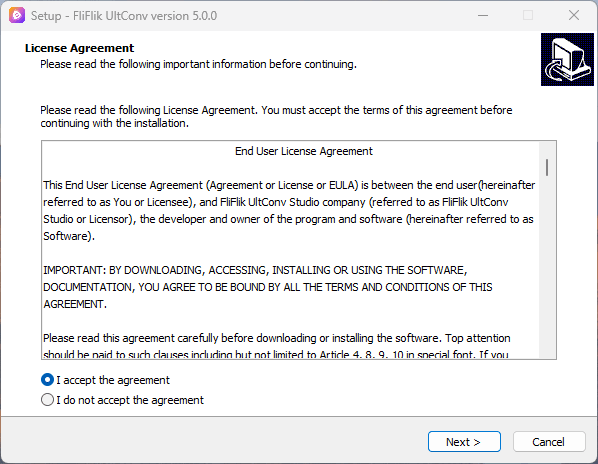
On Windows: Open the downloaded .exe file, agree to the terms, and follow the installation steps.
On Mac: Open the .dmg file and drag the UltConv icon into the Applications folder.
-
After installation, open the software from the Start Menu (Windows) or Applications folder (Mac) and wait for it to load.


How to Register and Activate UltConv?
Once installed, you need to activate the software to unlock full features.
-
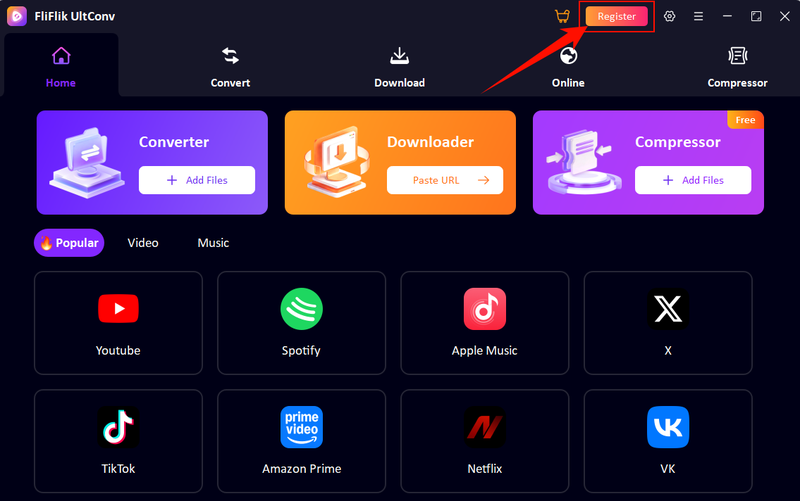
Step 1: Launch UltConv and click the ” Register ” option from the main interface.
-
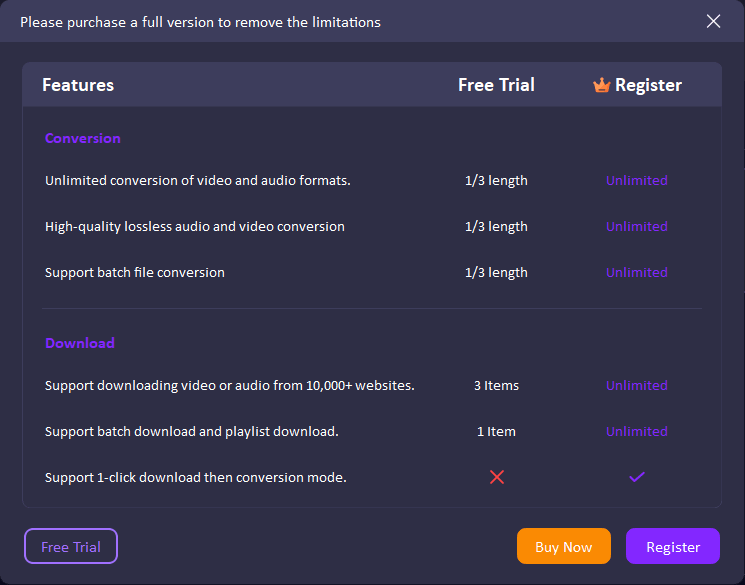
Step 2: Check out the difference between the Free Trial version and the Registered version.
-
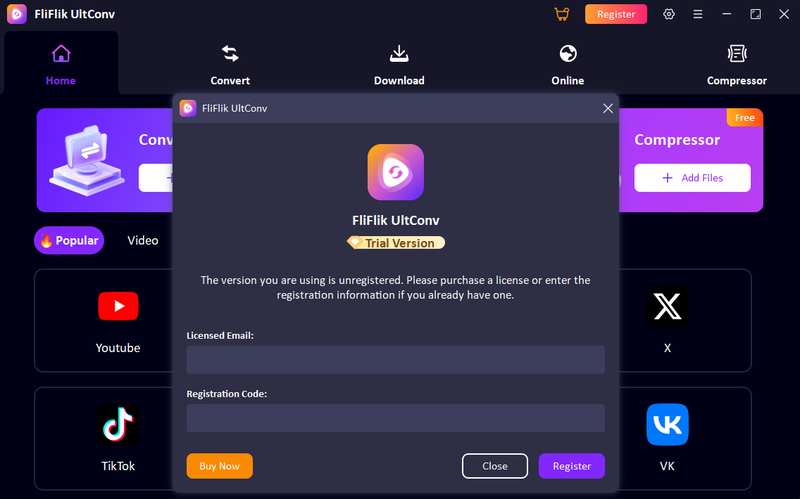
Step 3: Click the Register button. If you already have a registration code and the responding licensed Email, you can proceed straight to activation. If you don’t have one yet, click Buy Now to purchase a registration code first.
-
Step 4: After pasting the code, simply click Register to verify your details. The software will connect to the server and unlock premium features.
-
Step 5: If prompted, restart UltConv to apply the activation successfully.


How to Fix Registration or Activation Issues?
If the registration isn’t going through, here are a few quick things to check:
-
Incorrect Email or Code : Double-check that your licensed email and registration code are entered correctly. Even a single extra space can cause it to fail.
-
No Internet Connection : Make sure your device is connected to the internet during activation, as the software needs to verify your license online.
-
Firewall or Antivirus Blocking : Security software can sometimes block registration requests. Try temporarily disabling your firewall or antivirus software and activate again.
-
Expired or Already Used Code : Check that your license hasn’t expired or been activated on too many devices already.
Part 2. How to Customize Settings in UltConv OnlyFans Downloader
Open UltConv OnlyFans Downloader and go to the Settings section from the main interface. From here, you can adjust all important options in one place to personalize your download experience, including privacy controls, storage location, and download quality.
In the settings panel, you can enable privacy mode options such as hiding thumbnails of adult videos and saving content as hidden files to keep your downloads private.
You can also select your preferred download folder to organize saved files easily on your device.
For performance control, adjust the maximum number of downloading tasks based on your system capacity for smoother batch downloading.
Additionally, choose your preferred video quality (such as 720p, 1080p, or higher when available) to balance speed and clarity, and manage subtitle settings if the source supports them.

Part 3. How to Use UltConv to Download OnlyFans Videos
Now, let’s come to the main thing: how to download OnlyFans videos with UltConv OnlyFans Downloader without jumping through hoops. UltConv keeps the process straightforward. It works through a built-in browser and download engine and also supports OnlyFans bulk downloading, so you can save multiple videos at once instead of one by one.
-
Step 1: Download and install FliFlik UltConv OnlyFans Downloader from the official website. Once installed, open the software on your Windows or Mac computer.
-
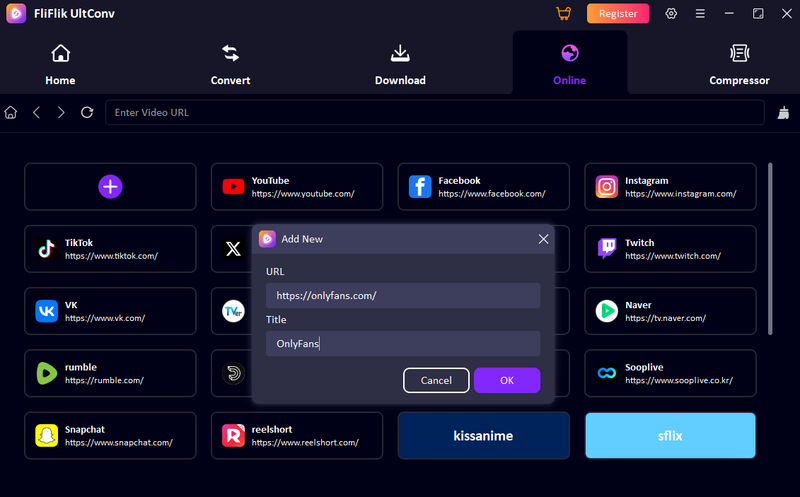
Step 2: Go to the Online section inside UltConv and paste your OnlyFans link into the input bar to load the platform inside the built-in browser.
-
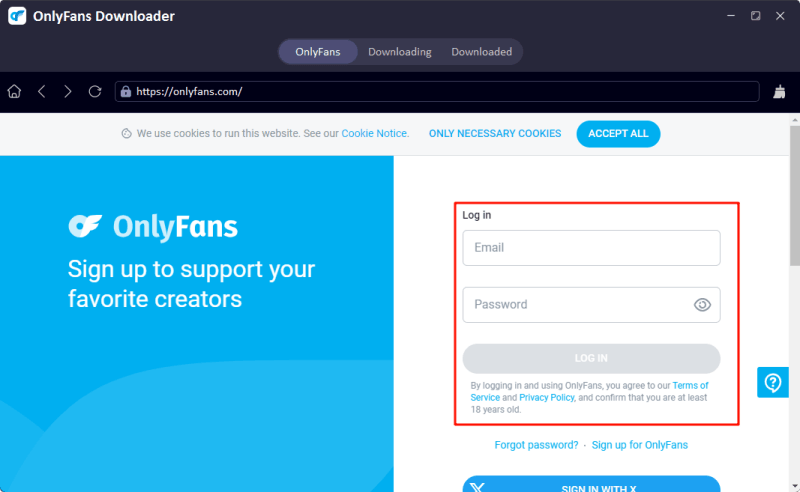
Step 3: Log in to your OnlyFans account directly within UltConv. Once logged in, your subscribed content and available media will appear inside the tool.
-
Step 4: Browse or search for the video you want to save. Open it and click the Download button next to it.

-
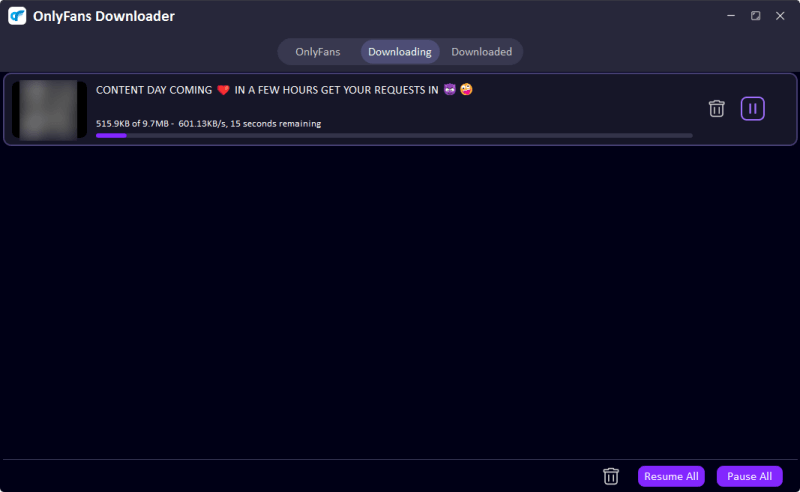
Step 5: UltConv will process and download the file automatically in your selected format and resolution, saving it straight to your device.


Tips to Avoid OnlyFans Login Issues
Since you need to log into your OnlyFans account through UltConv’s built-in browser, a few simple steps can help you avoid common login problems and ensure a smoother experience:
- Make sure your account username and password are correct and fully updated before logging in.
- Temporarily disable two-factor authentication (2FA) if it is blocking the login process inside the tool.
- Turn off any VPN or proxy services while logging in, as they may interfere with access.
- Keep UltConv updated to the latest version to ensure compatibility with OnlyFans website changes.
- Clear the cached data inside the software if you experience repeated login failures or loading issues.
- If problems continue, restart the application and try logging in again using the built-in secure browser, which does not store your personal login data.
FAQs
Q1. Can I download OnlyFans videos for free with UltConv?
Yes, UltConv offers a free trial that allows users to test video downloading features.
Q2. How can I download videos I purchased on OnlyFans?
Absolutely, you can access and download purchased content by logging into your OnlyFans account inside UltConv’s built-in browser. Once your library loads, simply open the video and click the download button to save it to your device.
Q3. Is it legal to download OnlyFans videos with UltConv?
Downloading content depends on the platform’s terms of service and local copyright laws. Users should only download content they own or have permission to save for offline viewing.
Q4. Is it safe to use the UltConv OnlyFans Downloader?
Yes, it is safe to use UltConv OnlyFans Downloader to download videos for personal use. It is always recommended to use official websites and avoid modified or unofficial downloads to reduce security risks.
Q5. How many OnlyFans videos can I download with UltConv?
During the free trial, users are usually limited to one video per day. With a subscription, you can unlock unlimited downloads depending on your plan.
Q6. Can I download private messages or PPV content with UltConv?
Yes, once you are logged into your account, you can access and download available message or PPV content you’ve purchased within UltConv built-in browser, allowing you to save supported media directly to your device.
Hey there! I am Maxwell Clark. I'm always looking for new tech tools that make a difference, from making visuals and audio better to making workflows better. I'm going to share tips and tricks for using AI tools for videos, audio, and images. I'm excited to help you navigate the digital world more efficiently and creatively!