

 By
By  8 minutes read


It’s incredibly frustrating to upload a video to YouTube or Instagram only to have it rejected because the “file is too large,” or to run out of disk space halfway through an export. A video size calculator fixes this by taking the guesswork out of the process. By plugging in your resolution, bitrate, and duration, you can accurately predict exactly how much space your file will take up before you even hit the export button
In this guide, we’ll compare the top 7 video size calculators currently available. Finally, if you find that your file is still over the limit, we’ll share a “pro tip” for both Windows and Mac users on how to compress your videos without losing quality.

Part 1. How to Calculate Video File Size?
Before picking a calculator, it helps to understand what actually drives your video’s file size. Four main factors determine how large a video file ends up, and once you know them, the math behind it becomes pretty straightforward.
4 Factors Affecting Video Size
| Factor | What It Is | How It Affects File Size |
|---|---|---|
| Resolution | The number of pixels in each frame (e.g., 1080p, 4K) | Higher resolution = more pixel data per frame = larger file |
| Bitrate | The amount of data processed per second (measured in Mbps or Kbps) | Higher bitrate = better quality = bigger file size |
| Frame Rate | Number of frames captured per second (e.g., 24fps, 60fps) | More frames per second = more data = larger file |
| Video Codec | The compression method used to encode video (e.g., H.264, H.265, ProRes) | Efficient codecs like H.265 produce smaller files at the same quality |
The Standard Video File Size Equation
=The most commonly used formula to estimate video file size is:
File Size (MB) = (Bitrate (Mbps) × Duration (seconds)) ÷ 8
For example, a 10-minute video recorded at 50 Mbps would be calculated like this:
50 × 600 ÷ 8 = 3,750 MB (roughly 3.75 GB)
Keep in mind, this gives you an estimate. The actual file size can vary depending on the codec used and how much compression is applied during export.
Part 2. Top 7 Video Size Calculators
Below are 7 best tools that help calculate video file size based on bitrate, resolution, frame rate, and duration.
- 1. SNXP Studio Video File Size Calculator
- 2. Digital Rebellion Video Space Calculator
- 3. Omni Calculator Video File Size Calculator
- 4. LambertInstruments Video Size Calculator
- 5. Vibrantsnap Video File Size Calculator
- 6. Imagen AI Video Size Estimator
- 7. Toolstud.io Video Filesize Calculator
Contents
1. SNXP Studio Video File Size Calculator

The SNXP Studio Video File Size Calculator is a free, browser-based tool that helps creators and filmmakers estimate storage needs based on resolution, bit rate, and format without requiring a sign-up. It is ideal for planning storage infrastructure, calculating sizes for social media ads, or understanding how different quality settings impact your final file size before recording.
2. Digital Rebellion Video Space Calculator

The Digital Rebellion Video Space Calculator is a staple for professional editors, offering accurate disk space estimates across a massive library of over 80 codecs, including ProRes, DNxHD, and ARRIRAW. While highly comprehensive for post-production workflows, actual file sizes may vary slightly based on audio, frame size, and compression types.
3. Omni Calculator Video File Size Calculator

The Omni Calculator Video File Size Calculator provides a uniquely educational experience by combining storage estimation with clear technical explanations. Users can calculate file sizes by selecting formats, frame rates, and durations, while learning the underlying logic—such as how individual frames blend together to create motion. This makes it an ideal tool for those who want to understand the science behind video compression while planning their disk space.
4. LambertInstruments Video Size Calculator

The LambertInstruments Video Size Calculator is a specialized, free tool tailored for monochrome high-speed cameras used in scientific and industrial applications. Instead of standard video settings, it calculates file sizes based on hardware-specific inputs like camera sensor resolution, bit depth, and frame rate. This precision allows researchers and high-speed photographers to accurately plan storage for the massive data loads typical of high-speed imaging.
5. Vibrantsnap Video File Size Calculator

The Vibrantsnap Video File Size Calculator iis a free, sign-up-free tool designed for social media creators to estimate storage needs for platforms like YouTube and TikTok. It covers resolutions from 720p to 8K and automatically estimates bitrate based on your chosen settings, making it easy to check if a video meets specific upload limits.
6. Imagen AI Video Size Estimator

The Imagen AI Video Size Estimator is designed for photographers and hybrid shooters, helping them tailor export settings to specific delivery platforms—like lowering bitrates for web-based galleries. It emphasizes that bitrate is the most critical factor in file size, explaining how two videos with identical resolutions and frame rates can differ drastically in size based on that one variable. Ultimately, the tool encourages professionals to think strategically about storage and bitrate management rather than just calculating numbers.
7. Toolstud.io Video Filesize Calculator

Toolstud.io provides one of the most technically comprehensive free calculators, supporting both standard bitrate math and advanced pixel-based formulas that account for compression ratios and bits-per-pixel. It is an excellent resource for professionals needing context on delivery formats, as it explains the trade-offs between codecs—such as how H.265 saves space compared to H.264, or why ProRes favors editing performance over small file sizes. This depth helps users choose the most efficient settings for their specific project goal.
Part 3. What is the Best Video File Size Calculator?
Choosing the right video size calculator depends on your specific use case. Some tools are designed for professional post-production workflows with dozens of encoding options, while others are better suited for social media creators.
Here’s a side-by-side comparison of 7 calculators to help you quickly find the one that’s best for you:
Comparison Table: Top 7 Video File Size Calculators
| Calculator | Best For | Price | Platform | Pros | Cons |
| SNXP Studio | Content creators & marketers | Free | Web | Simple and beginner-friendly | Limited codec options |
| Digital Rebellion | Professional editors & filmmakers | Free (Web) / $2.99 (App) | Web, iOS, Mac | Supports 80+ codecs | Paid app for mobile |
| Omni Calculator | Beginners & students | Free | Web | Detailed explanations | Can feel overwhelming |
| LambertInstruments | High-speed camera users | Free | Web | Unique sensor-based inputs | Very niche use case |
| Vibrantsnap | Social media creators | Free | Web | Auto bitrate estimation | Less manual control |
| Imagen AI | Photographers & hybrid shooters | Free | Web | Strategic storage planning | Focused on photographers |
| Toolstud.io | Platform-specific optimization | Free | Web | Real-world platform data | Less beginner-friendly |
Pro Tip. How to Compress Your Videos on Windows and Mac
Managing large video files is a constant challenge when sharing or storing content, which is why efficient compression is essential. FliFlik UltConv Video Compressor is designed to simplify this process, offering a balance between high-speed performance and professional-grade quality.complicated encoding settings.
FliFlik UltConv is a high-speed video compressor that supports 100+ formats (like MP4 and MOV) and 4K/8K resolution. Using hardware acceleration, it offers fast batch processing and a preview feature, allowing you to easily shrink file sizes while maintaining high visual quality.

- Compress videos and audio files with minimal quality loss
- Support 100+ formats including MP4, MOV, MKV, MP3, FLAC
- Batch compress multiple files at once
- Reduce 4K/8K video size efficiently
- Real-time preview before exporting
- Hardware acceleration for faster processing
▼ Steps to Compress a Video with FliFlik UltConv
-
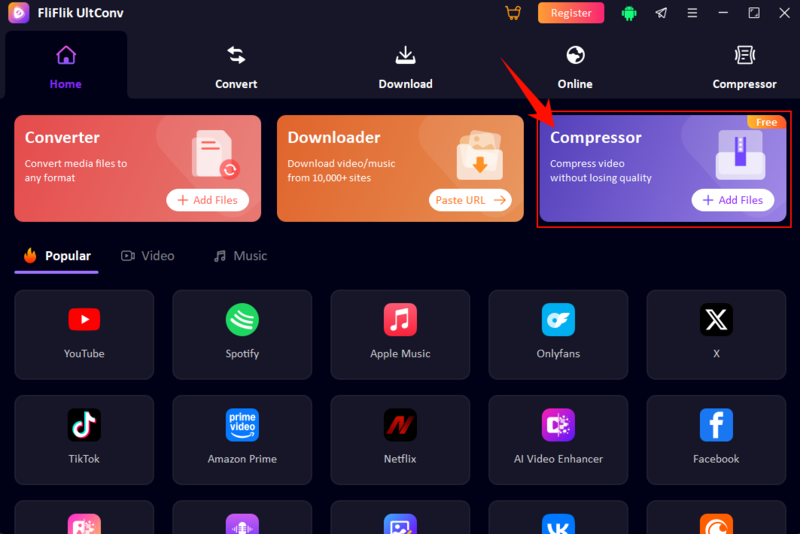
Install and open FliFlik UltConv on your computer. From the main interface, go to the Compressor section or click Add Files to import your YouTube video or any media file.
FREE DOWNLOAD![secure download]() Secure Download
FREE DOWNLOAD
Secure Download
FREE DOWNLOAD![secure download]() Secure Download
Secure Download
-
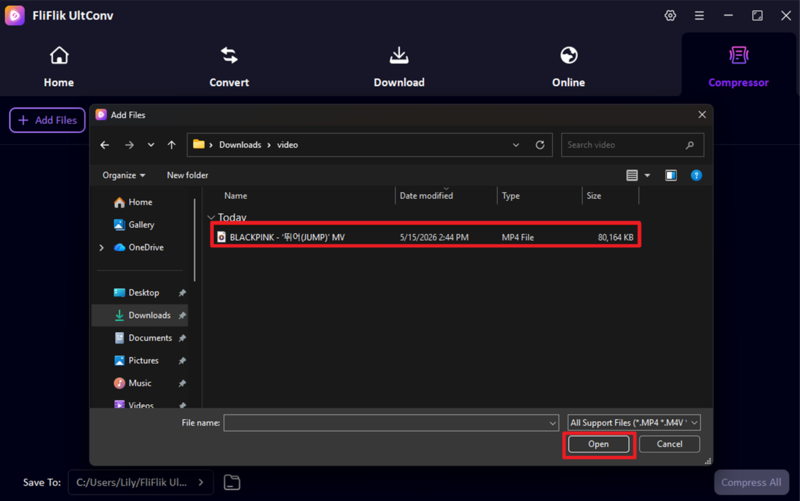
Select the video files you want to compress from your device. The tool automatically supports most common formats, so you don’t need to worry about compatibility issues.
-
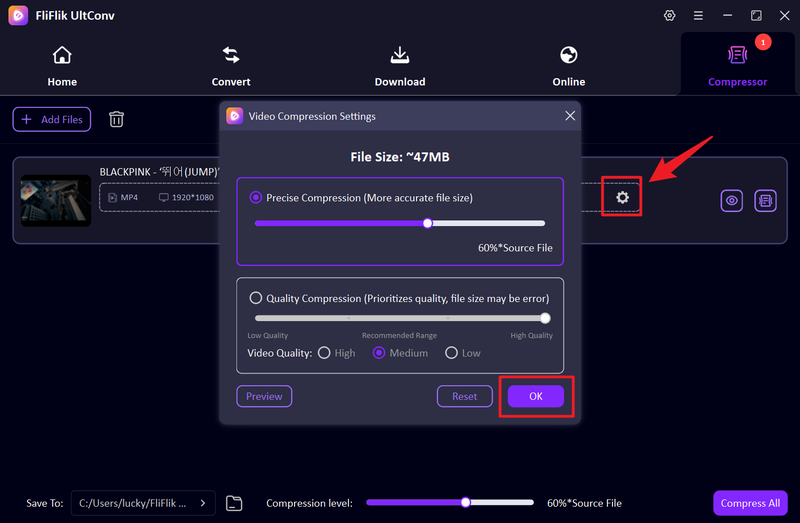
Open the settings panel to adjust compression options such as resolution, bitrate, and target file size based on your needs.
-
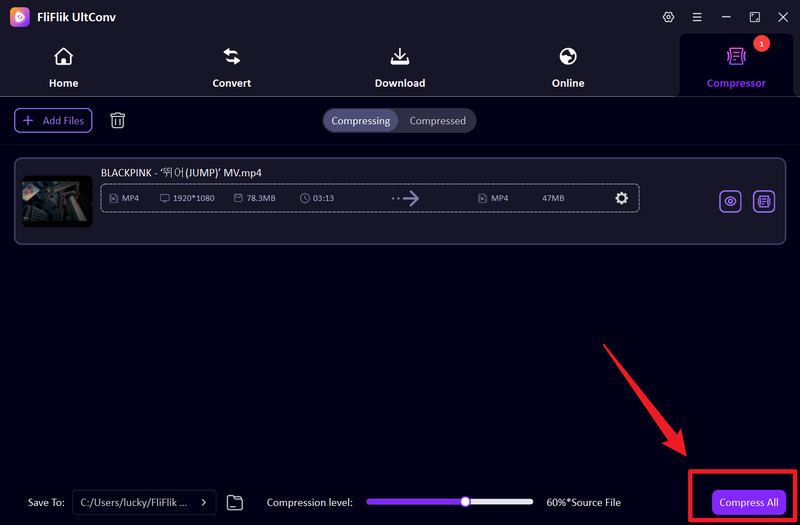
Click the Compress All button to start processing. You can compress multiple files at the same time for faster workflow.
-
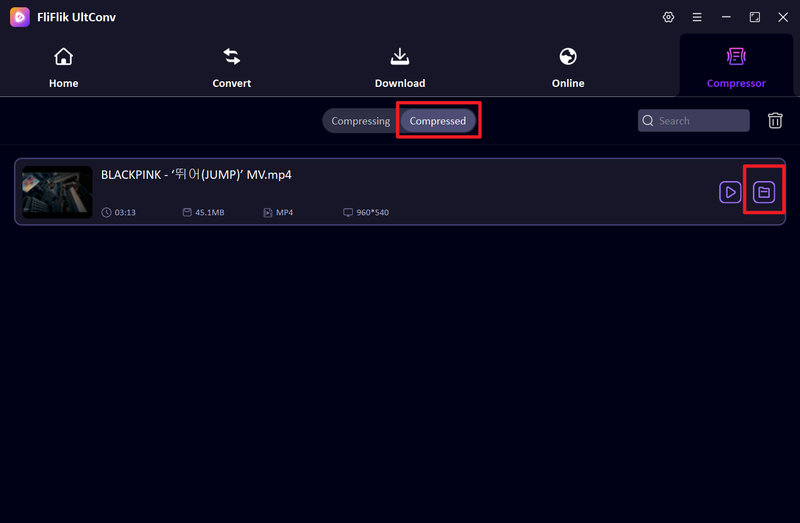
Once finished, open the Compressed section to preview your optimized videos and check final quality and reduced file size.


FAQs
Q1. How can I calculate video file size?
You can calculate video file size using bitrate, resolution, frame rate, and duration. Many online video size calculators help estimate storage needs before exporting or uploading your video.
Q2. What key factors influence my video’s file size?
The main factors are resolution (e.g., 1080p or 4K), bitrate, frame rate, compression level, codec type, and video length. Higher quality settings usually result in larger file sizes.
Conclusion
Choosing the right video size calculator saves time by accurately predicting storage needs for editing or uploading. By understanding how bitrate, resolution, and codecs impact your file, you can make smarter export decisions and avoid the frustration of “file too large” errors.
For those frequently dealing with oversized content, a reliable tool like FliFlik UltConv Video Compressor is essential. It offers an all-in-one solution to quickly shrink files while maintaining high quality, streamlining the workflow for both professional creators and everyday users.
 Secure Download
Secure Download
Secure Download