

 By
By  9 minutes read


You open Spotify, pick a song and say, “Hey Google, play this on my speaker,” and nothing happens. Or worse, Google Home just doesn’t recognize Spotify at all. Connecting Spotify to Google Home should be simple, but sometimes it just doesn’t work the way you expect. Maybe the app won’t link. Maybe Spotify doesn’t show up. Or maybe it connects, but the music won’t play.
In this article, we’ll share how to connect Spotify to Google Home step by step. Then we’ll share the quickest way to connect Spotify to Google Home without wasting time. And if you want more control over your music, we’ll also show you how to download Spotify songs for offline listening.

Part 1. Quick Steps to Connect Spotify to Google Home
Connecting Spotify to Google Home doesn’t take long, but a few steps can feel a bit hidden if you’re new to the app. Here’s a simple way to get everything linked and working.
- Step 1: Download and open the Google Home app on your phone. Make sure you’re signed in with your Google account.
- Step 2: Tap the “+” (Add) button in the top-left corner, then select Music.
-
Step 3:
Scroll through the list and find
Spotify, then tap
Link Account.
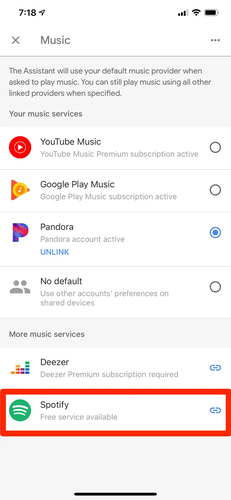
- Step 4: Log in to your Spotify account. You’ll be asked to allow permissions like accessing your account and controlling playback. Tap Agree to continue.
- Step 5: Once connected, set Spotify as your default music service (optional but helpful). This way, you won’t need to say “on Spotify” every time.
- Step 6: Try it out. Say something like: ” OK Google, play music on Spotify ” or ” OK Google, play Bad Bunny on Spotify ” That’s it. Once everything is linked, you can control Spotify hands-free using your Google Home device.

Part 2. Why Can’t I Connect Spotify to Google Home? 5 Easy Fixes
If Spotify still won’t connect or play on Google Home. Most of these issues are small, but they can be confusing if you don’t know what’s causing them. Here are the most common problems and how to fix them step by step.
Issue 1: Google Home App Not Finding Spotify
You open the Google Home app and go to the Music section, expecting to see Spotify listed, but it’s not there. This usually happens when there’s a mismatch between your account settings, especially region or country settings, which prevents Spotify from appearing as an available service.
▼ How to Fix: Match Your Account Regions
- Step 1: Open your Spotify account settings and check your country/region.
-
Step 2:
Open your Google account settings and check your region.
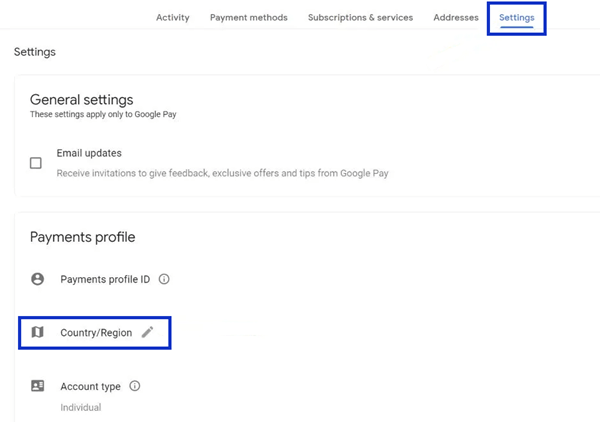
- Step 3: Make sure both accounts are set to the same country.
- Step 4: Log out of both apps and log back in again.

Issue 2: Spotify Keeps Cutting Out or Disconnecting
You manage to connect to Spotify, and music starts playing, but it suddenly stops or disconnects after a few seconds or minutes. This can happen randomly and makes listening frustrating. In most cases, it’s caused by a weak connection between your accounts or a temporary syncing issue between Spotify and Google Home.
▼ How to Fix: Relink Your Spotify Account
- Step 1: Open the Google Home app.
- Step 2: Go to Settings and tap on Music.
- Step 3: Find Spotify and tap Unlink account.
- Step 4: Link your Spotify account again and log in.
- Step 5: Restart your Google Home device.
Issue 3: The “Link Account” Button Doesn’t Respond
You tap the “Link Account” button, but nothing happens at all. There’s no loading screen or error message, which makes it confusing. This is usually caused by a small app glitch, an outdated app version, or cached data that is interfering with the linking process.
▼ How to Fix: Clear Cache & Restart/Update Devices
- Step 1: Clear the cache of the Google Home app (on Android).
- Step 2: Update the Google Home and Spotify apps to the latest version.
- Step 3: Restart your phone.
- Step 4: Open the app again and try linking Spotify.
Issue 4: “Something Went Wrong” Error During Linking
When trying to connect to Spotify, you see a “Something went wrong” message before the process completes. This usually points to a network issue or a mismatch between your device’s location and your account settings, which prevents proper verification.
▼ How to Fix: Verify Wi-Fi IP and Account Address
- Step 1: Make sure your phone and Google Home are connected to the same Wi-Fi network.
- Step 2: Check your IP location or network region settings.
- Step 3: Confirm your account address matches your current region.
- Step 4: Turn Wi-Fi off and on again, then retry linking.
Issue 5: Spotify Connected, but No Sound is Playing
Spotify shows as connected in the Google Home app, and everything looks fine, but no sound comes out of the speaker. This can be confusing because it seems like the setup worked. In most cases, it’s caused by low volume, the device being muted, or audio being sent to a different output.
▼ How to Fix: Check Volume Levels and Physical Mute
- Step 1: Check the volume level on your Google Home device.
- Step 2: Make sure the device is not muted physically.
- Step 3: Increase the volume using the app or voice command.
-
Step 4:
Restart the device and try playing music again.

Part 3. How to Download Spotify Music as MP3 for Offline Listening
If you want more control over your Spotify music, downloading tracks as MP3 files can make things a lot easier. Instead of relying on the app or internet connection, you can keep your music saved on your device and play it anytime. FliFlik UltConv Spotify Converter is designed to help you download Spotify songs, albums, playlists, and even podcasts, then convert them into formats like MP3 or FLAC.
You’re not locked into one format, which makes it easier to use your music across different devices. Another nice thing is the audio quality: it supports up to 320 kbps MP3, so your music still sounds good after conversion. And if you have a lot of music to save, the batch download feature helps you grab entire playlists or albums in one go.

- Download Spotify songs, playlists, albums, artists, and podcasts
- Convert to multiple formats like MP3, AAC, WAV, FLAC, and M4A
- Supports high-quality output up to 320 kbps MP3
- Keeps ID3 tags and metadata for easy organization
- Batch download multiple tracks, playlists, or albums at once
▼ Steps to Download Spotify Songs with UltConv Spotify Converter
-
Begin by downloading and installing the FliFlik UltConv Spotify Converter on your computer. After installation, launch the program to get started.
FREE DOWNLOAD![secure download]() Secure Download
FREE DOWNLOAD
Secure Download
FREE DOWNLOAD![secure download]() Secure Download
Secure Download
-
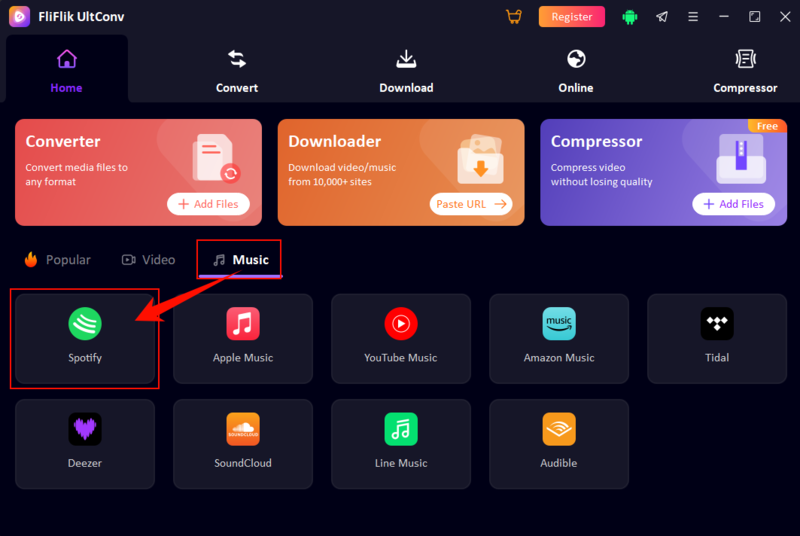
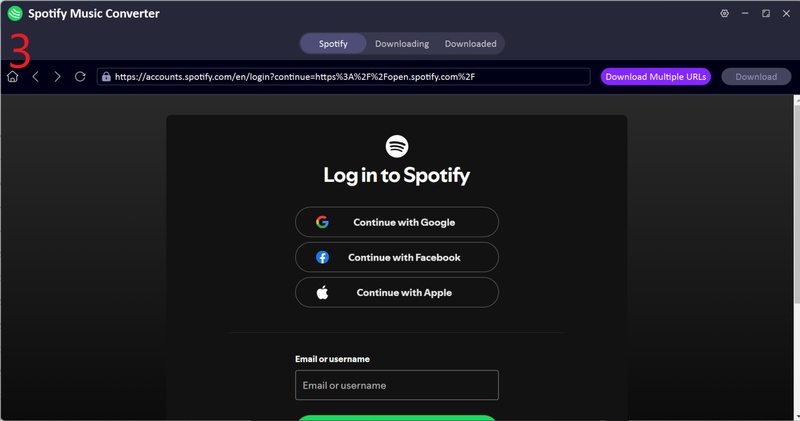
In the UltConv main interface, click on Spotify.
-
Sign in to your Spotify account directly through the built-in web player inside UltConv. Both free and premium Spotify accounts can be used.
-
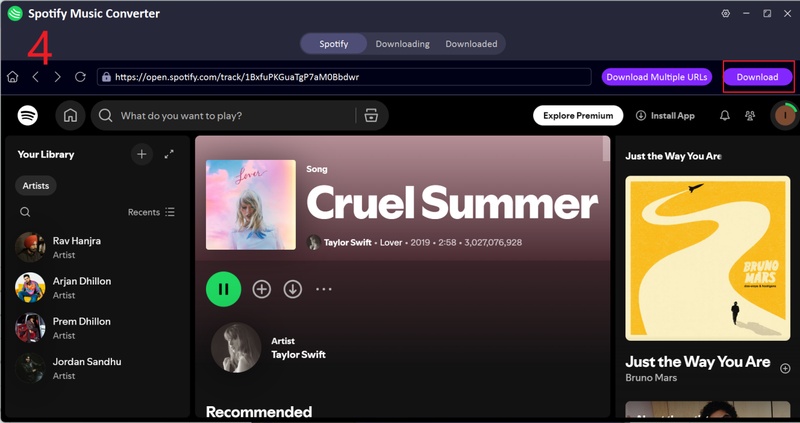
Browse your Spotify library and choose the songs, albums, or playlists you want to download. Once found, click the Download button.
-
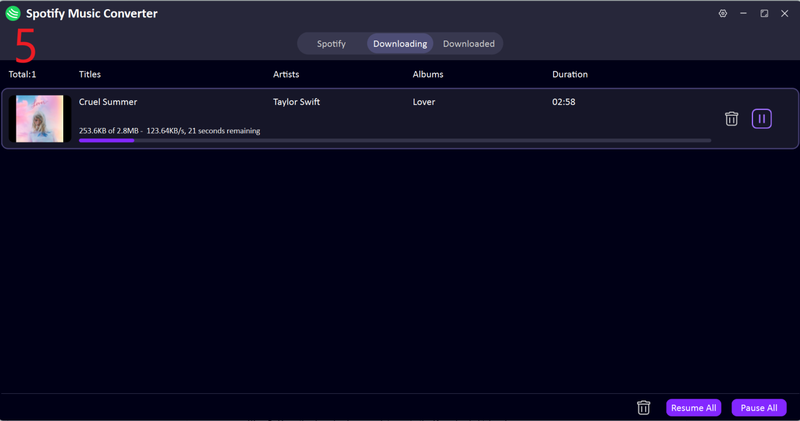
After the conversion process is complete, open the Downloaded section to access your saved music files, which include album art and metadata information.


FAQs
Q1. Can I connect Spotify to Google Home without a Premium account?
Yes, you can. Spotify Free users are allowed to connect Spotify to Google Home. However, there are some limits. You may hear ads between songs, and you won’t always be able to pick exact tracks using voice commands. With a Premium account, playback is smoother and more flexible, especially for on-demand music control.
Q2. Why is Spotify not showing up in the Google Home app?
This usually happens when there’s a settings mismatch or a temporary app issue. In most cases, it’s linked to region settings or outdated apps. Make sure your Google Home and Spotify apps are updated, and check that both accounts are set to the same country or region. Restarting the app or phone can also help refresh the available services list.
Conclusion
Getting Spotify to work with Google Home usually comes down to a few simple settings. Once everything is linked properly, it’s actually pretty smooth to control your music with just your voice. Most of the common issues, like connection errors, missing Spotify, or no sound, can be fixed with quick checks like updating apps, relinking accounts, or matching Wi-Fi and region settings.
If you also want more flexibility with your music beyond streaming, it helps to have an offline option. FliFlik UltConv Spotify Converter lets you download Spotify songs, playlists, and albums to MP3 formats. That way, you can keep your music saved on your device and play it anytime, even without internet or app restrictions.
 Secure Download
Secure Download
Secure Download
