

 By
By  7 minutes read


Opening a favorite creator’s profile and realizing there is no download button can be frustrating, especially when you have paid for access and want to watch the content later without relying on the internet. This is why many users look for a safe and practical way to download OnlyFans videos on iPhone, whether they are traveling, commuting, or dealing with an unstable connection. Since OnlyFans is built mainly for streaming, videos may become unavailable after you close the app or go offline.
Fortunately, if you’re wondering how to download OnlyFans videos on iPhone for personal offline viewing, several practical methods are available. In this guide, we’ll cover six effective options, including dedicated download tools, private browsers, browser-based methods, and iPhone screen recording.

- How to Download OnlyFans Videos on iPhone: 6 Methods Compared
- Part 1. Download Videos from OnlyFans on iPhone with Aloha Browser
- Part 2. Record OnlyFans Videos with iPhone’s Built-in Screen Recorder
- Part 3. Save OnlyFans Videos on iPhone with StreamFork
- Part 4. Download OnlyFans Videos on iPhone with Online Tools
- Extra Tip. Download Videos from OnlyFans on PC and Transfer Them to iPhone
- FAQs About Downloading OnlyFans Videos on iPhone
- Conclusion
Content Table:
How to Download OnlyFans Videos on iPhone: 6 Methods Compared
Each method works differently. Screen recording is the simplest option on an iPhone, while browser-based tools are better suited to occasional link-based downloads. A desktop downloader is more practical for larger files, multiple videos, and higher-quality output.
| Method | Device | Batch Download | Speed | Video Quality | Output Format | Ads / Pop-ups |
|---|---|---|---|---|---|---|
| Aloha Browser | iPhone | ❌ No | Varies by video | Depends on detected source | Usually MP4 | May include ads; limits vary by version or plan |
| iPhone Screen Recording | iPhone | ❌ No | Real-time recording | Depends on screen resolution | Usually MP4 or MOV | No ads or pop-ups |
| StreamFork | iPhone or computer | ⚠ Limited | Varies by video | Depends on detected source | Usually MP4 | May vary by version |
| Locoloader | iPhone browser | ❌ No | Depends on connection | Varies by source | MP4 when available | May contain ads or redirects |
| iViGo.cc | iPhone browser | ❌ No | Varies | Depends on available source | Usually MP4 | May contain ads or pop-ups |
| FliFlik UltConv | Windows/ Mac/ Android | ✅ Yes | 10× Fast downloading | Up to 4K when available | MP4, MKV, MOV, and 100+ formats | No browser ads or pop-ups |
Part 1. Download Videos from OnlyFans on iPhone with Aloha Browser
Aloha Browser is a privacy-focused browser for iPhone that includes a built-in media download manager. When it detects an accessible video, a download prompt may appear during playback, allowing you to save the file inside the app. It is convenient for occasional short clips, but it cannot reliably download playback-protected OnlyFans videos, and results may vary depending on the creator settings, app version, and current plan.

▼ Steps to Download OnlyFans Videos with Aloha Browser:
-
Step 1: Open the App Store, search for Aloha Browser, and install it on your iPhone.
-
Step 2: Launch Aloha, visit the official OnlyFans website, sign in, and open the video you are authorized to access.
![visit onlyfans in aloha browser]()
-
Step 3: Play the video. When Aloha detects a supported media file, tap the download prompt and wait for the process to finish.
![download onlyfans video in aloha]()
-
Step 4: Open Aloha’s Downloads folder to find the saved file. When supported, export it to the Files or Photos app for easier playback.


- Runs directly on an iPhone.
- Includes a built-in download manager.
- Convenient for occasional short videos.
- Cannot reliably save playback-protected videos.
- Some videos may produce a black screen or audio-only file.
- Download availability and limits may vary by version or plan.
Part 2. Record OnlyFans Videos with iPhone Screen Recording
The iPhone’s built-in Screen Recording feature captures a video as it plays and saves the recording to the Photos app. It requires no additional software, but recording happens in real time and the final quality may be lower than the original stream.
▼ Steps to Record OnlyFans Videos on iPhone:
-
Step 1: Make sure Screen Recording is available in Control Center. When the icon is missing, add it through the Control Center settings on your iPhone.
![enable screen recording on iphone]()
-
Step 2: Open the OnlyFans post or message video in Safari and confirm that it plays normally.
-
Step 3: Swipe down from the upper-right corner to open Control Center. Tap the Screen Recording icon and wait for the three-second countdown.
![start recording onlyfans video on iphone]()
-
Step 4: Return to OnlyFans and play the video in full-screen mode. Avoid opening notifications or switching to another app during recording.
-
Step 5: Tap the red recording indicator when playback ends and select Stop. The recording will appear in the Photos app.


- No additional app is required.
- The recording is saved directly to Photos.
- Suitable for short videos and occasional use.
- The video must play from beginning to end.
- Notifications may appear in the recording.
- Some protected videos may show a black screen or no audio.
Part 3. Save OnlyFans Videos on iPhone with StreamFork

StreamFork is a third-party tool that may detect and save supported OnlyFans videos that you are authorized to access. Its available workflow may include a browser extension or a separate app, depending on the current version.
Direct use on an iPhone may be limited, so the more practical option is often to download the video on a computer and transfer it through AirDrop, iCloud Drive, or a USB cable. File availability, output quality, and download success depend on how the video is delivered and whether StreamFork can detect the media.
▼ Steps to Save OnlyFans Videos with StreamFork:
-
Step 1: Visit the official StreamFork website and follow the current installation instructions for its supported browser or app.
-
Step 2: Open the supported StreamFork workflow and sign in to the OnlyFans account that can access the video.
-
Step 3: Navigate to the creator post or message containing the video and begin playback so StreamFork can attempt to detect it.
-
Step 4: When a download option appears, choose an available resolution and save the file.
![steps to download onlyfans videos with streamfork]()
-
Step 5: Transfer the downloaded file to your iPhone with AirDrop, iCloud Drive, or a USB cable when it was saved on a computer.

- May save the original video file instead of recording the screen.
- Does not require real-time recording when detection works.
- Downloaded files can be transferred to an iPhone.
- Not every OnlyFans video can be detected.
- Mobile support may be more limited than desktop use.
- Availability and compatibility may change over time.
Part 4. Download OnlyFans Videos on iPhone with Online Tools
Online tools require no software installation, but they usually have lower success rates with private, subscriber-only, or protected OnlyFans videos. They are better suited to occasional downloads when you already have a direct and accessible video link.
1. Locoloader

Locoloader is a browser-based downloader that accepts supported video links without requiring a separate application. It may be useful for saving an occasional accessible video, but private pages and protected streams may not be detected.
▼ Steps to Download OnlyFans Videos with Locoloader:
-
Step 1: Open Locoloader’s OnlyFans downloader in Safari or another browser.
-
Step 2: Sign in to OnlyFans separately and copy the link to the video you have permission to save.
-
Step 3: Paste the link into Locoloader’s input box and start the detection process.
-
Step 4: Select an available file or quality option and save the video to the Files app.

- No installation is required.
- Works through a mobile browser.
- Suitable for occasional link-based downloads.
- May fail with private or protected videos.
- No reliable batch download support.
- Video quality depends on the detected source.
2. iViGo.cc

iViGo.cc is another web-based downloader that processes supported video links in a browser. It does not require an app, although download results depend on whether the site can access and recognize the source video.
▼ Steps to Download OnlyFans Videos with iViGo.cc:
-
Step 1: Open iViGo.cc in Safari or another browser.
-
Step 2: Copy the link to an OnlyFans video that you are authorized to access.
-
Step 3: Paste the link into the download box and wait for the site to analyze it.
-
Step 4: Choose an available resolution and save the video to your device.

- Runs entirely in a browser.
- No account is required for the downloader itself.
- May provide several output options.
- Protected videos may not be detected.
- Download speed depends on the connection.
- It is not designed for downloading multiple videos together.
Extra Tip. Download Videos from OnlyFans on PC and Transfer Them to iPhone
Mobile methods are convenient for one or two short videos, but they are less practical for large files or multiple downloads. FliFlik UltConv OnlyFans Downloader runs on Windows, Mac and Android, allowing supported OnlyFans videos to be saved locally before they are transferred to an iPhone.
This method is better suited to users who need batch processing, multiple output formats, or higher available resolutions. The downloaded files can be moved to an iPhone with AirDrop, iCloud Drive, Finder, or a USB cable.

- Download supported OnlyFans videos in resolutions up to 4K.
- Batch download multiple videos or collections.
- Save OnlyFans videos as MP4 and other common formats.
- Also supports JustforFans, Fansly, ManyFans, Patreon, etc.
- Remove DRM from OnlyFans videos to watch anywhere.
▼ Steps to Download OnlyFans Videos with FliFlik UltConv:
-
Step 1: Download and install FliFlik UltConv OnlyFans Downloader on a Windows PC or Mac.
-
Step 2: Launch the program, open the built-in browser, and visit the official OnlyFans website.
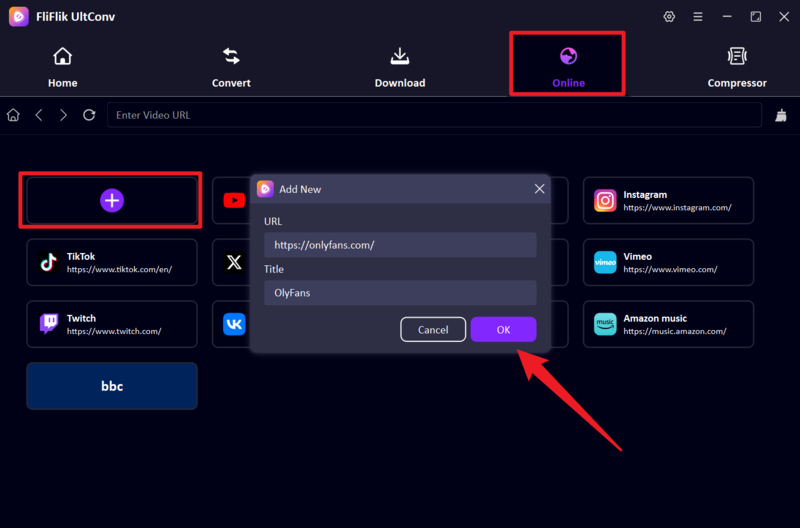
-
Step 3: Sign in to your OnlyFans account and locate the video you are authorized to save.
![sign in to onlyfans through ultconv]()
-
Step 4: Play the video and click Download when FliFlik UltConv detects the available media.
![download onlyfans video with ultconv]()
-
Step 5: Open the output folder after the download finishes, then transfer the file to your iPhone through AirDrop, iCloud Drive, Finder, or a USB cable.
![onlyfans video downloaded with ultconv]()


Part 5. FAQs About Downloading OnlyFans Videos on iPhone
Conclusion
When deciding how to download OnlyFans videos on iPhone, choose the method based on the number of videos, the available source quality, and whether the video can be detected directly. Screen Recording is suitable for one short clip, while Aloha Browser, StreamFork, and online tools may work with supported videos without requiring real-time recording.
For multiple videos, larger files, or higher available quality, downloading them on a computer is usually more practical. FliFlik UltConv supports batch downloading and local file management, after which the saved videos can be transferred to an iPhone through AirDrop, iCloud Drive, Finder, or a USB cable.
 Secure Download
Secure Download
Secure Download
